New article
Recently updated
How to Send a Welcome or Responsibility Email in Assurance

When new Users come onboard, you are able to send them a Welcome Email either in bulk or individually (if you are a Super User or have Business Unit Manager or Administrator rights). This email prompts the User to set a password.
There is also the ability to remind Users of their responsibilities assigned to them in the system. This is a manual notification which compiles a list of all open responsibilities and assignments into the one email.
Note: Welcome and Responsibility Emails can be sent even when email notifications have been turned off in the Organisation Settings.
In this article, you will learn about:
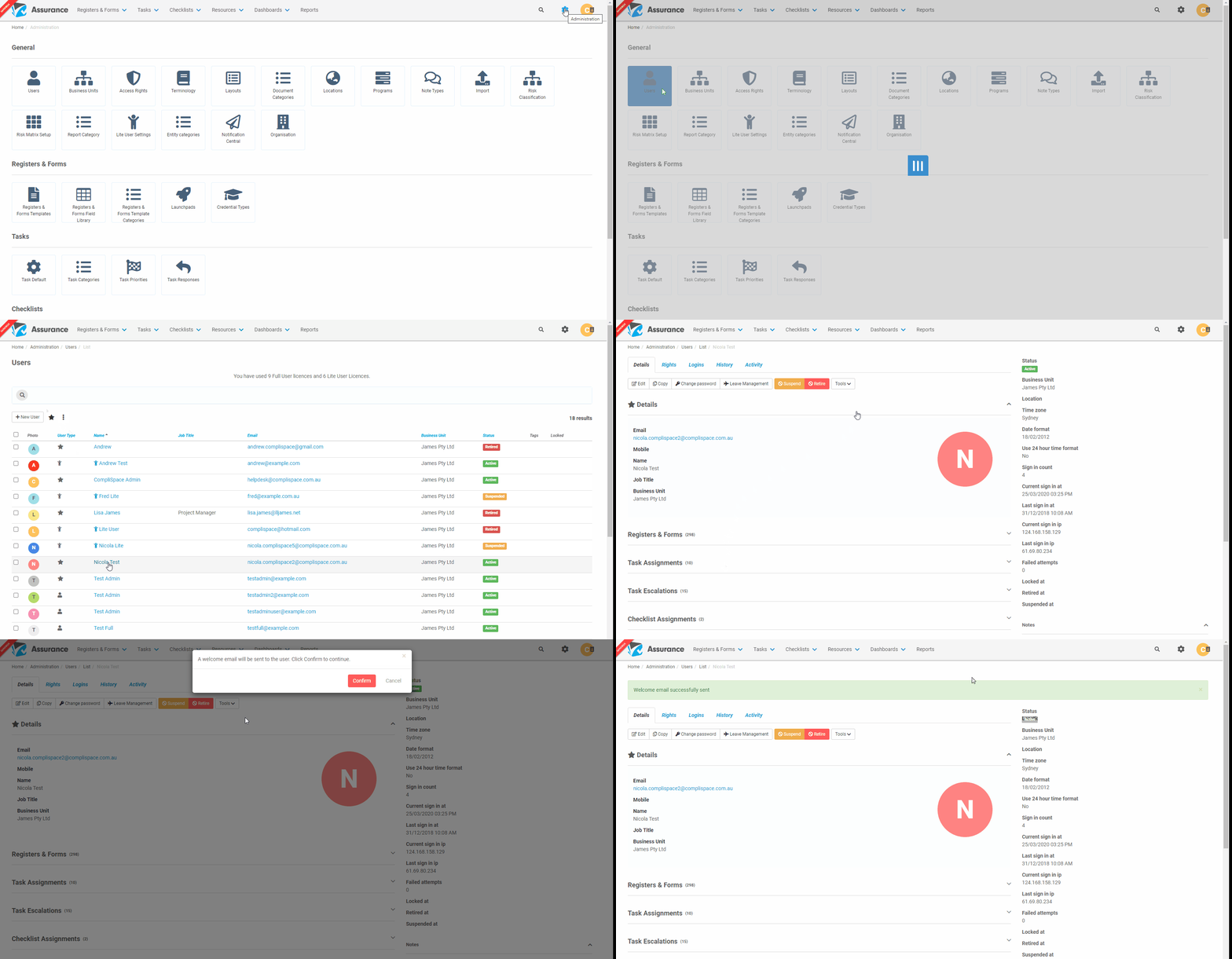
- Sending a Welcome or Responsibility Email to a Single User
- Example Welcome and Responsibility Email Text
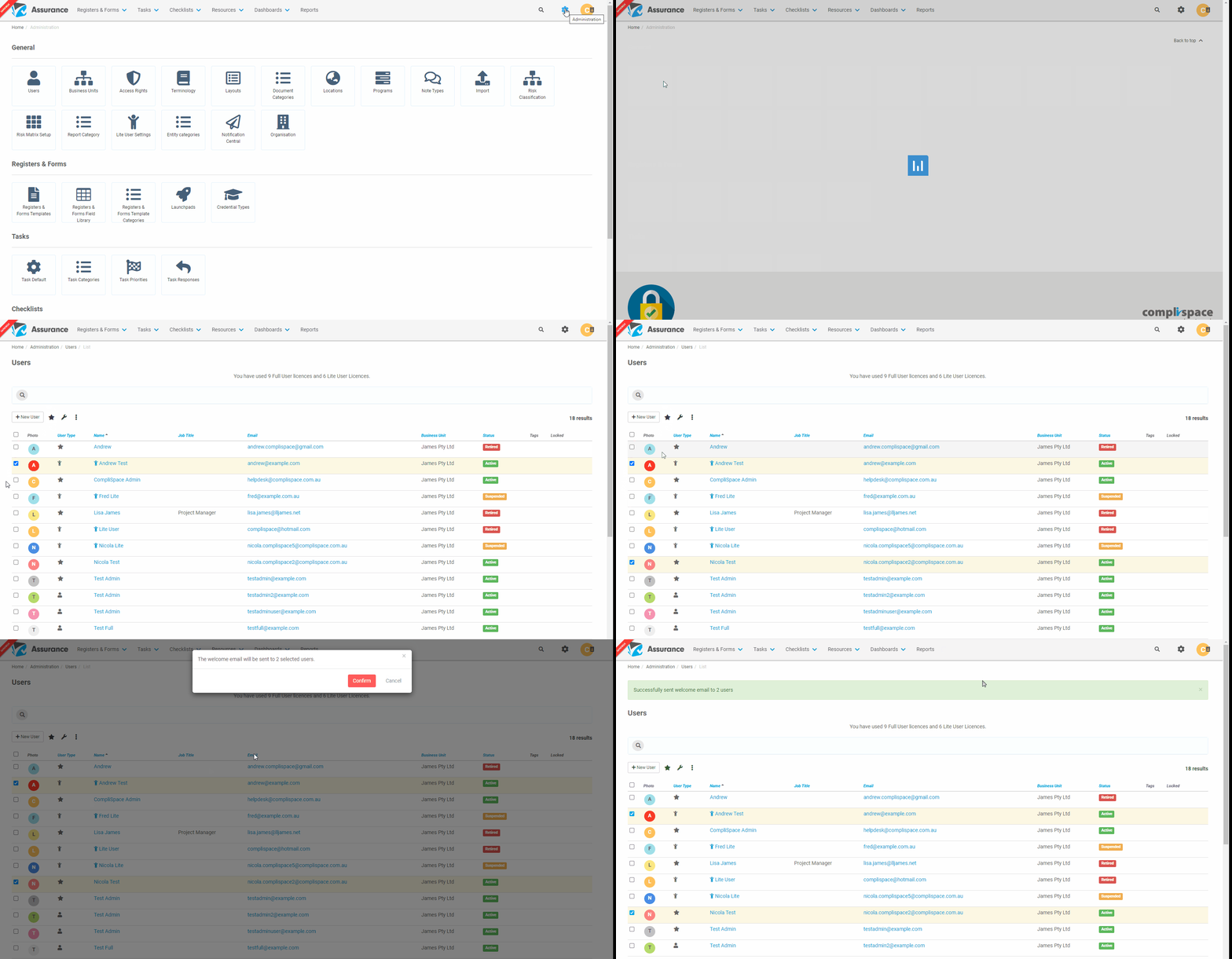
- Sending a Welcome or Responsibility Email in Bulk to Multiple Users
Sending a Welcome or Responsibility Email to a Single User
- From the Administration section, select Users
- Select the relevant User
- Select on Tools (last button on the right under the Details tab) and select Send Welcome Email or Send Responsibility Email
- Select Confirm
A message will then be displayed on the top of the screen notifying you that the Email has been successfully sent.
Example Welcome and Responsibility Email Text
A sample Welcome Email text is presented below:
A sample Responsibility Email text is presented below. It will list if any tasks/actions or checklist assignments are overdue as well. There are links within the emails which will take the user directly to Assurance.
Sending a Welcome or Responsibility Email in Bulk to Multiple Users
- From the Administration section, select Users
- Tick the boxes next to each User that is to receive the Welcome/Responsibility Email, or select all by clicking on the very top box, which is under the + New User button.
- Select on the Tools Spanner icon (an icon next to the + New User button) and select Send Welcome Email or Send Responsibility Email.
A pop up box will ask you to confirm that you want to send the Email to the number of users selected.
- Select Confirm
A message will then be displayed on the top of the screen notifying you that the Email has been successfully sent.