


New article
Recently updated
What is a Learning Transcript and How do I Access it on CompliLearn - Learner Guide

Individual users can download a PDF report of all learning they have completed in the portal. The transcript includes details of completed learning (courses, stand alone resources, awards and external learning records) sorted by completion date. The transcript includes the training name, provider, length (if provided), and date completed.
For Learners
Step-by-Step Guide
-
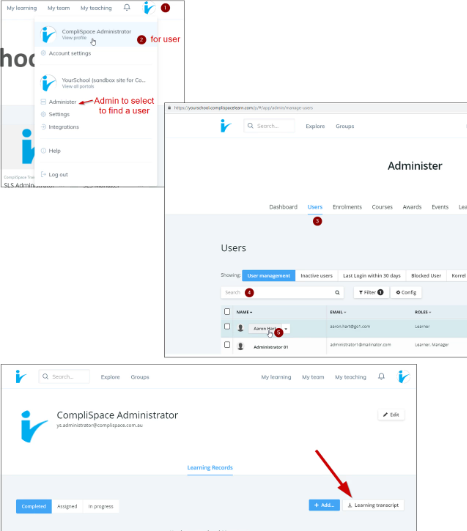
Click the login name in the top right
-
Select View Profile
-
Click on the Learning transcript button
For Admins (Content administrator)
Step-by-Step Guide
-
Go to Administer/Users
-
Search for the user
-
Click on the user to view their profile
-
Click on the Learning transcript button
Award Transcripts
A PDF transcript can downloaded for each Award. The transcript includes the name and type (e.g. course, video, etc) of the training in the Award, credits and completion date. For Awards with track external learning enabled it will also include the delivery method and categories, where included.
For Learners
Step-by-Step Guide
-
Go to the Award
-
Select Learning Records
-
Click on Download transcript button
For Admins (Content administrator)
Step-by-Step Guide
-
Go to the Award
-
Select Reports
-
Search for the specific user
-
In the report table, under Actions, click the three-dot button (note: there are several three-dot buttons on this screen)
-
Select View details
-
Click on the Download transcript button