New article
Recently updated
How to Define Selectable Business Units

Administrators can determine which business units can be selected by the submitter of an individual registers and forms template.
This guide provides step-by-step instructions on how to:
Add the Business Units Field to a Register and Form Template
Define Selectable Business Units in a Register and Form Template
To Add the Business Units Field to a Register and Form Template
1. Click Gear in the top menu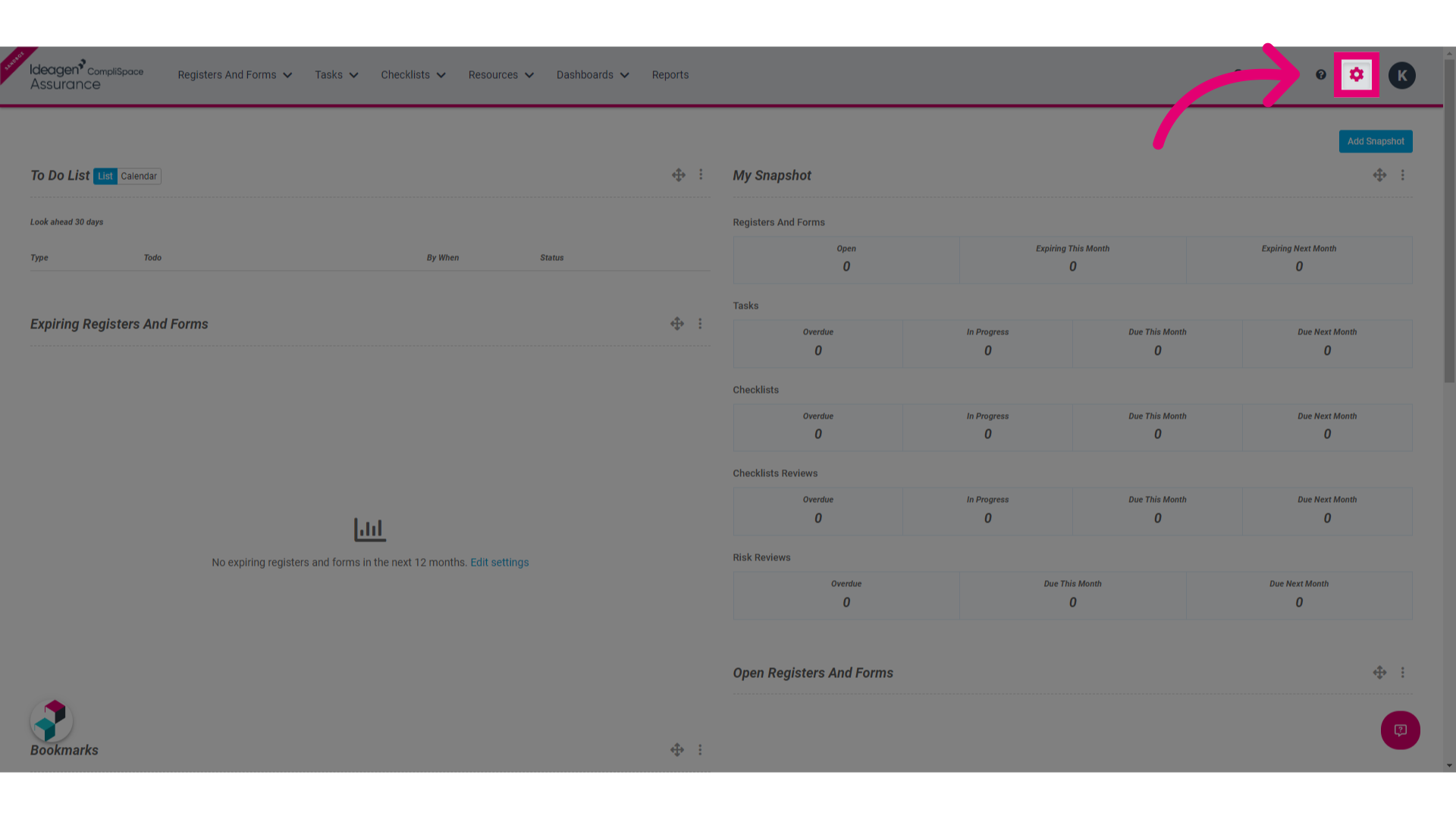
2. Click the Registers And Forms Templates button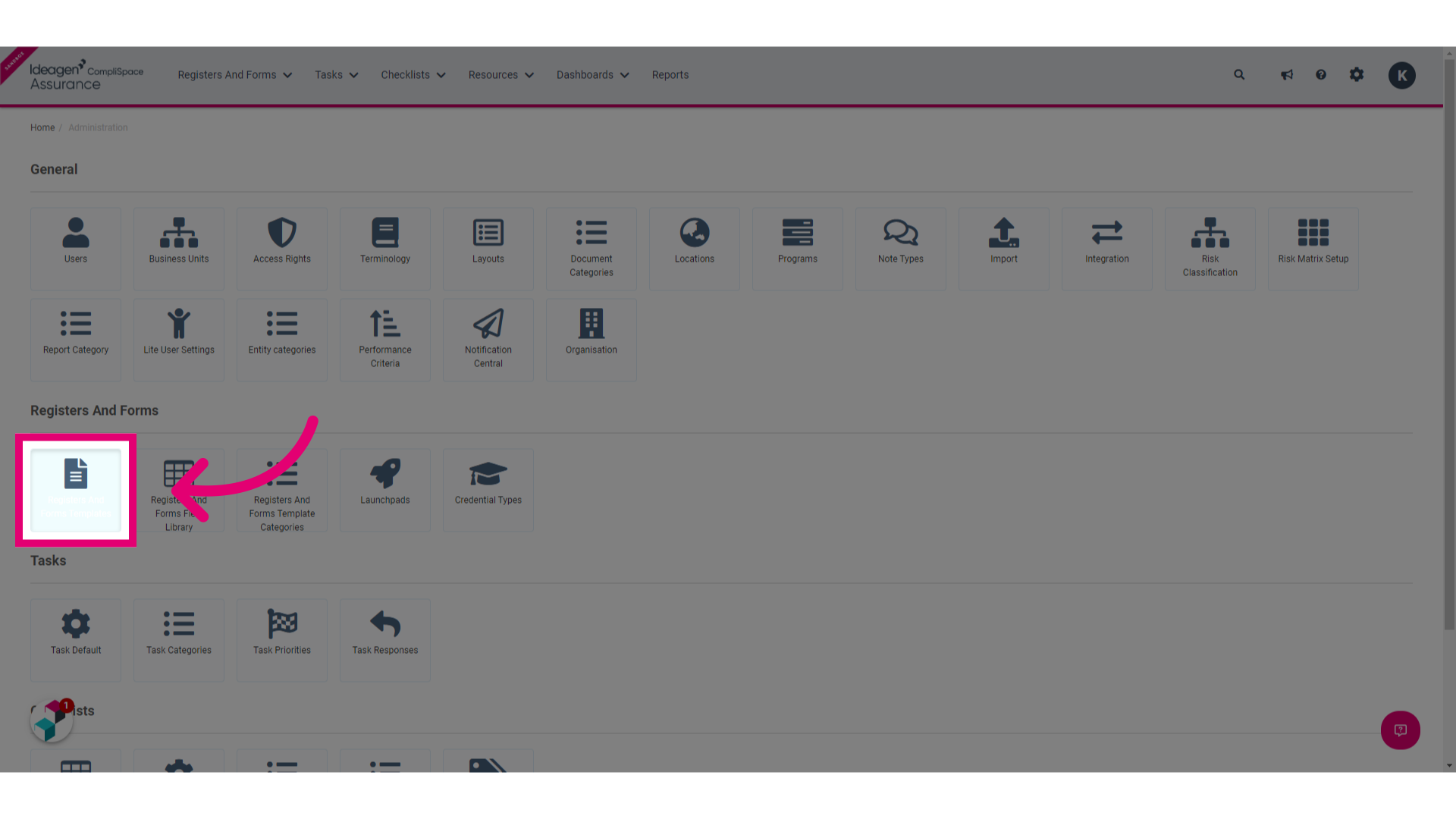
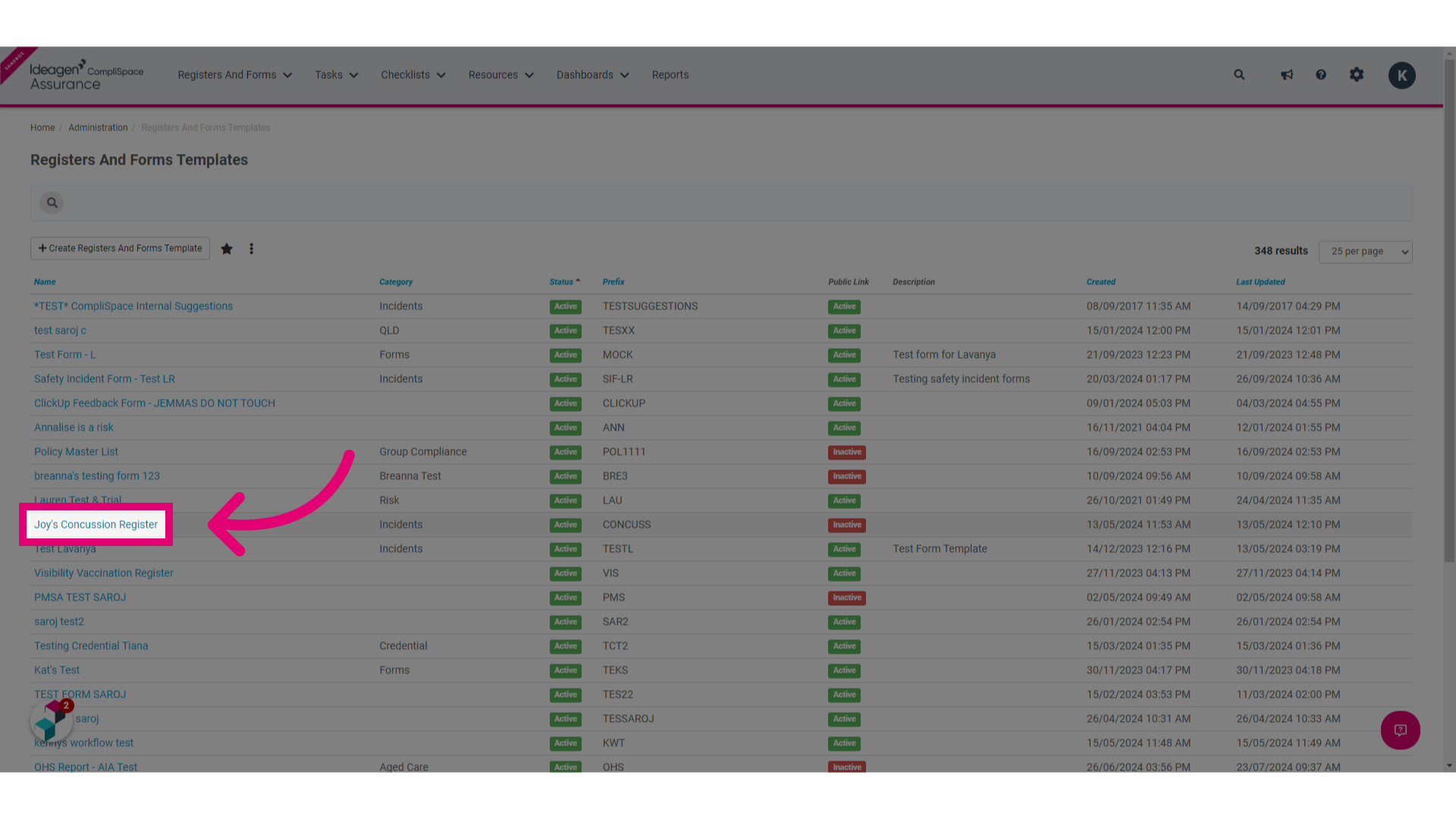
3. Click the name of the template that you would like to add the Business Unit field to
4. Click the Fields tab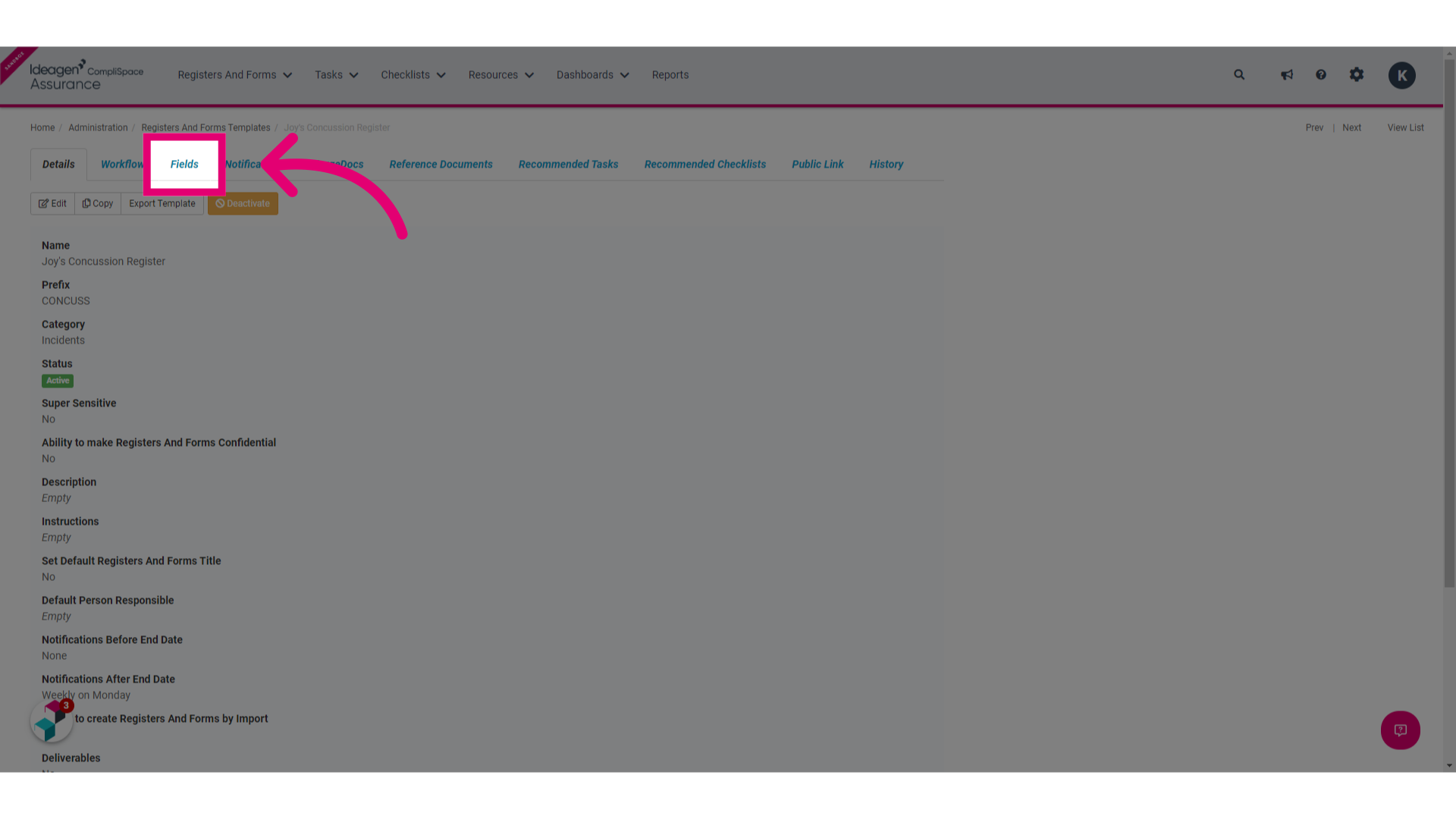
5. Click the New Field button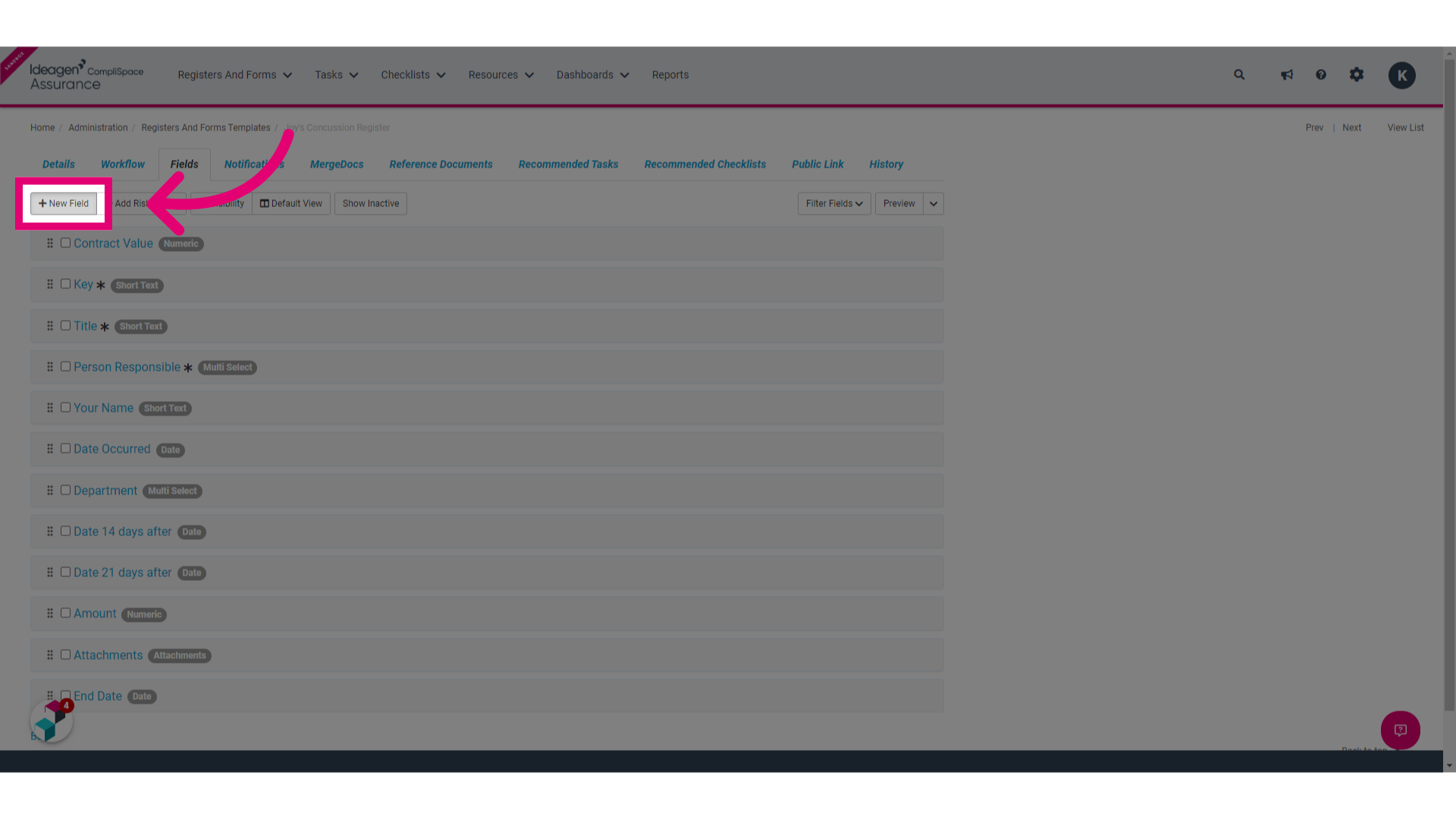
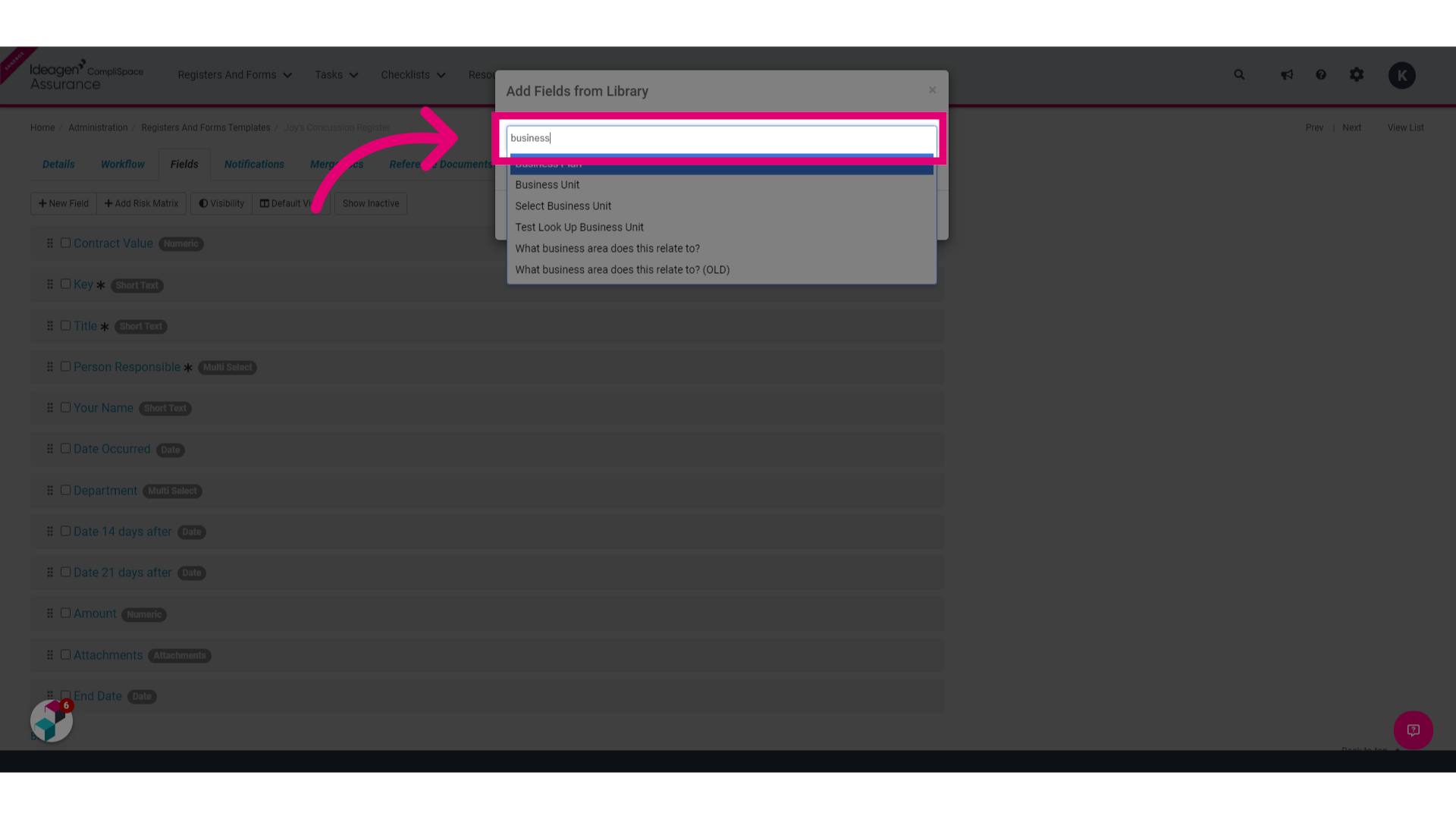
6. Type Business Unit in the space provided
7. Select Business Unit from the dropdown menu that appears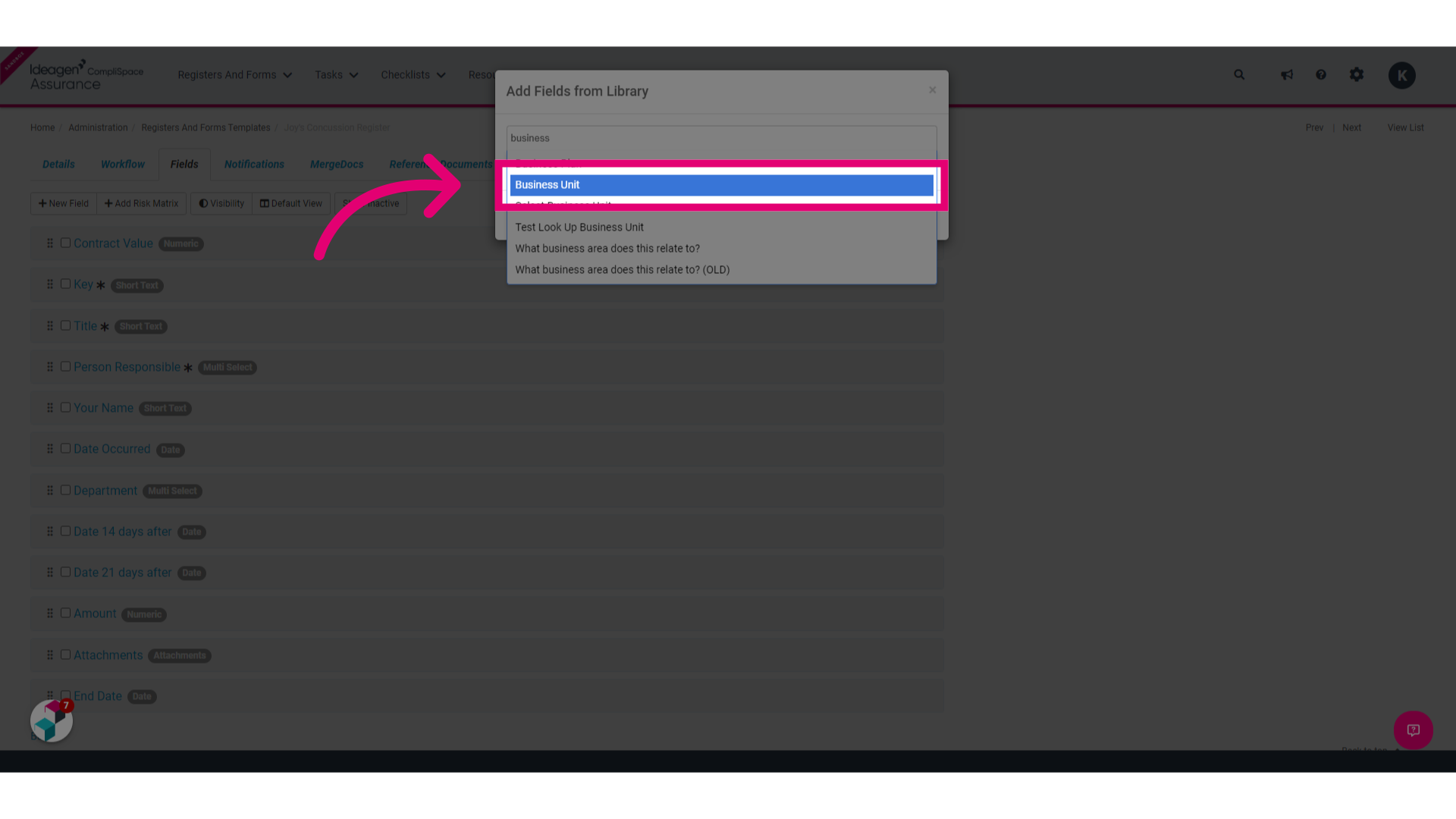
8. Click Add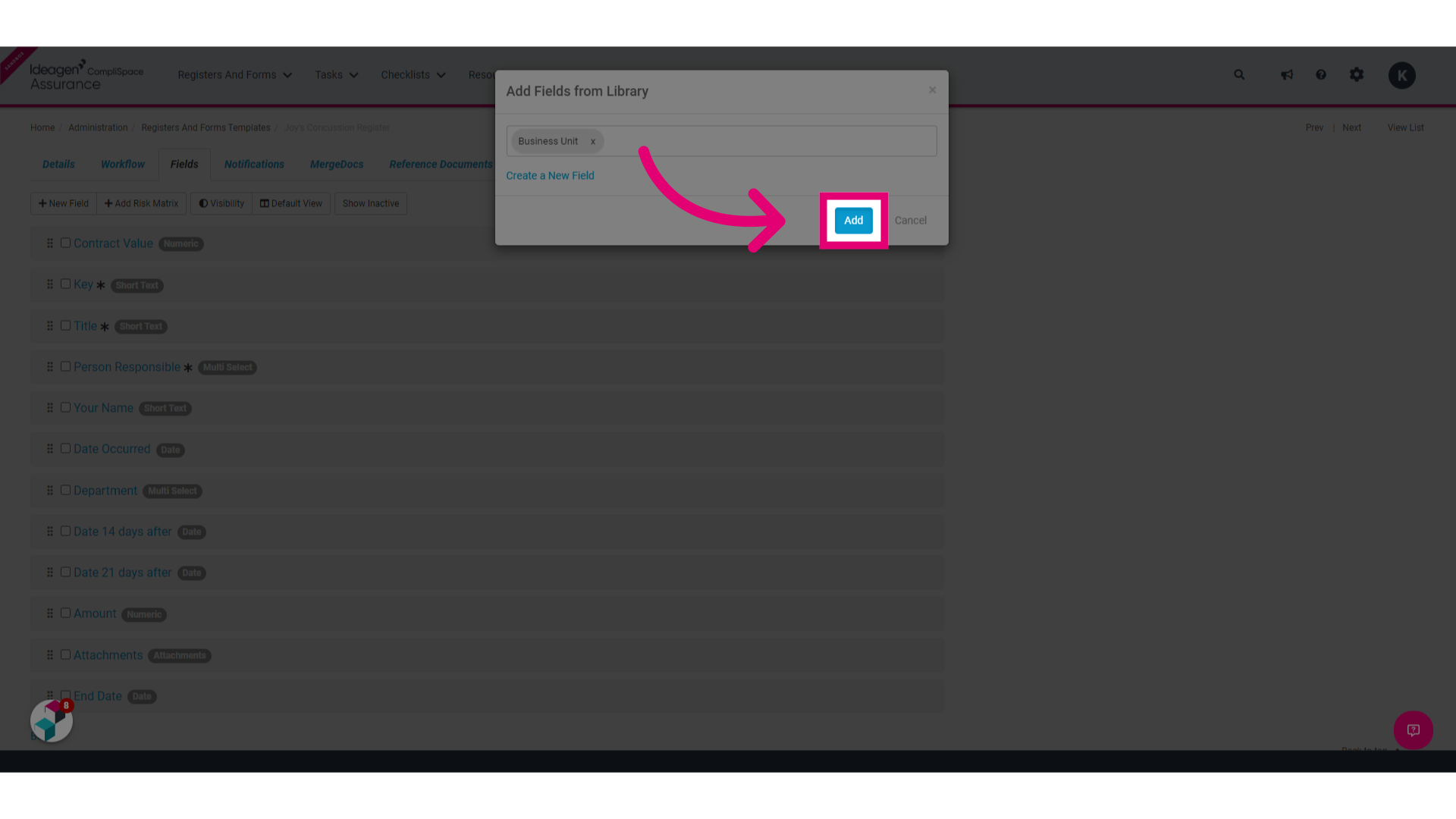
To Define Selectable Business Units in a Register and Form Template
1. Click the Gear in the top menu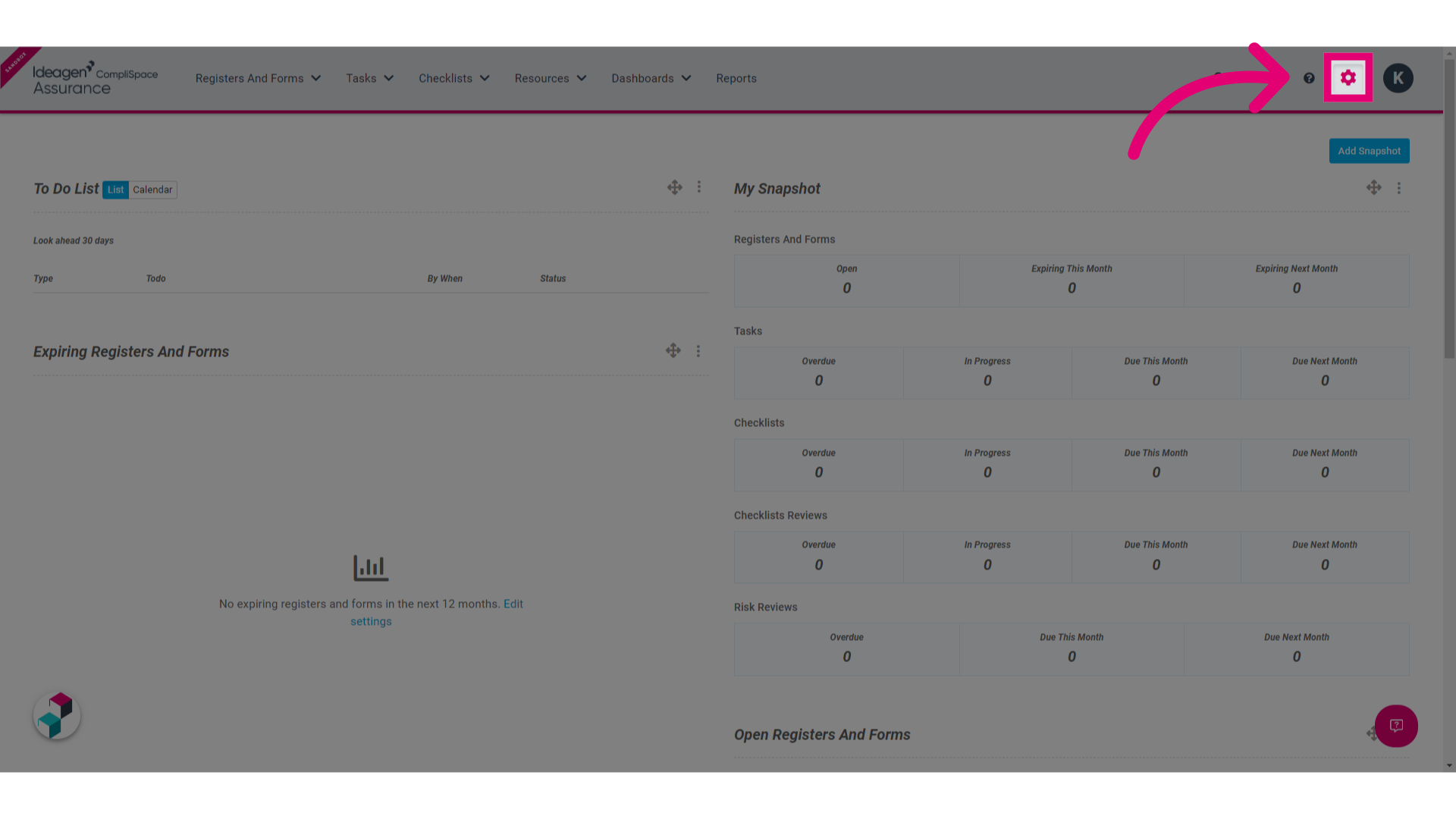 2. Click the Registers and Forms Template button
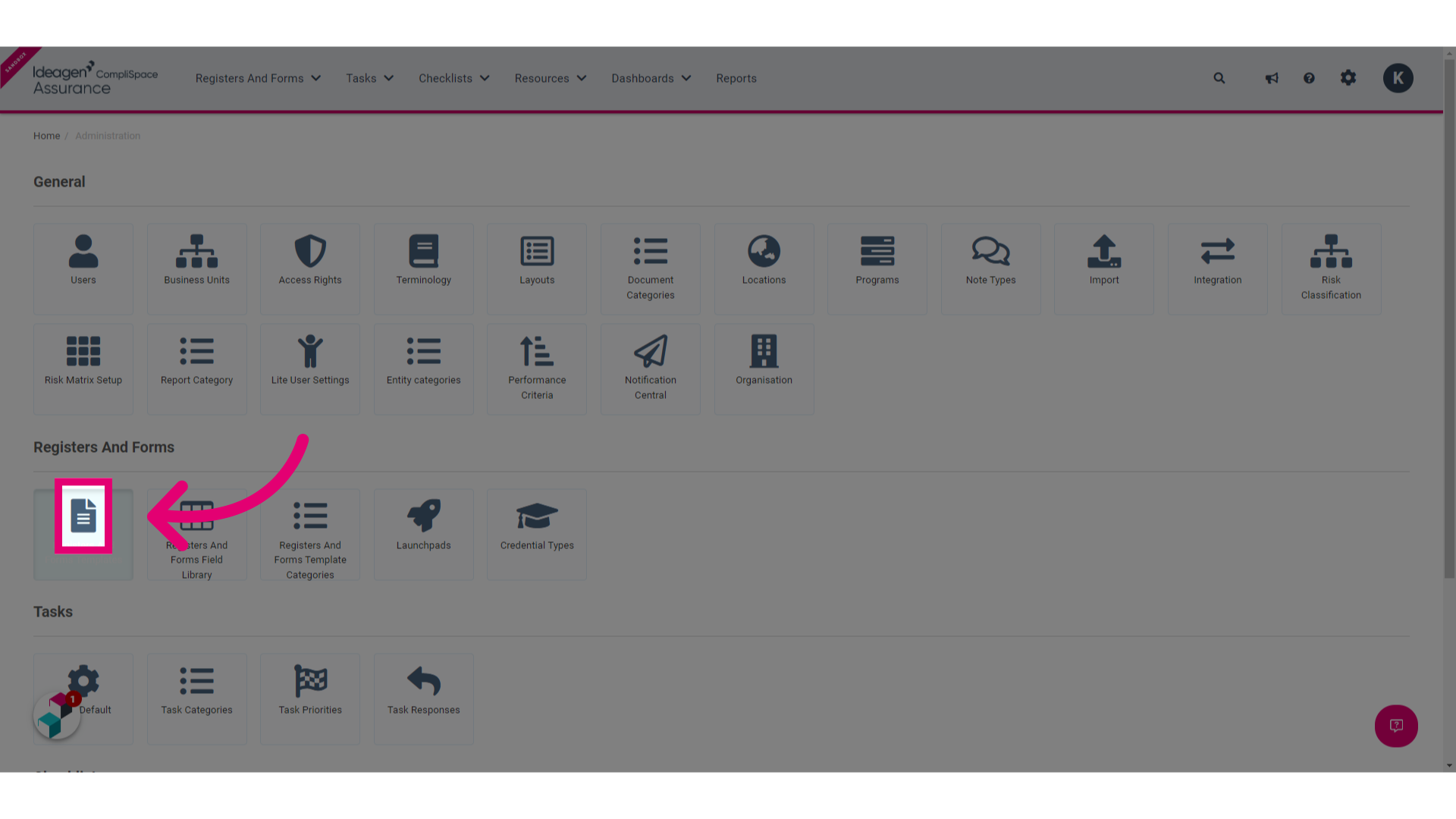
3. Click the name of the template you would like to define selectable business units for
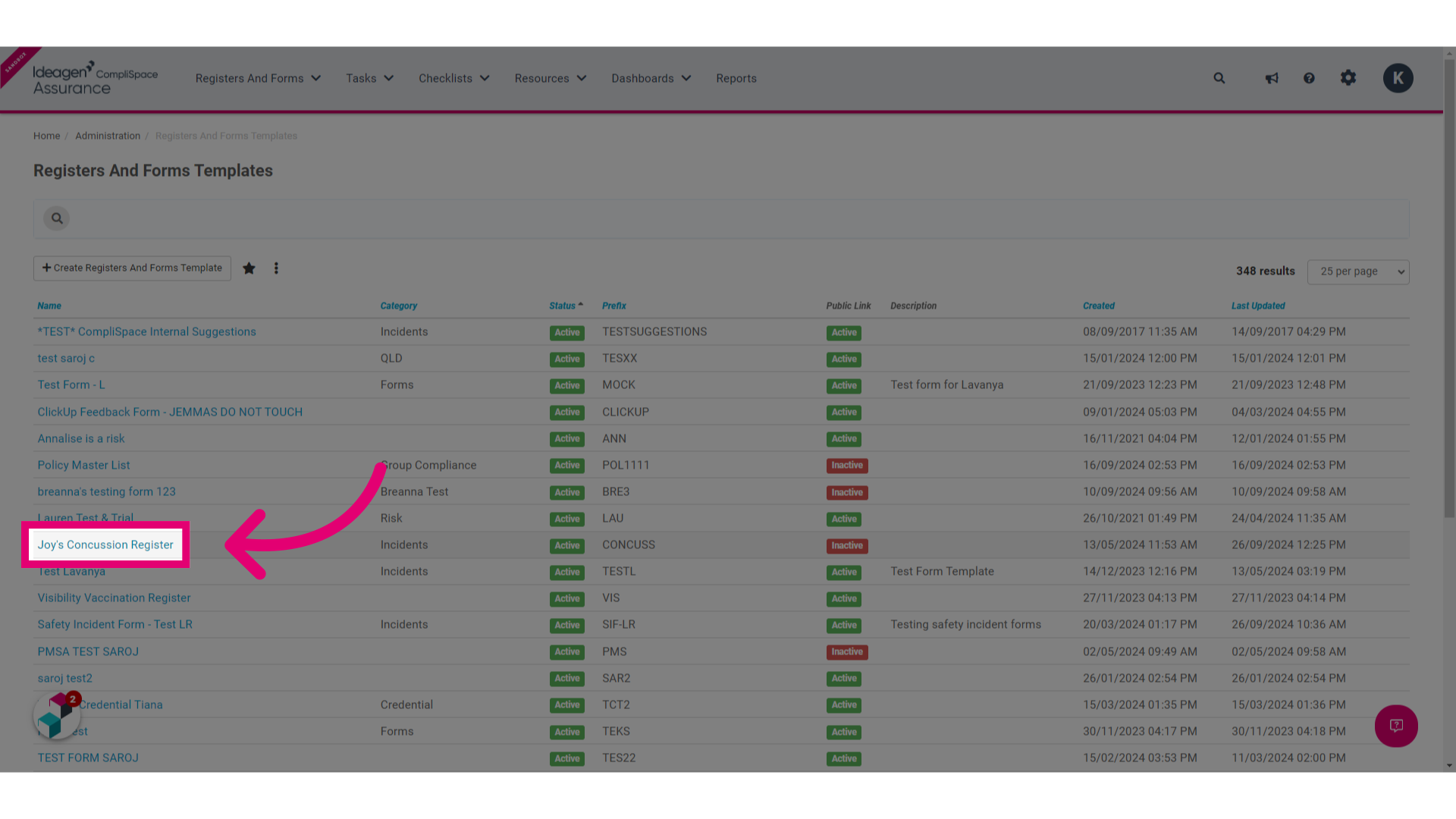
4. Click the Edit button
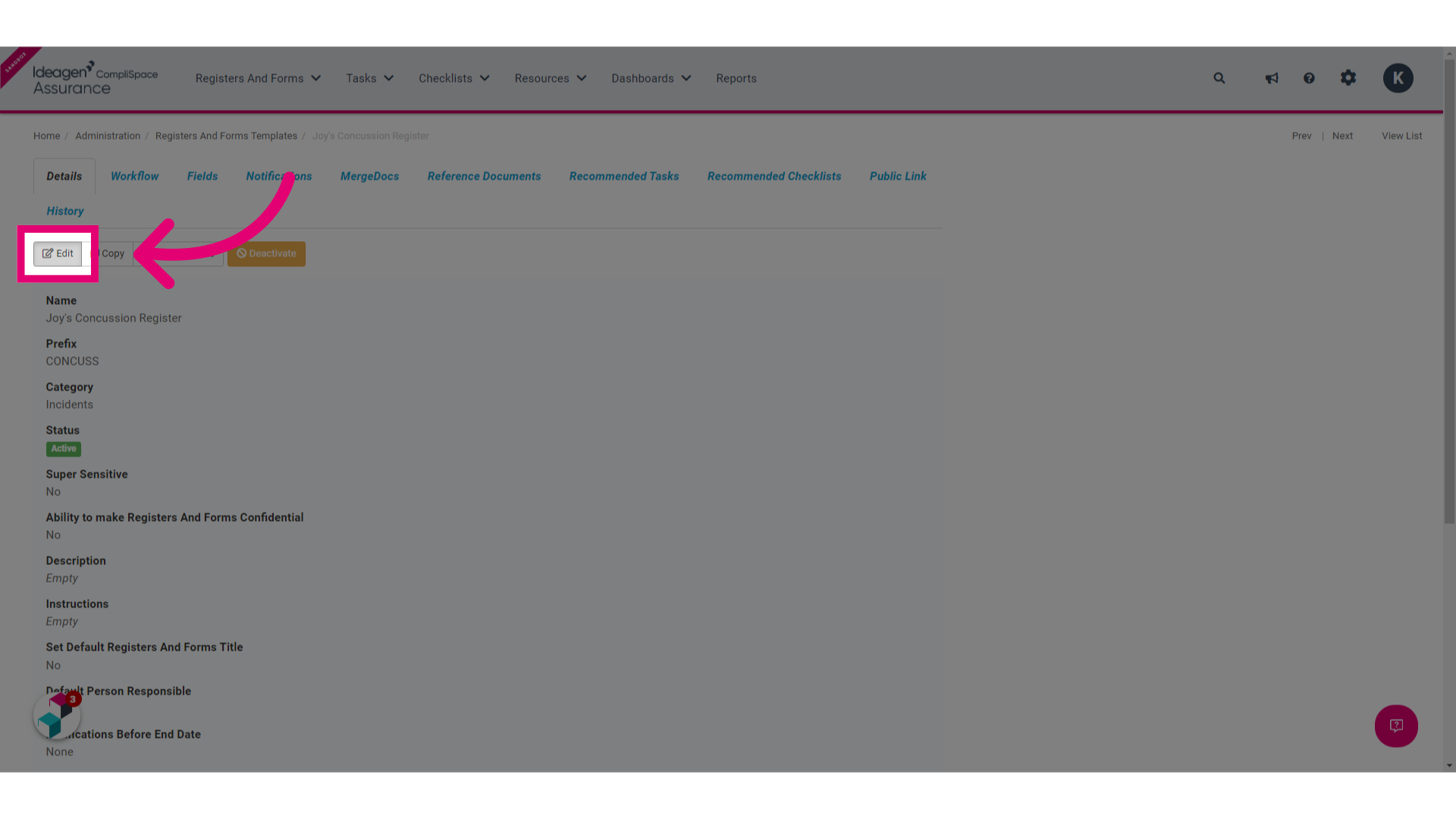
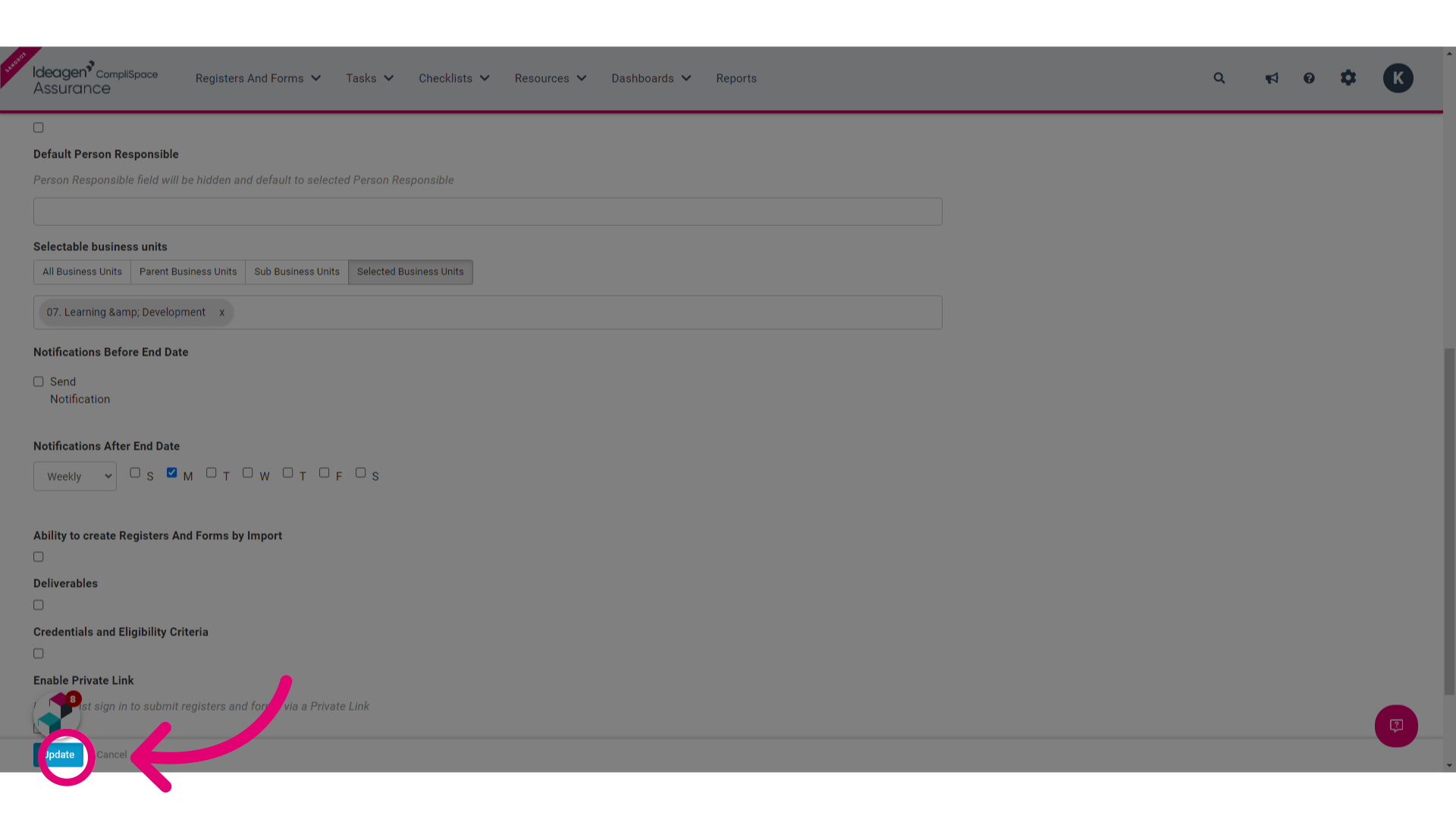
5. Beneath the heading Selectable business units, you have four options available to you:
- All Business Units: By default, all business units can be selectable by the form submitter unless otherwise customised by an administrator.
- Parent Business Units: Only top level business units as set up in the business unit hierarchy can be selectable by the form submitter.
- Sub Business Units: Only child level business unit as set up in the business unit hierarchy can be selectable by the form submitter.
- Selected Business Units: An administrator can define specific business units that will be selectable by the form submitter.
Please note:
- The Selectable business unit field will only display if a register template contains the business unit field. To add the business unit field please follow the steps at the beginning of this guide.
- Selectable business units will need to be customised for each individual register template, if required.
In this example we have selected the Selected Business Units option
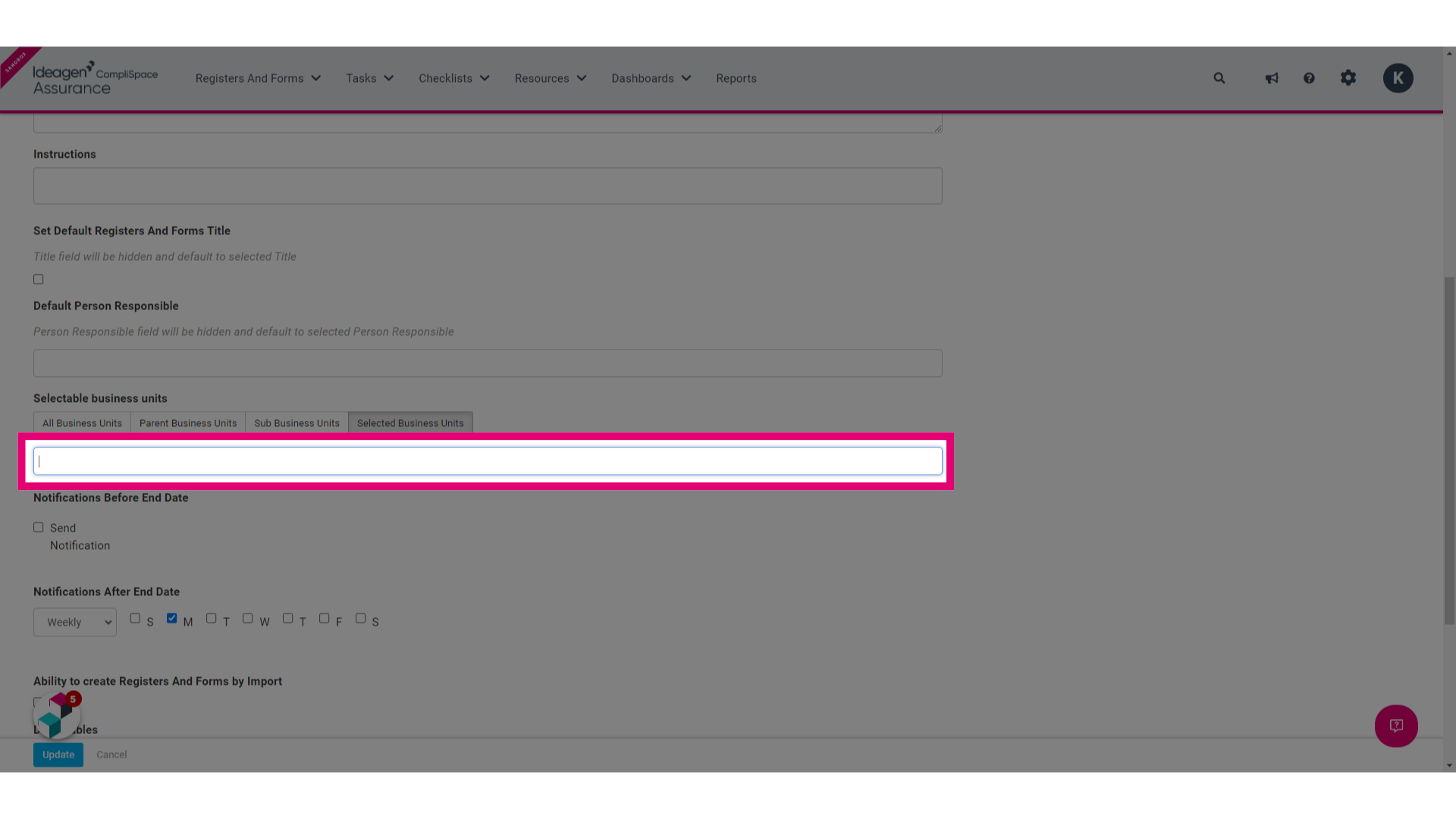
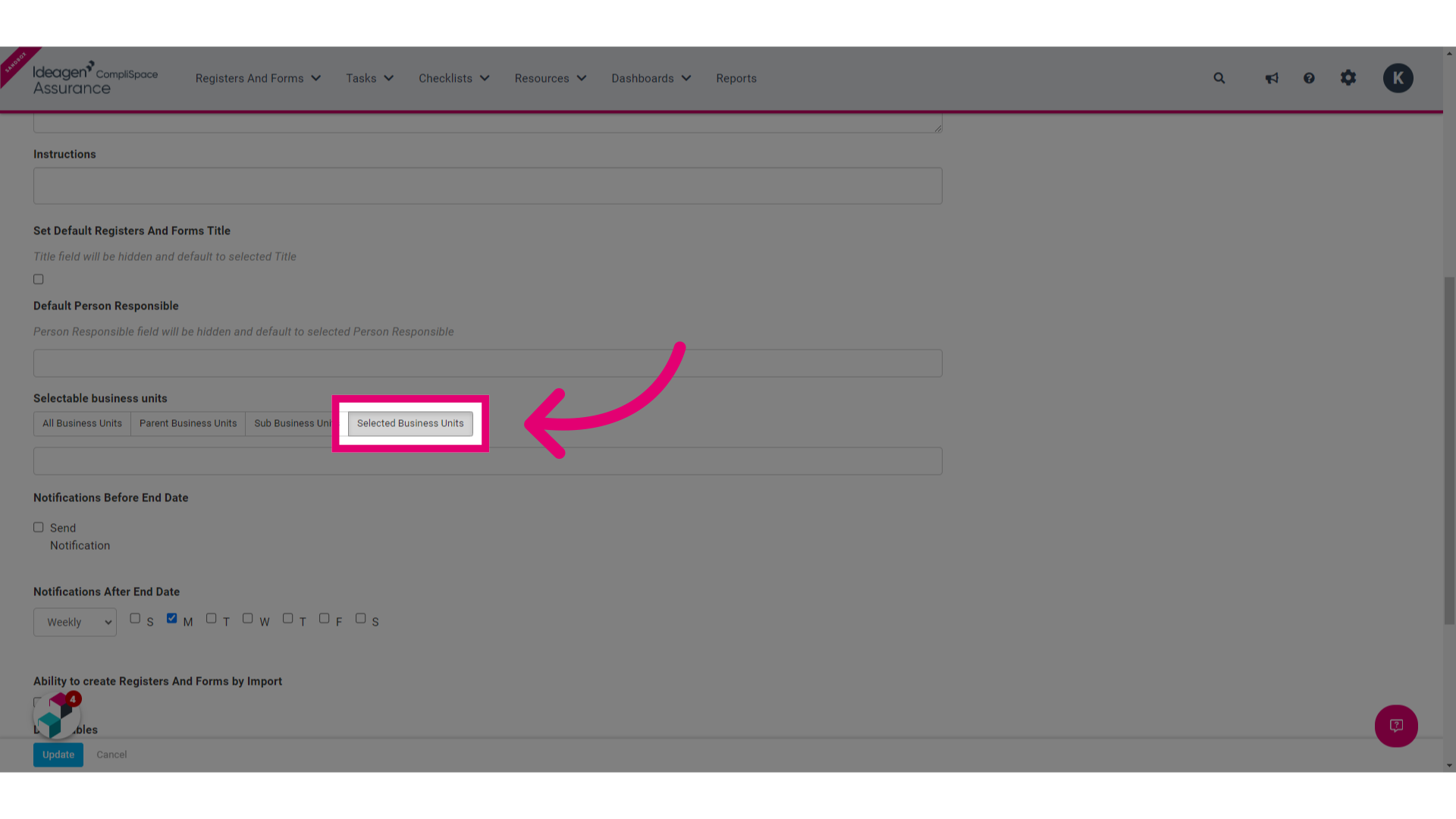 6. Click the blank text box. This will reveal the business units you can select from
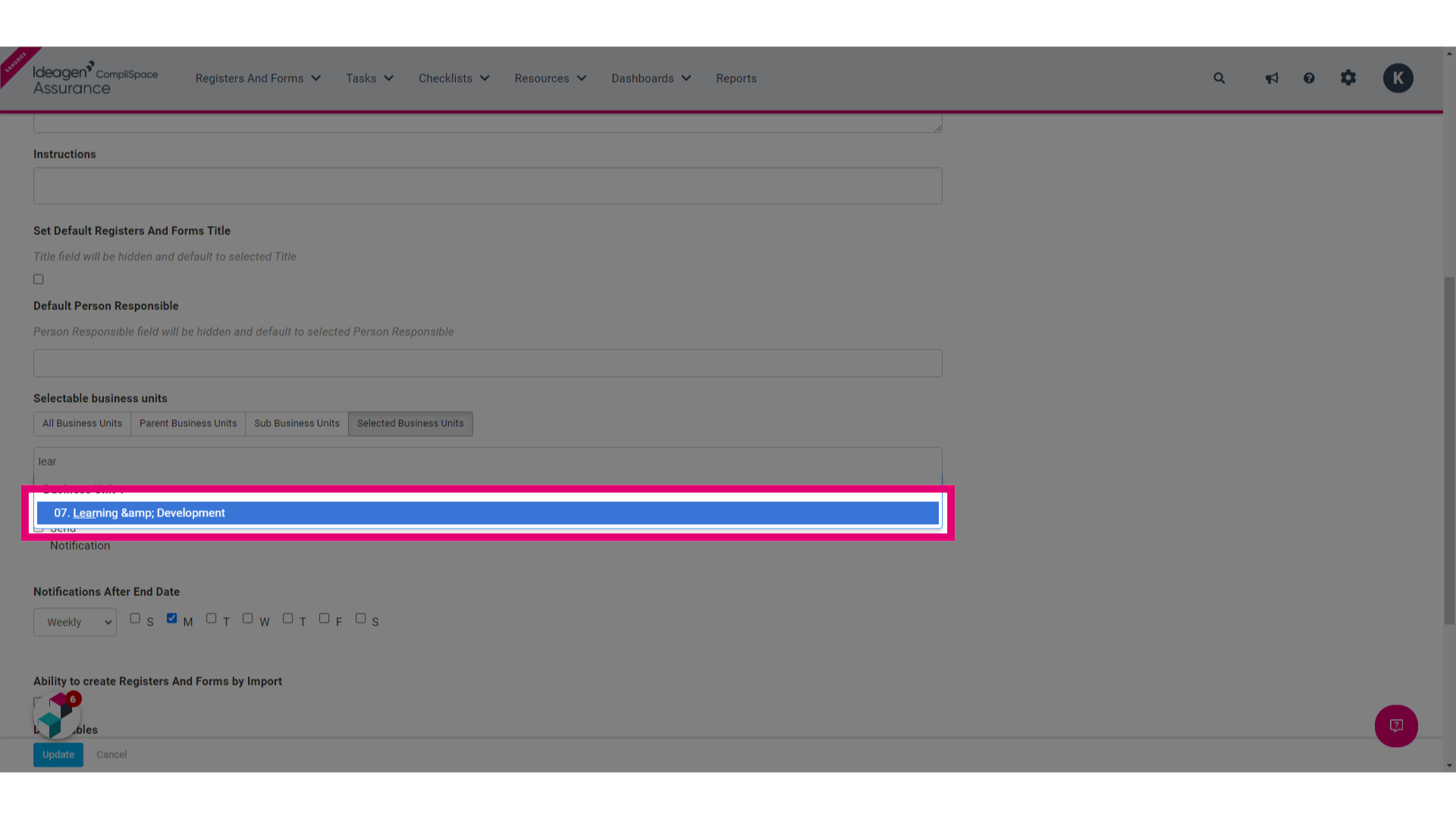
 7. Make your selection from the dropdown menu
 8. Click Update