


New article
Recently updated
How to Create a New Field in Assurance

In order to add a field to a register or form, the field must first be created in the Registers And Forms Field Library. This guide provides step-by-step instructions on how to create a new field in the Registers and Forms Field Library.
To Create a New Field in the Registers and Forms Field Library
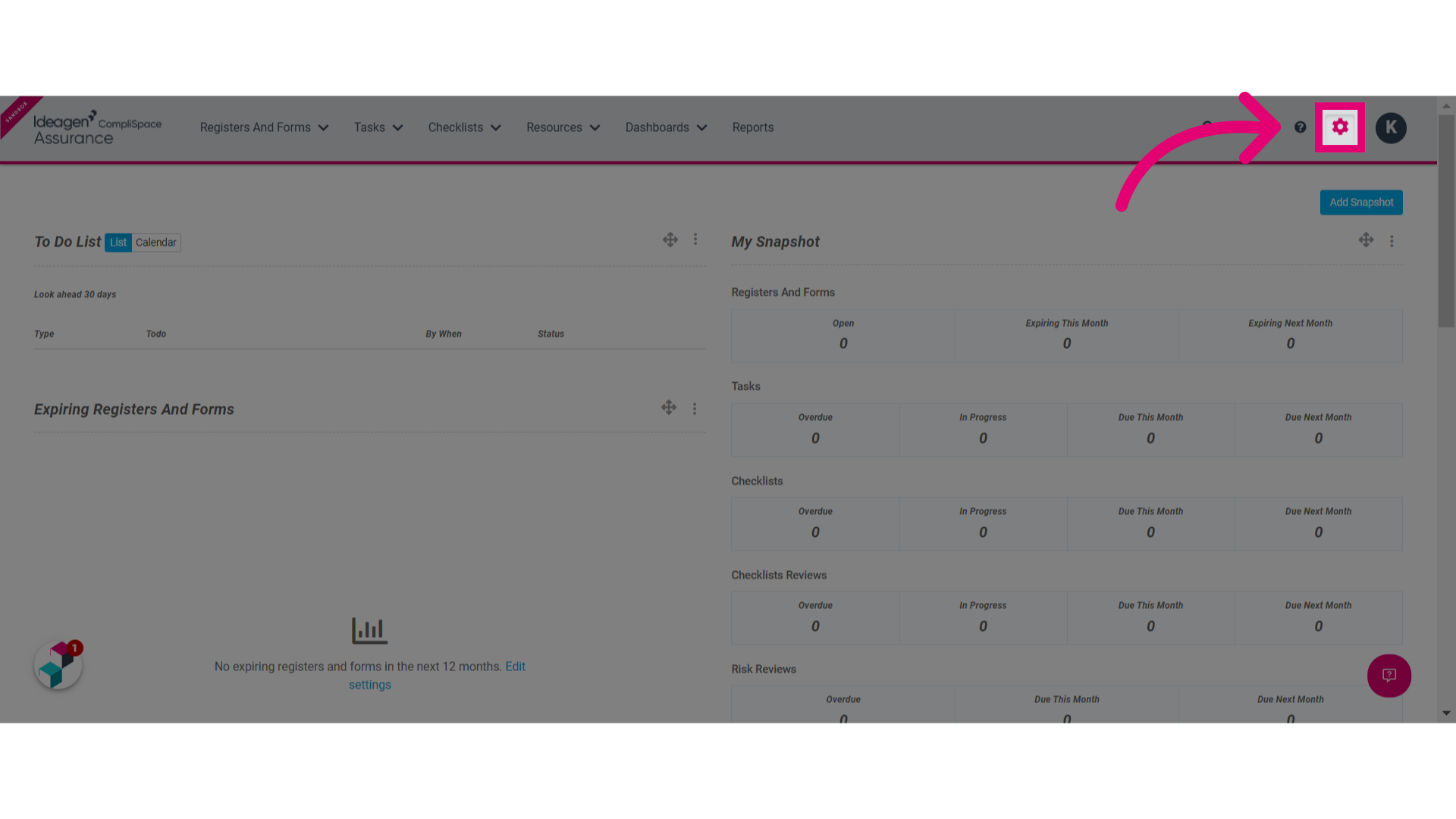
1. Click the Gear icon in the top menu
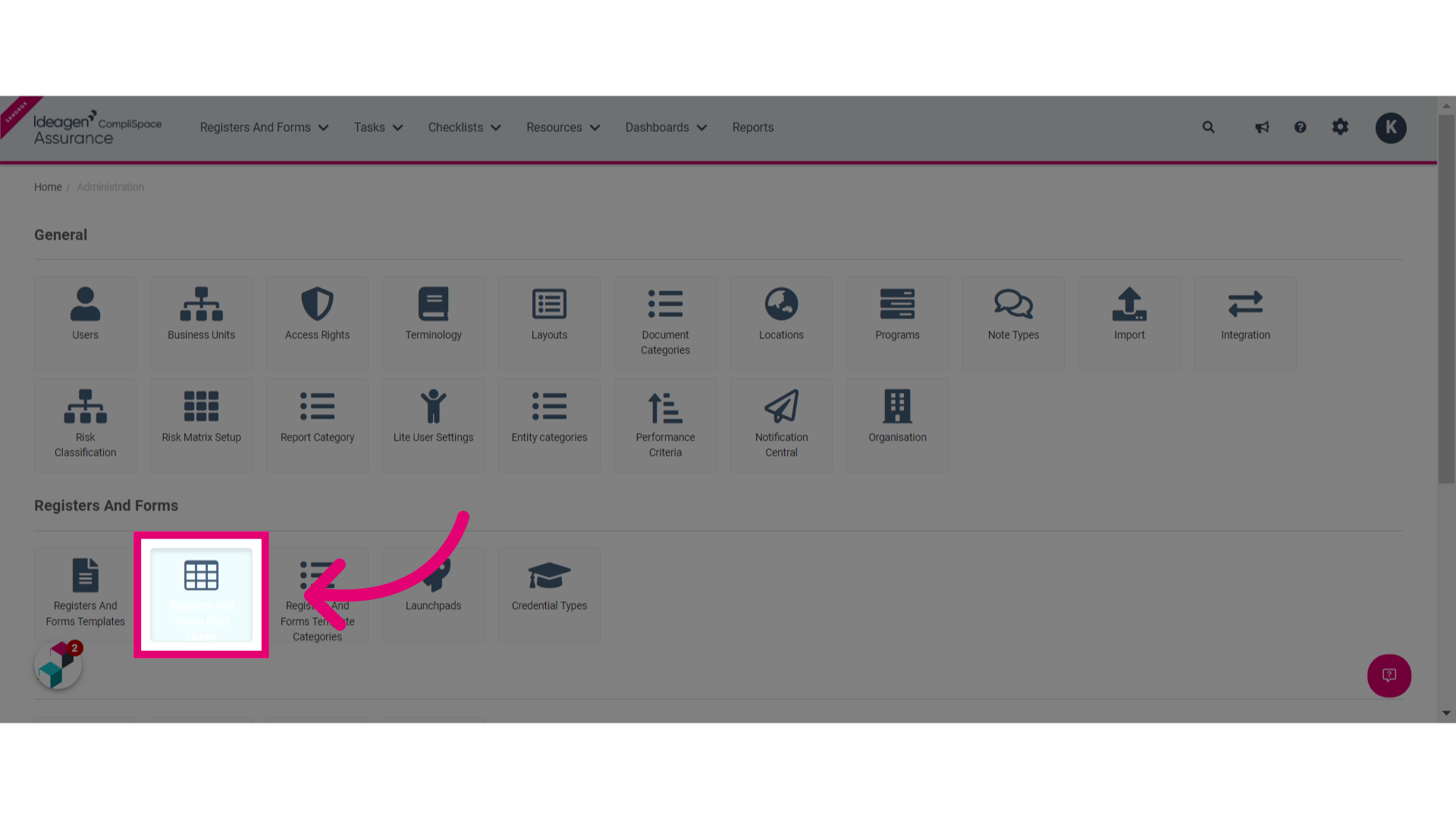
2. Click the Registers And Forms Field Library button
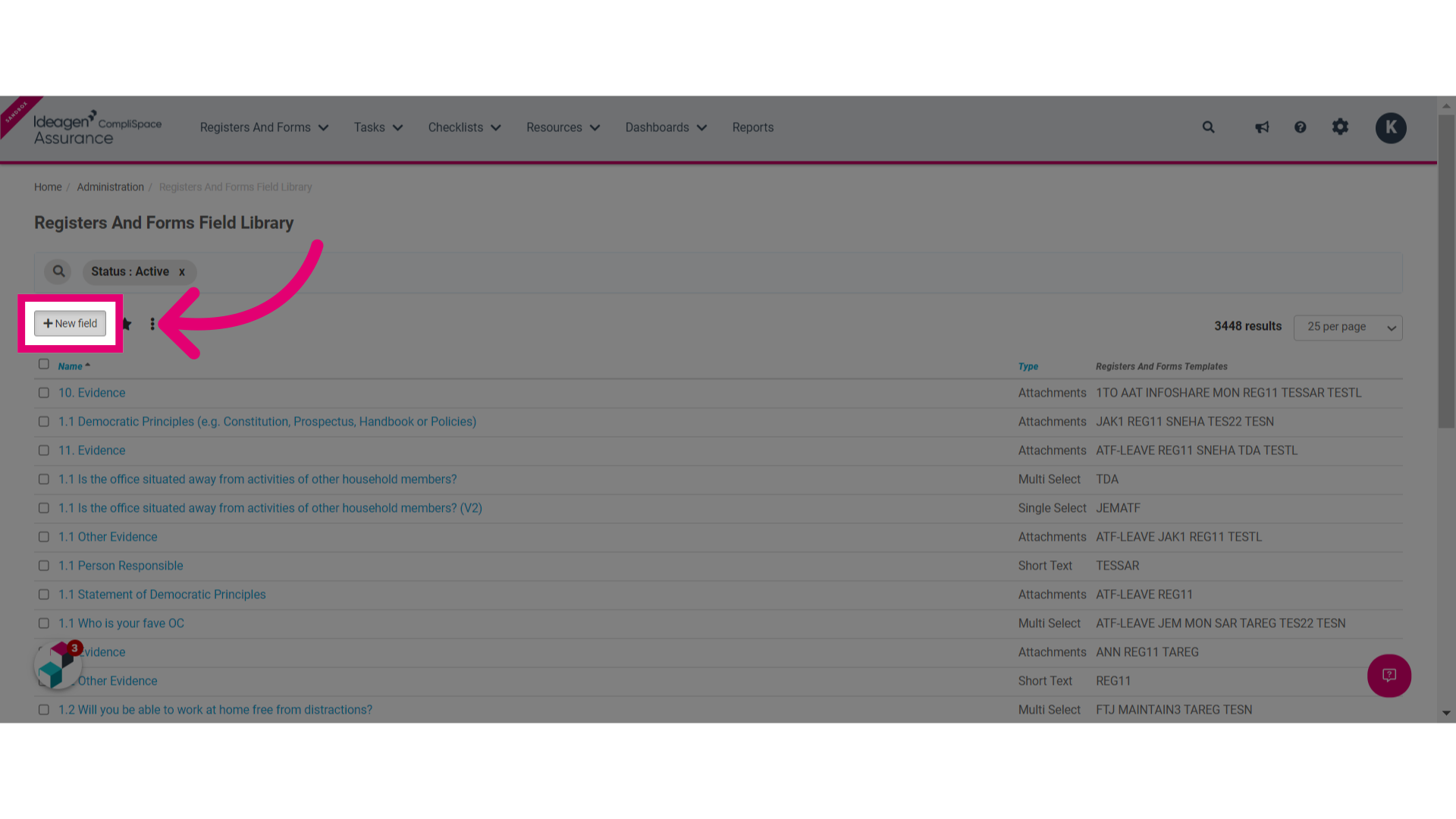
3. Click New field
4. Give your field a name in the space provided. In the example below we have given the field the name "Signature". 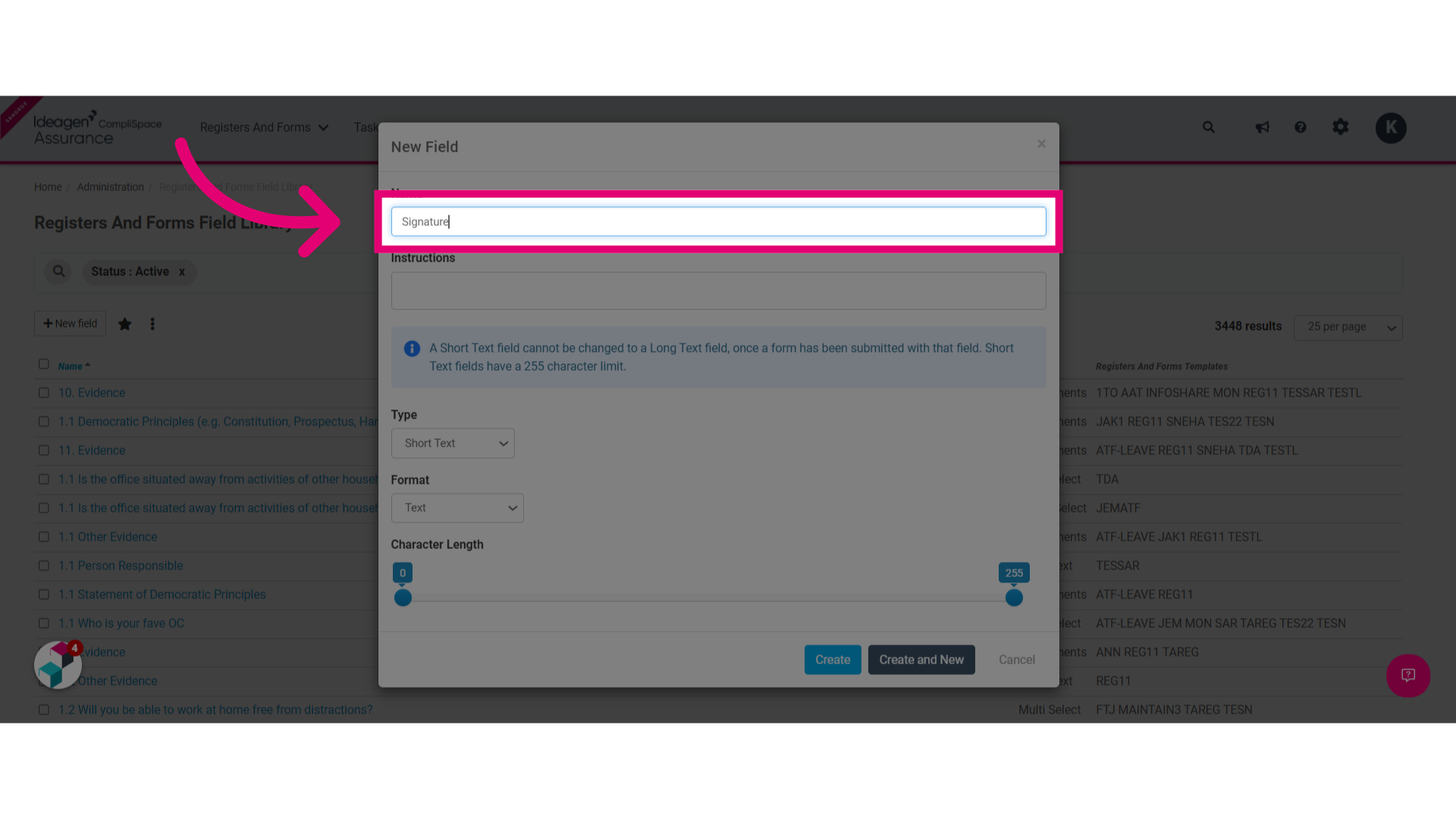
5. Click the dropdown menu beneath Type
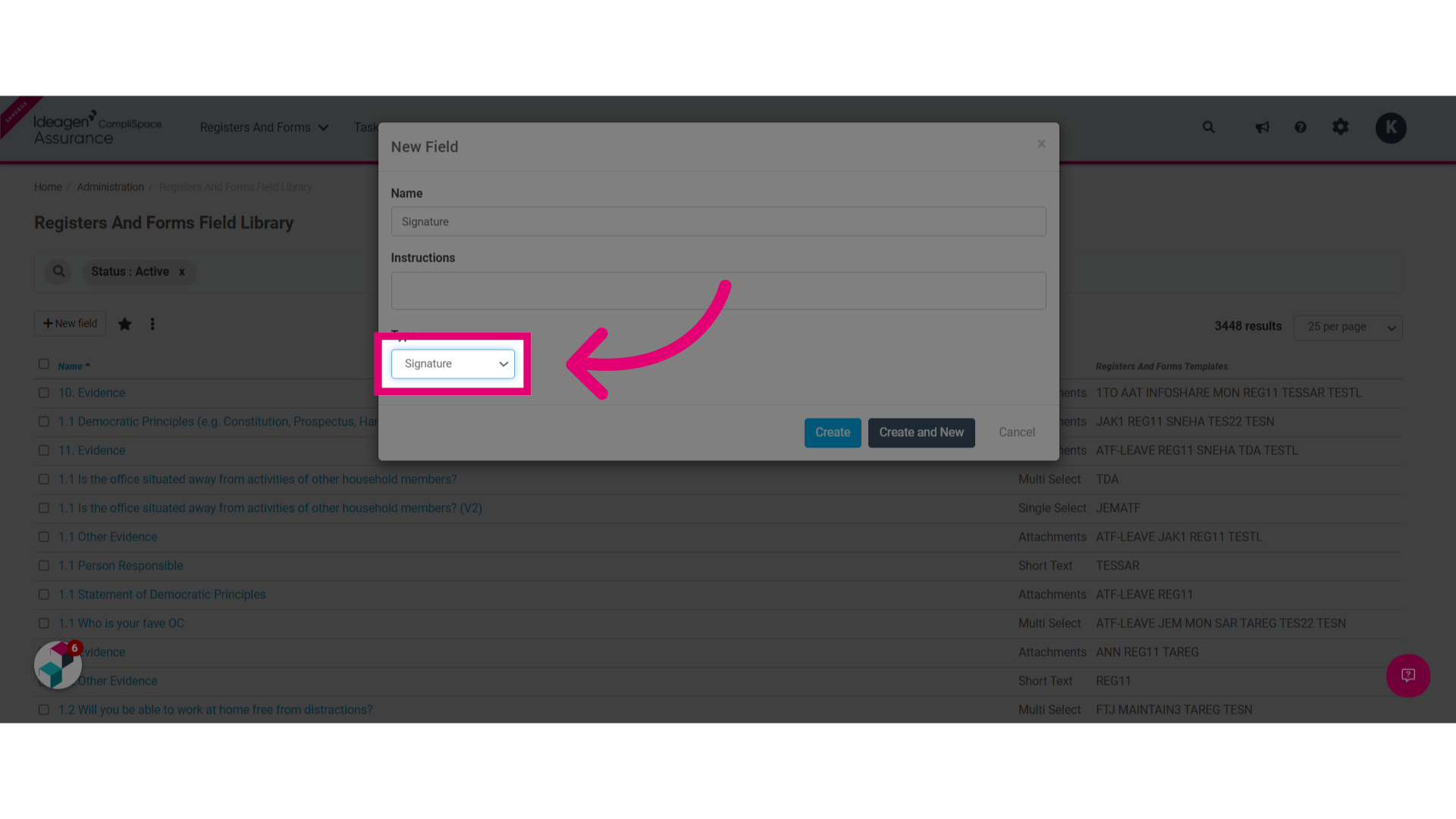
6. Select the type of field you would like to add to your field library. In this example we have selected the Signature option.
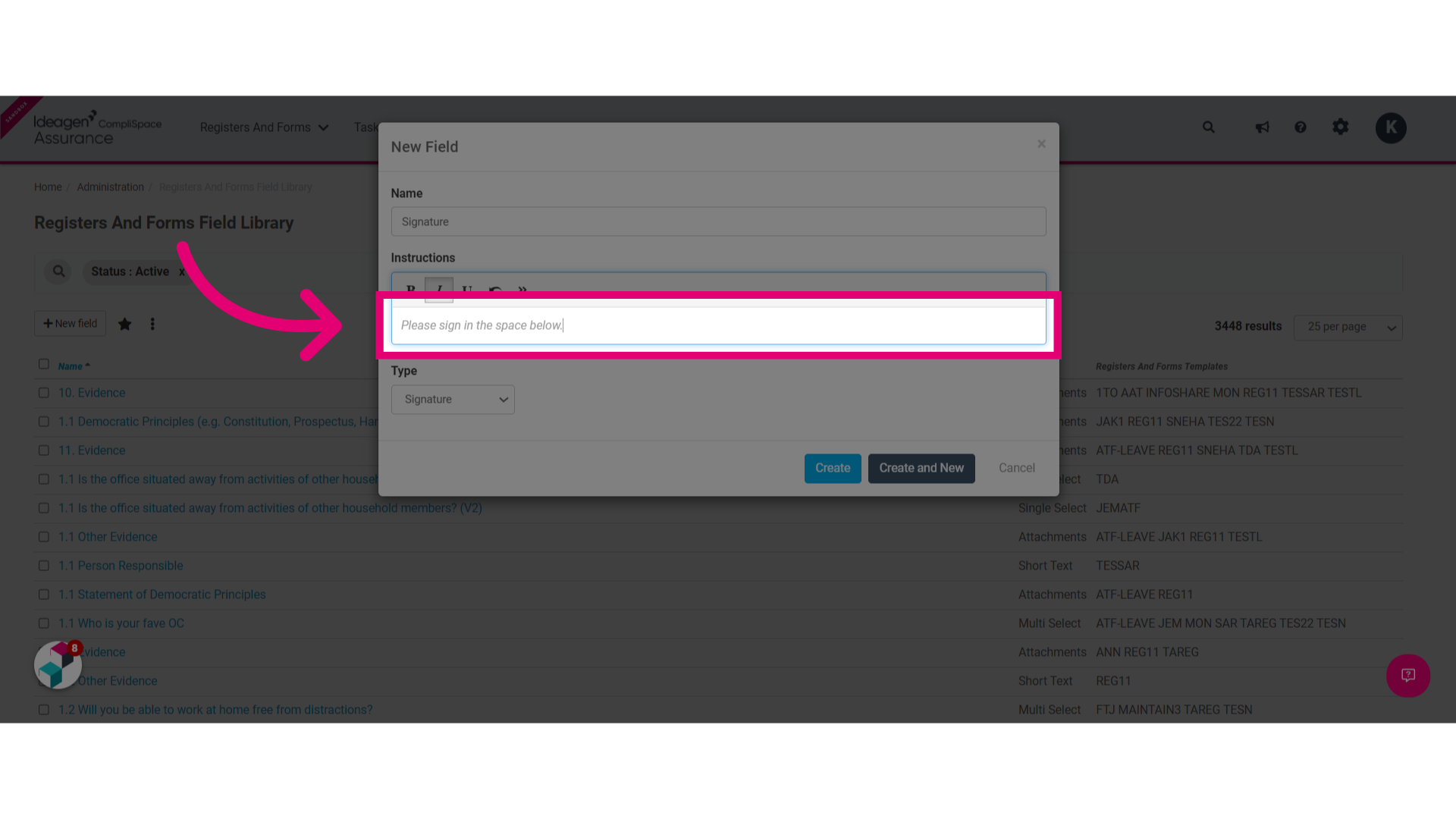
7. Enter instructions for completing this field if necessary
8. Click Create
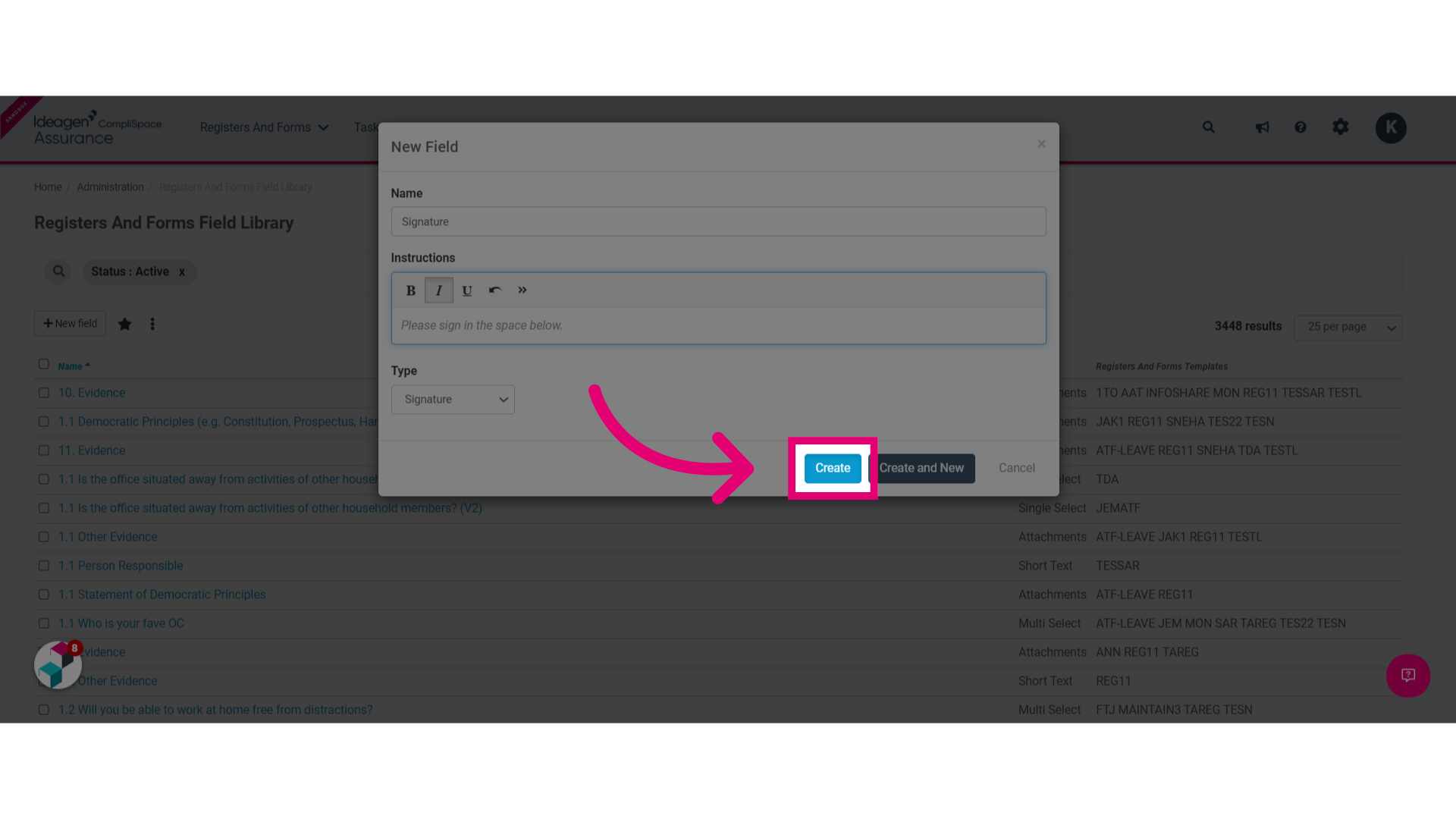
You should now be able to add the created field in your registers and forms.