


New article
Recently updated
How to Report on Deactivated Fields

When a Field is deactivated in a Register Template, it will not appear in Reports for that Register. However, you can still report on deactivated Fields by including another Register where that Field is activated or by creating a new Register and adding the deactivated Fields you need to report on from the Fields Library.
In this article, you will learn about:
- Understanding the Need for a New Register
- Creating a New Register for Reporting Deactivated Fields
- Generating a Report to Include Deactivated Fields
1. Understanding the Need for a New Register
The nature of the Fields Library allows users to reuse the same Field across multiple Registers. When a Field is deactivated in a Register, you are unable to select it when reporting on that particular Register. However, you can still report on that Field if it is activated in another Register. To include this Field in a Report, we need to filter for two Registers: the original where the Field is deactivated and another where the Field is active.
Please note
If you already have a register where the field is active, you can use that to filter in your report instead of creating a new one. However, we recommend a creating an empty register without submitting any forms to use for the purposes of this exercise.
2. Creating a New Register for Reporting Deactivated Fields
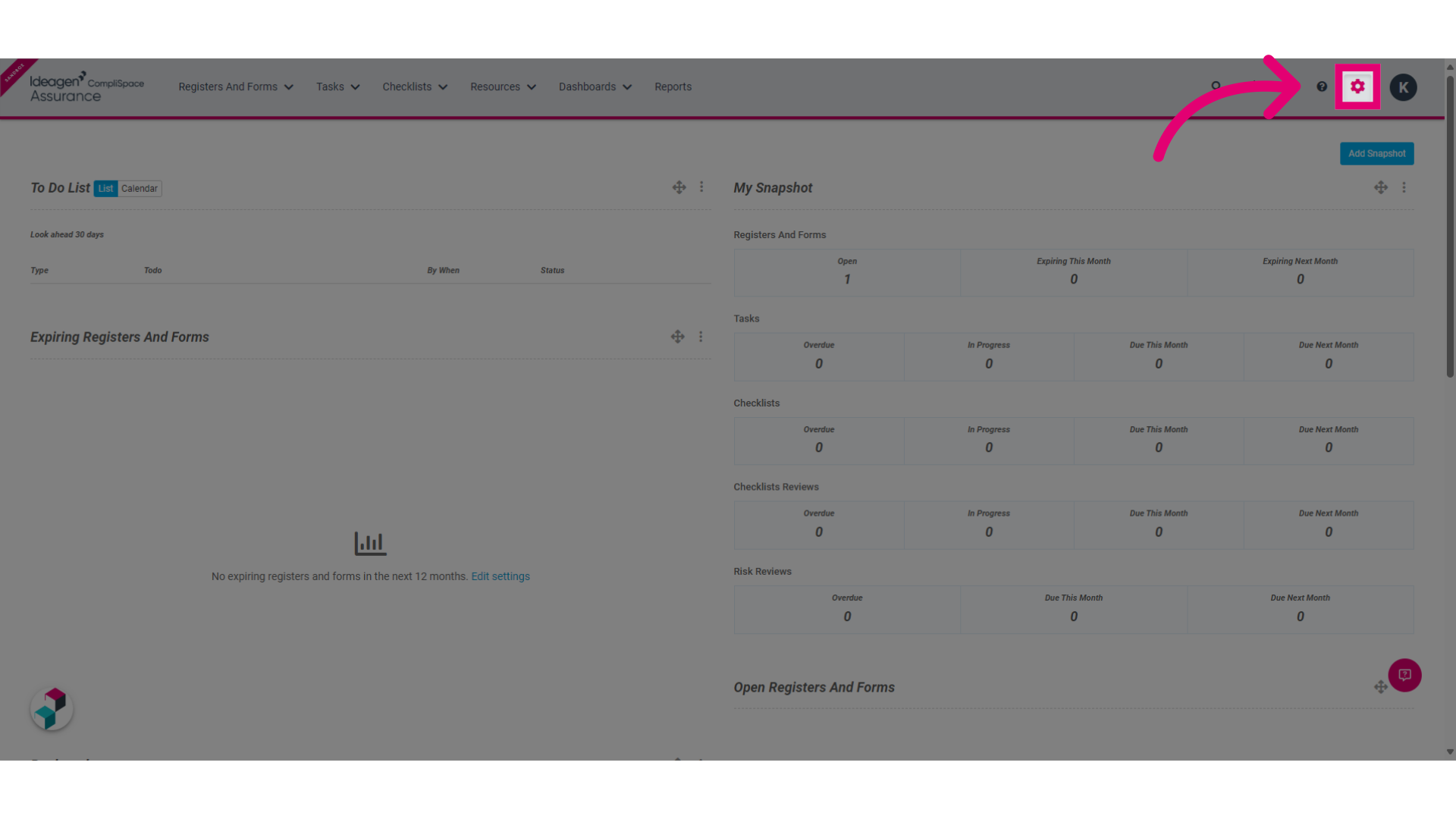
1. Select the Administration Gear icon in the top menu.
)
2. Select Registers And Forms Template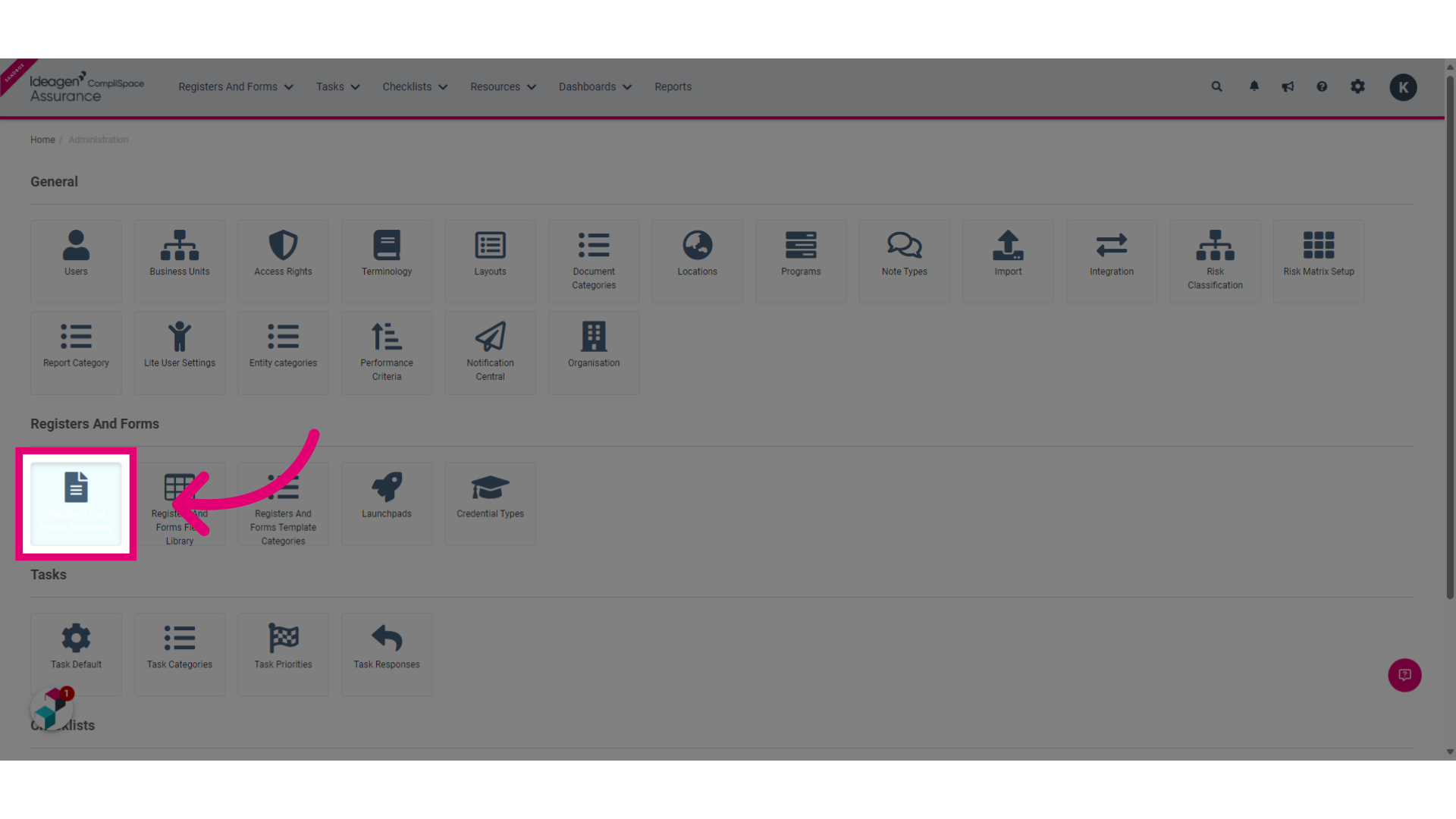)
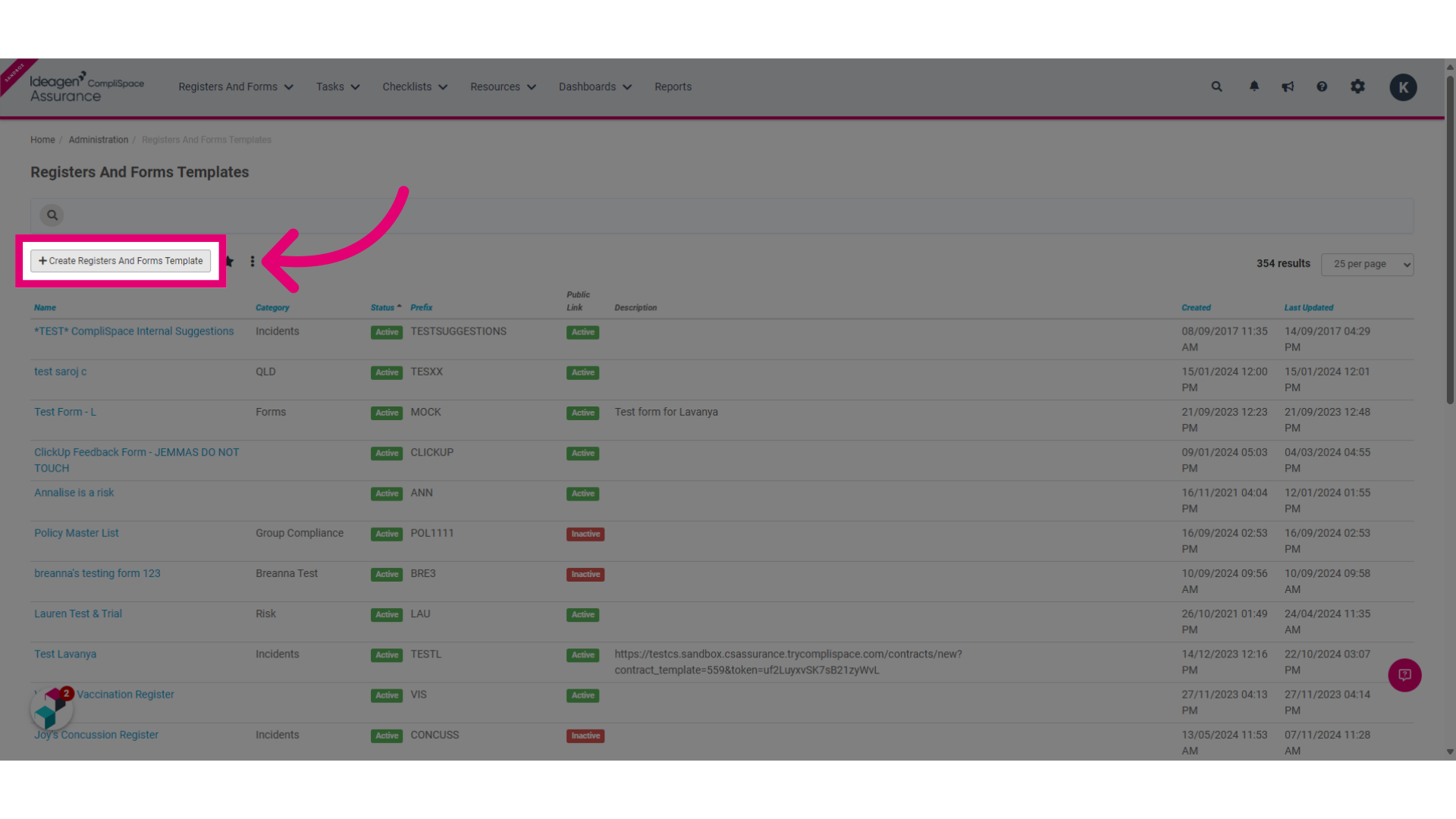
3. Select the +Create Registers And Forms Template button. This will reveal a New Registers and Forms Template window.
)
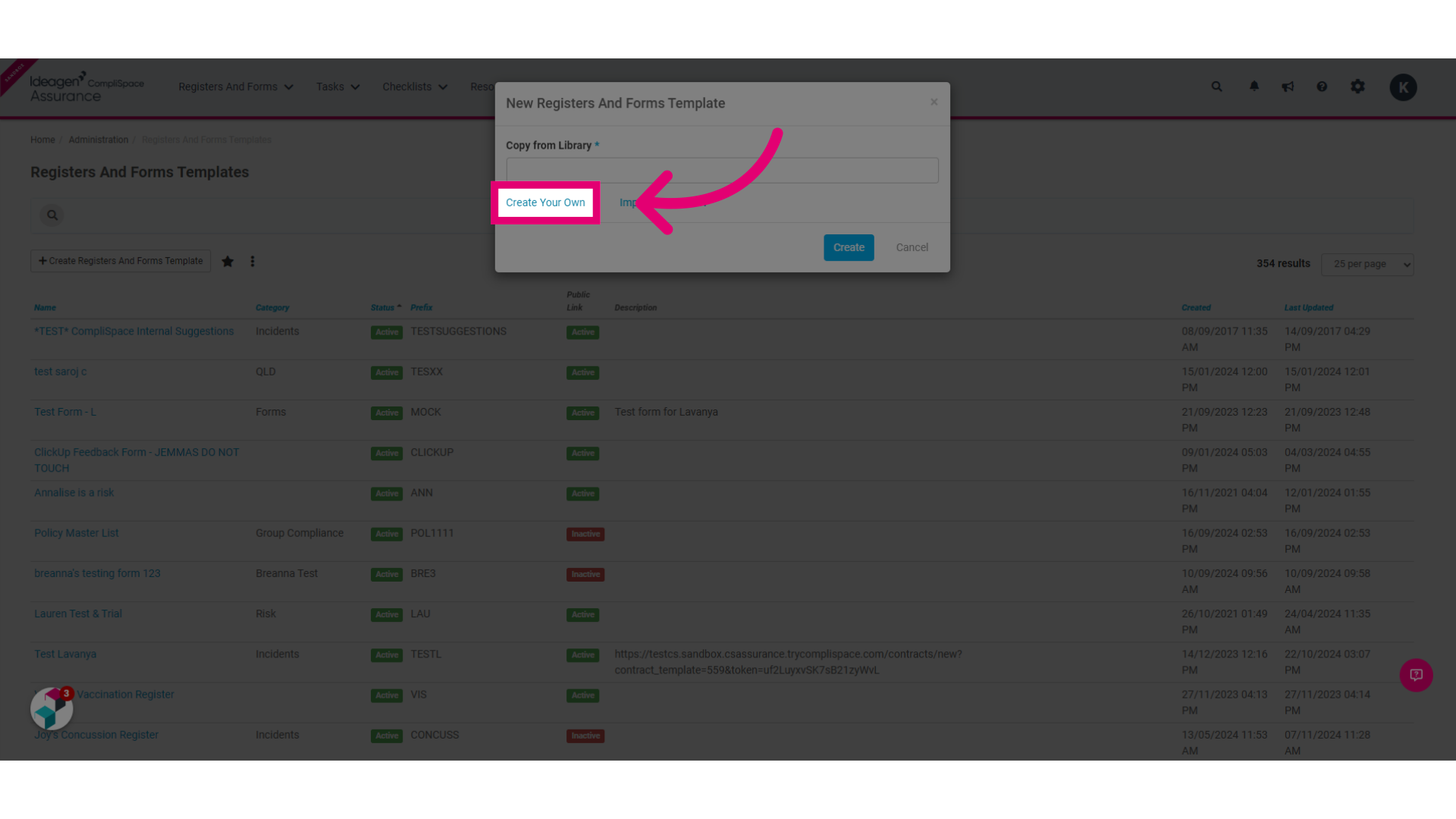
4. Select Create Your Own
)
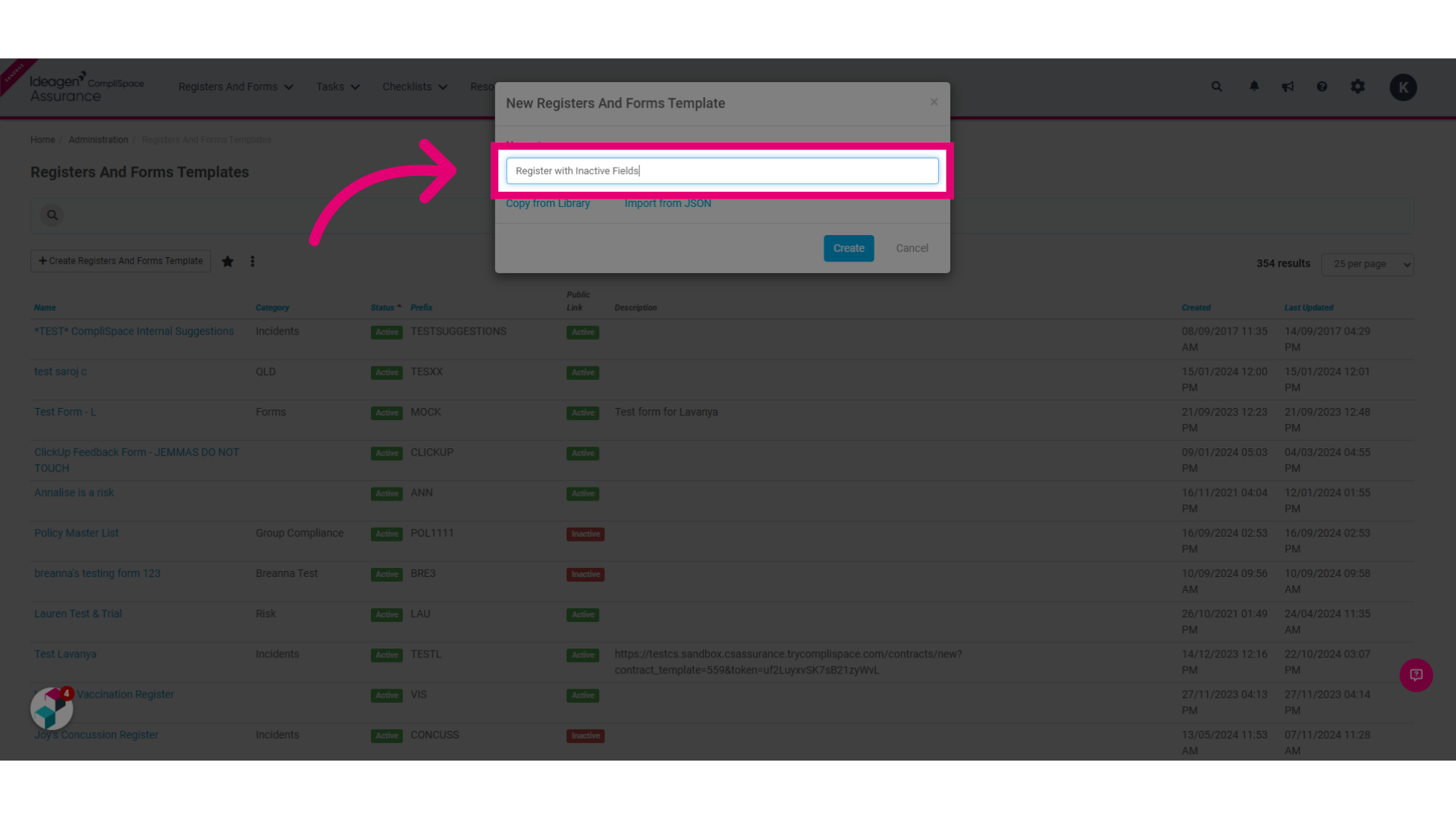
5. Enter the name of your Register or Form in the space provided e.g. Register with Inactive Fields.
)
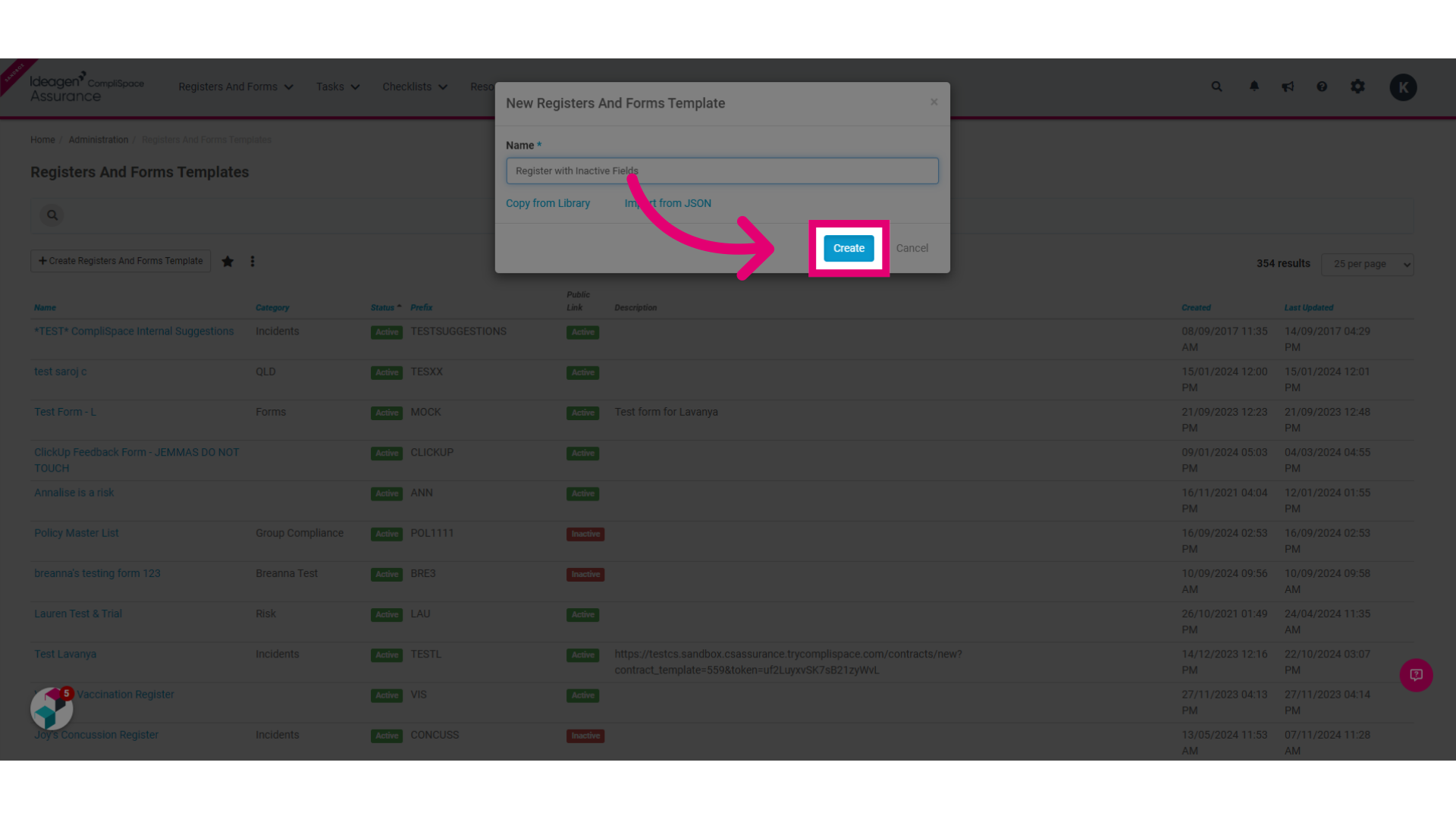
6. Select Create
)
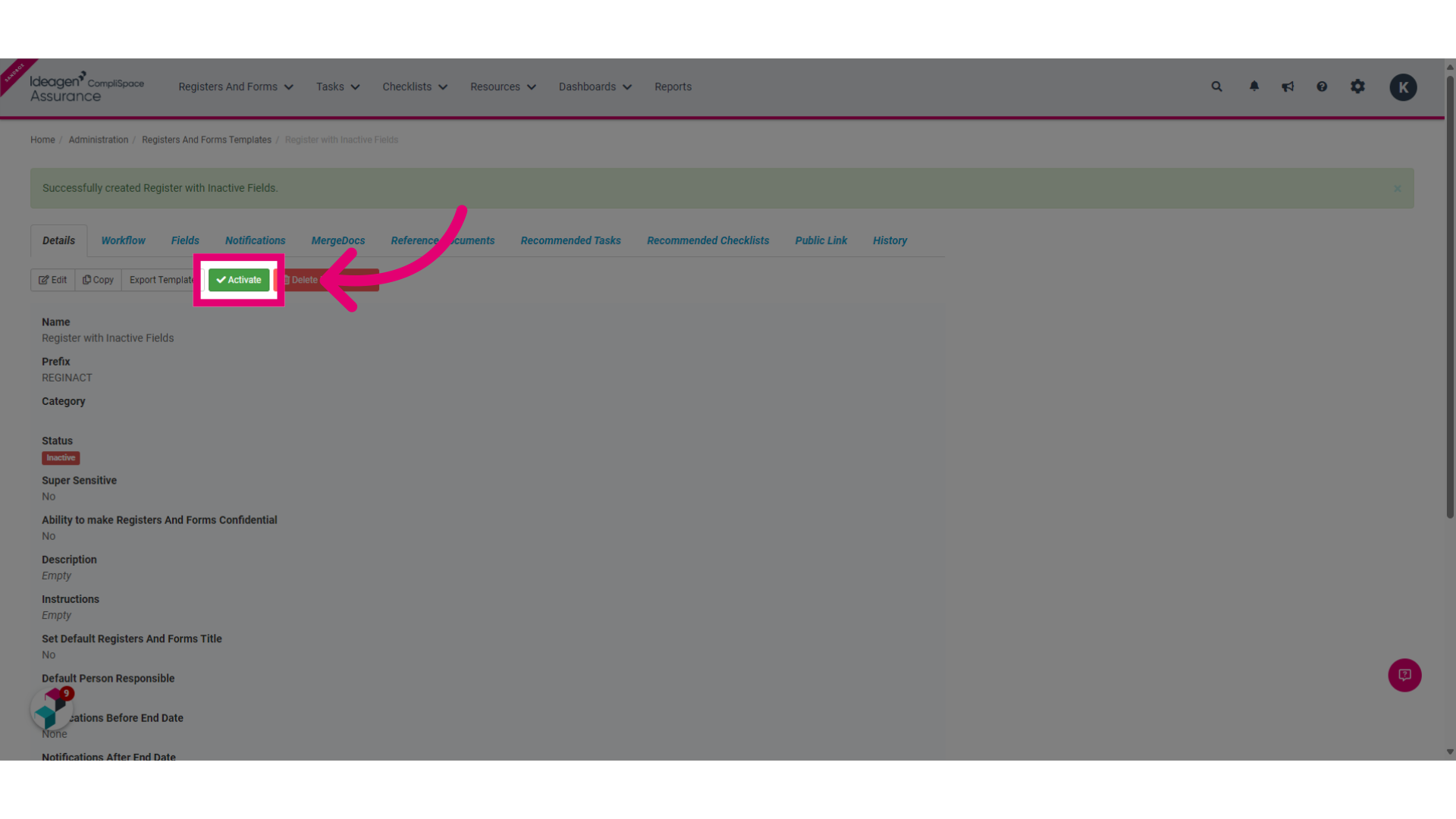
7. Select Activate
)
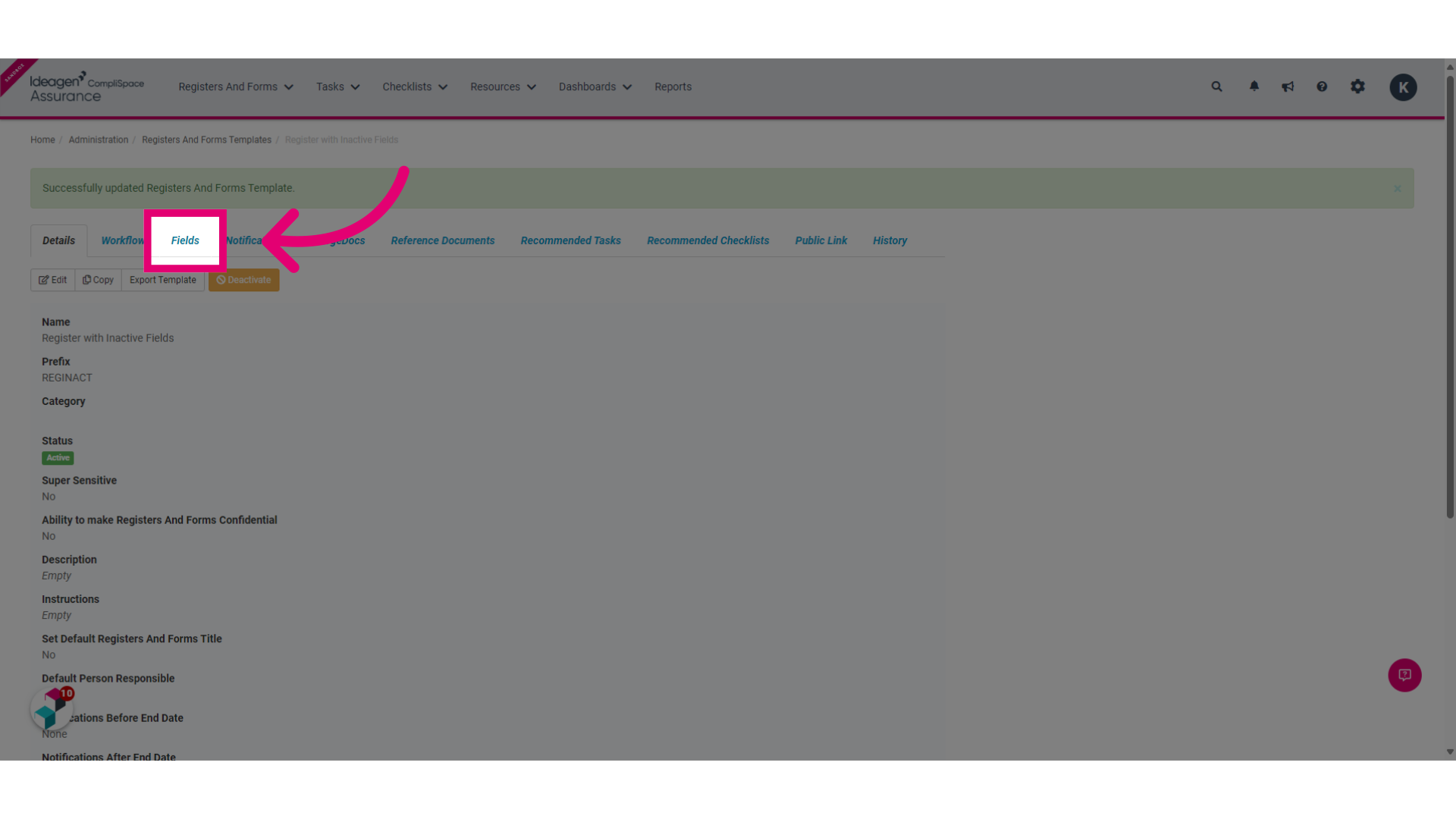
8. Select the Fields tab
)
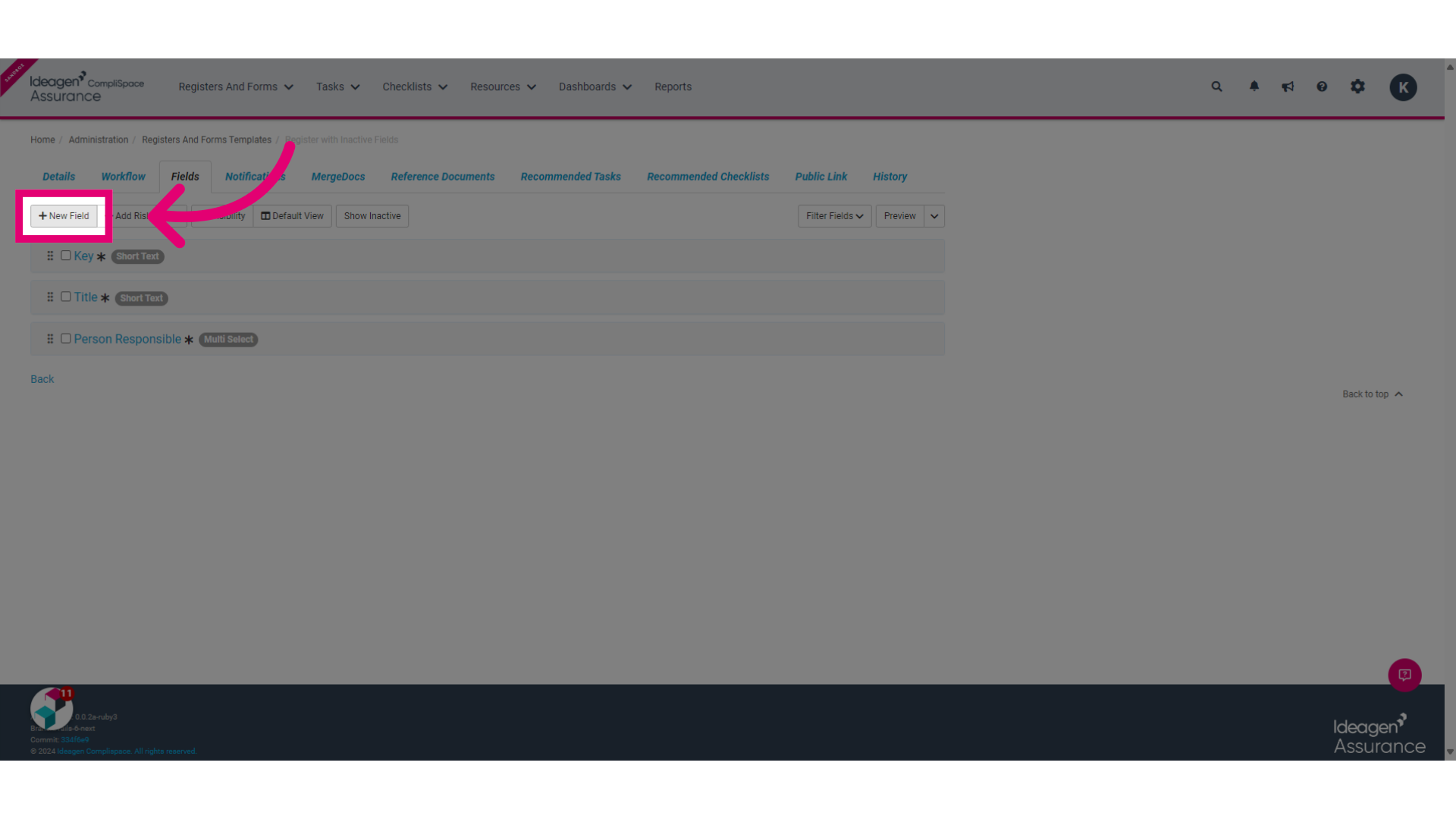
9. Select the +New Field button
)
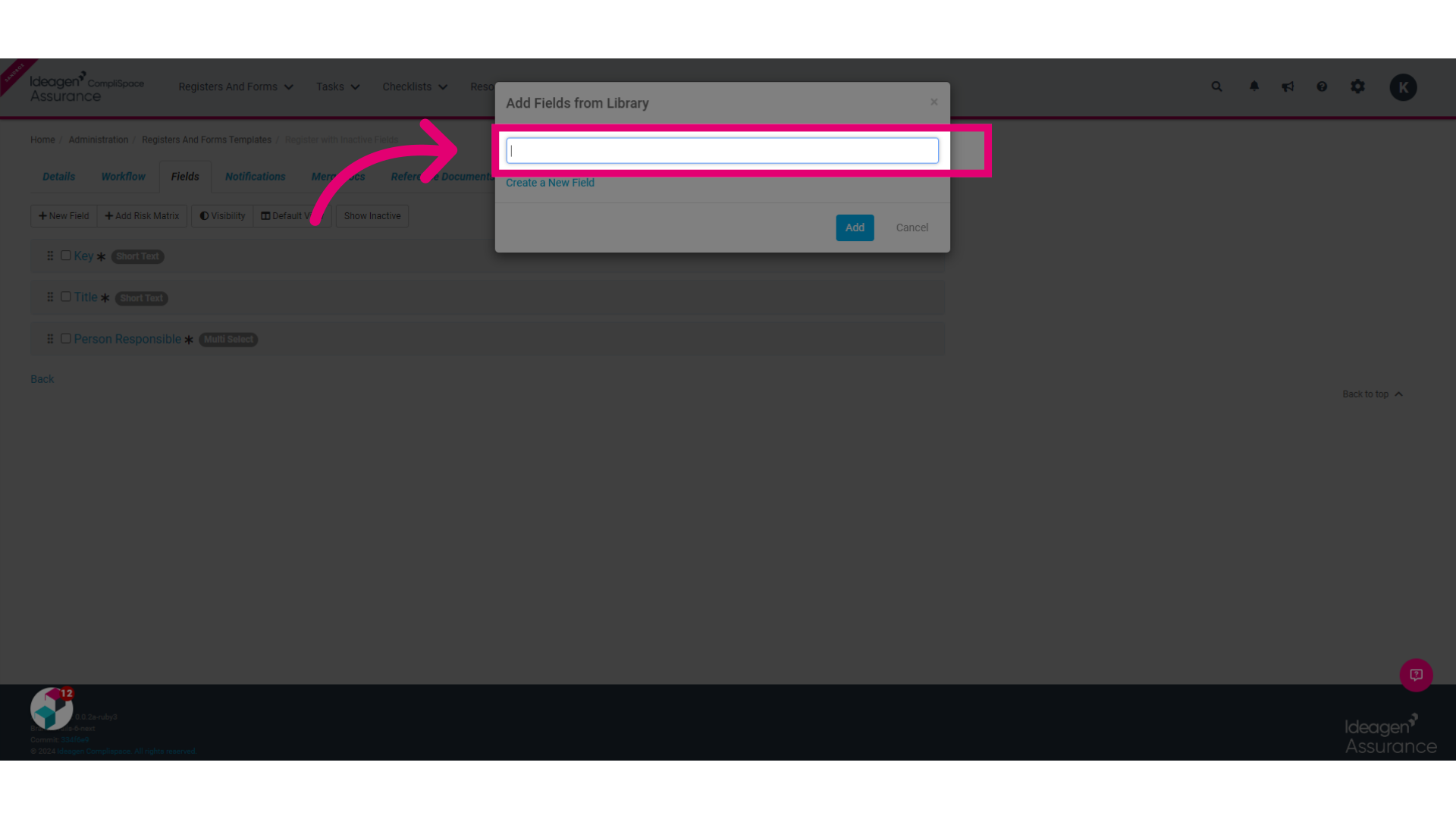
10. Type to search from the Fields Library the name of the deactivated field you would like to include in your report in the space provided.
)
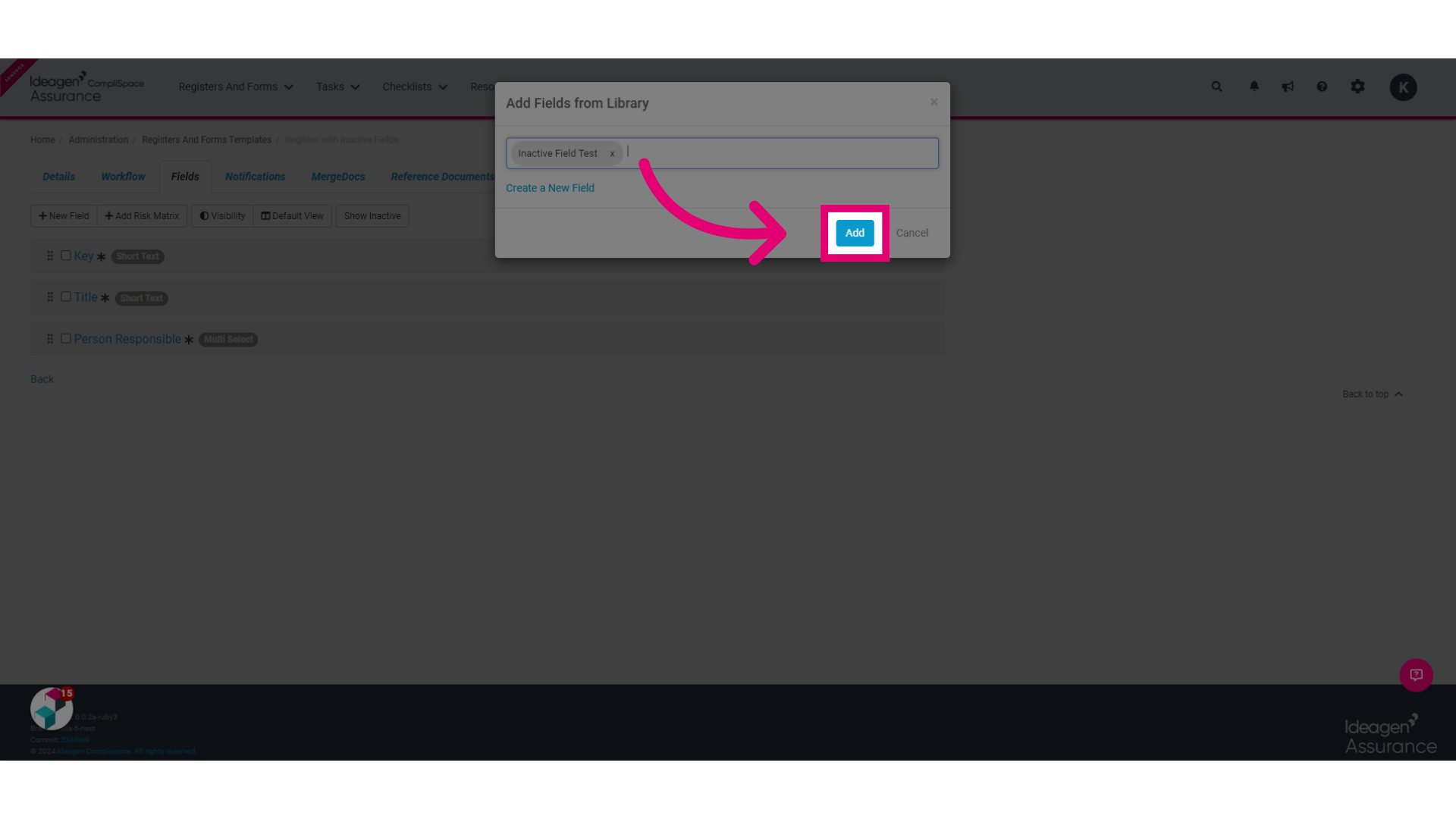
11. Select the Add button
)
12. Repeat steps 8-12 for any additional deactivated fields you wish to report on.
3. Generating a Report to Include Deactivated Fields
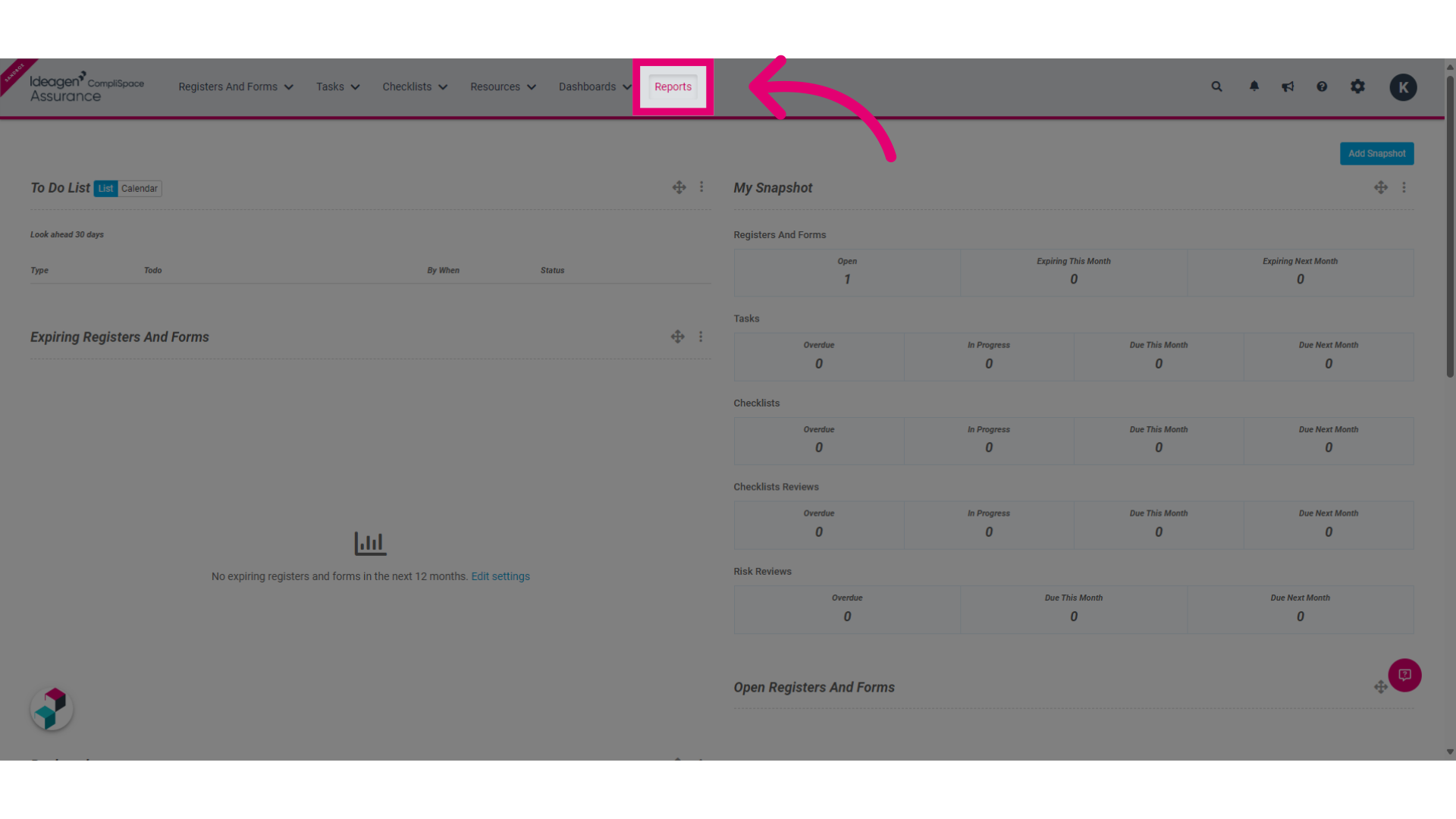
1. Select Reports in the top menu.
)
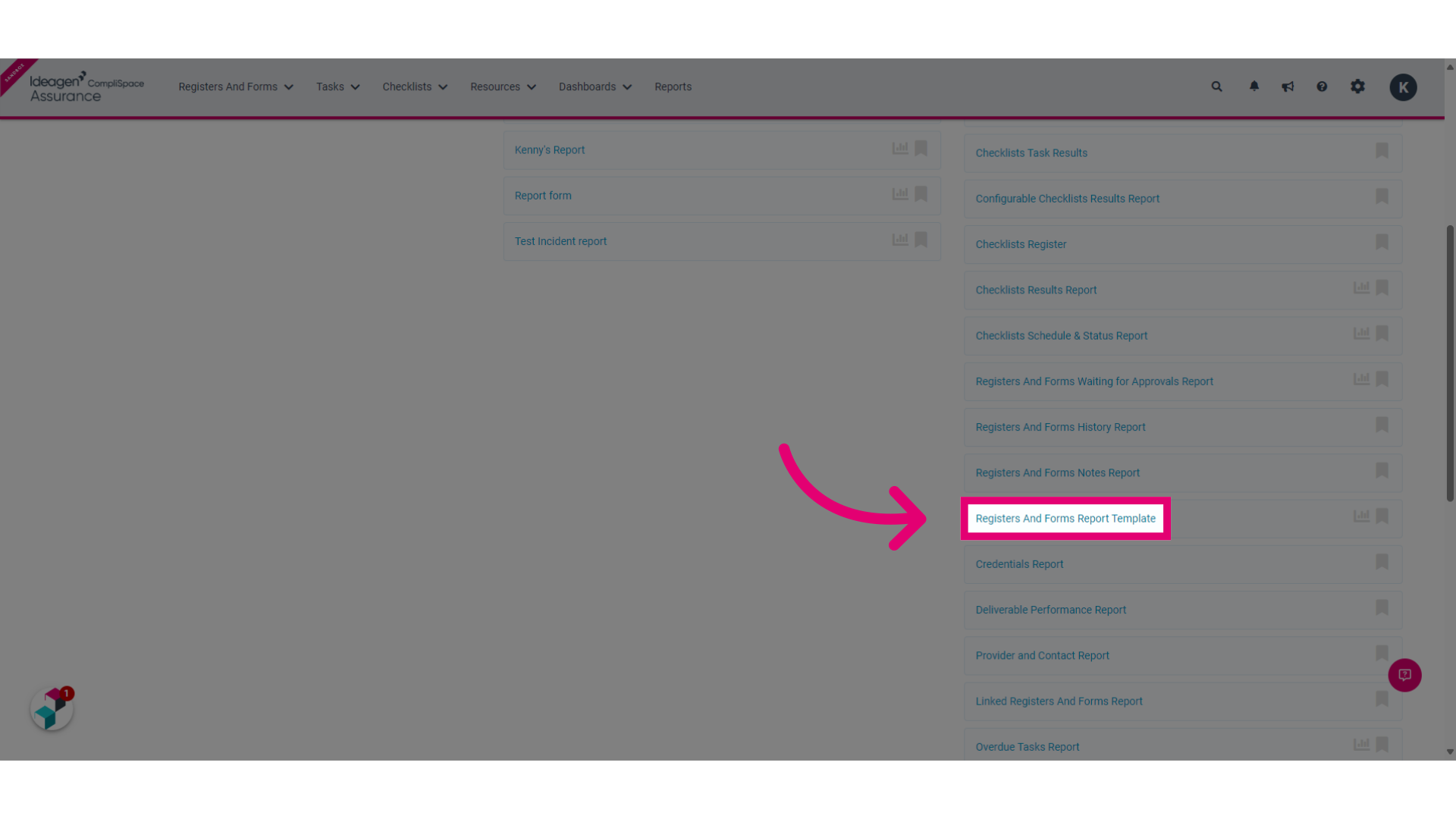
2. Select Register and Forms Report Template within the Built in Reports section.
)
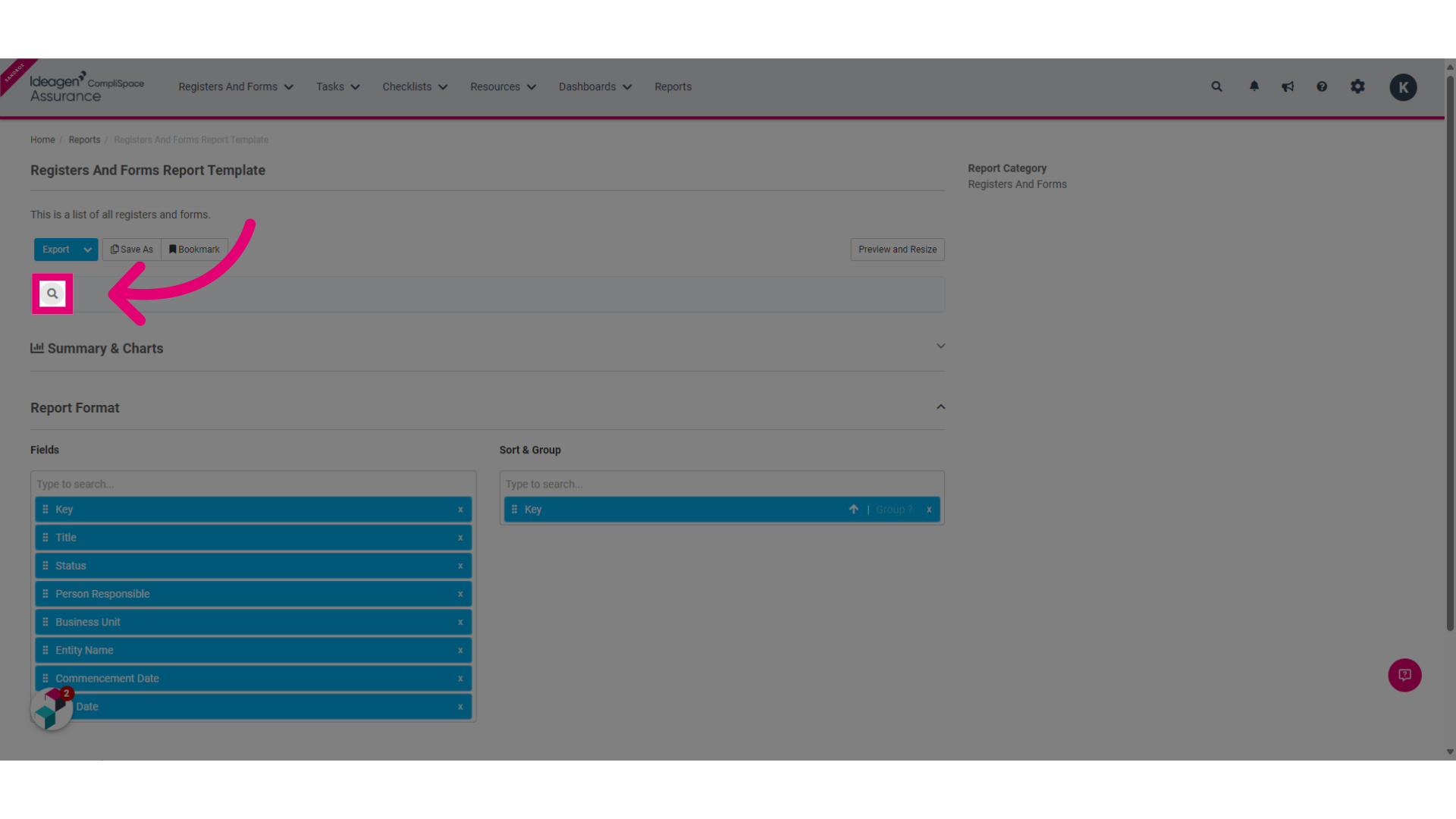
3. Select the Magnifying Glass to reveal the Selected Filters screen.
)
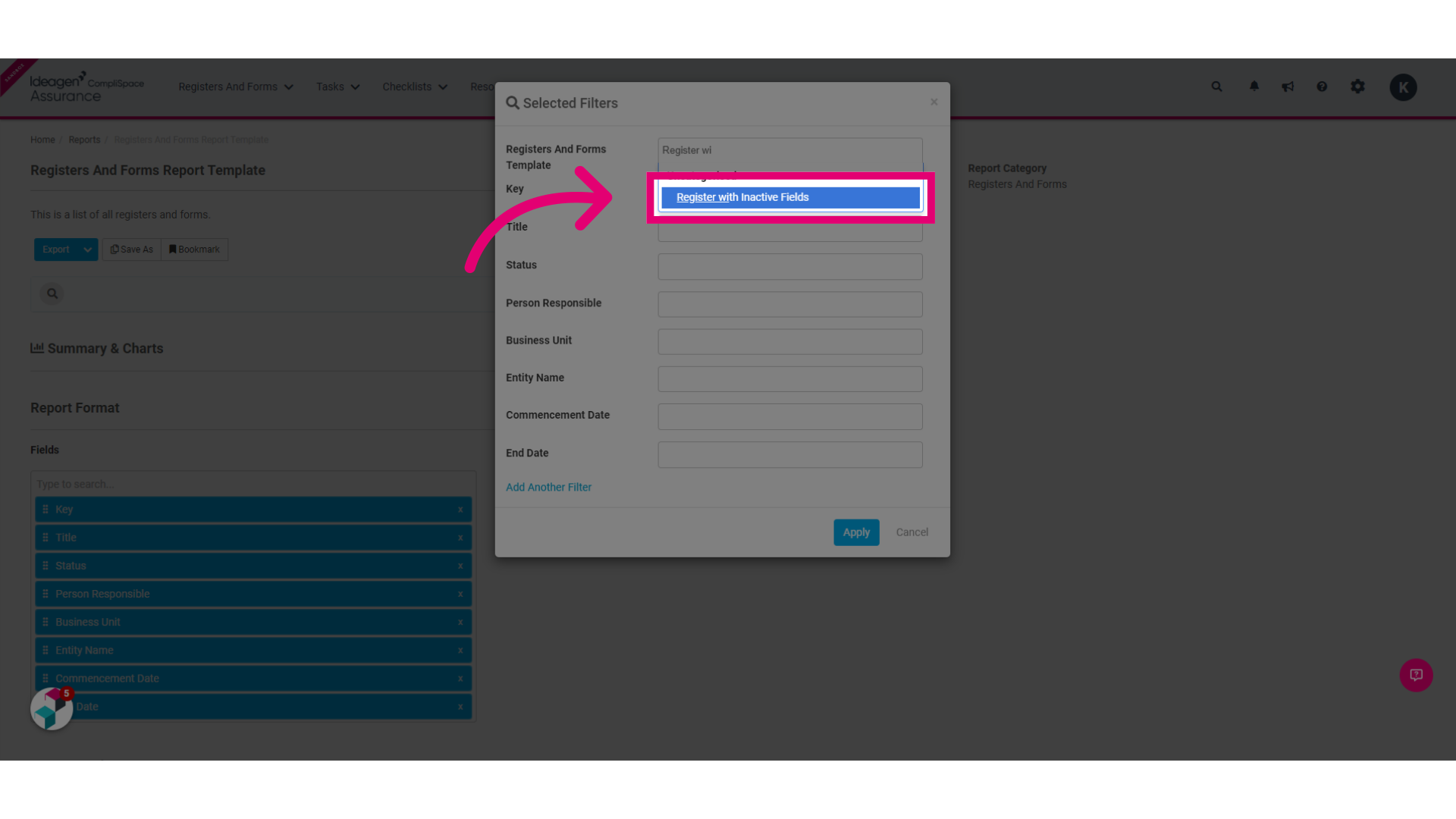
4. Enter the name of the new Register you created in the previous section of this article e.g. Register with Inactive Fields.
)
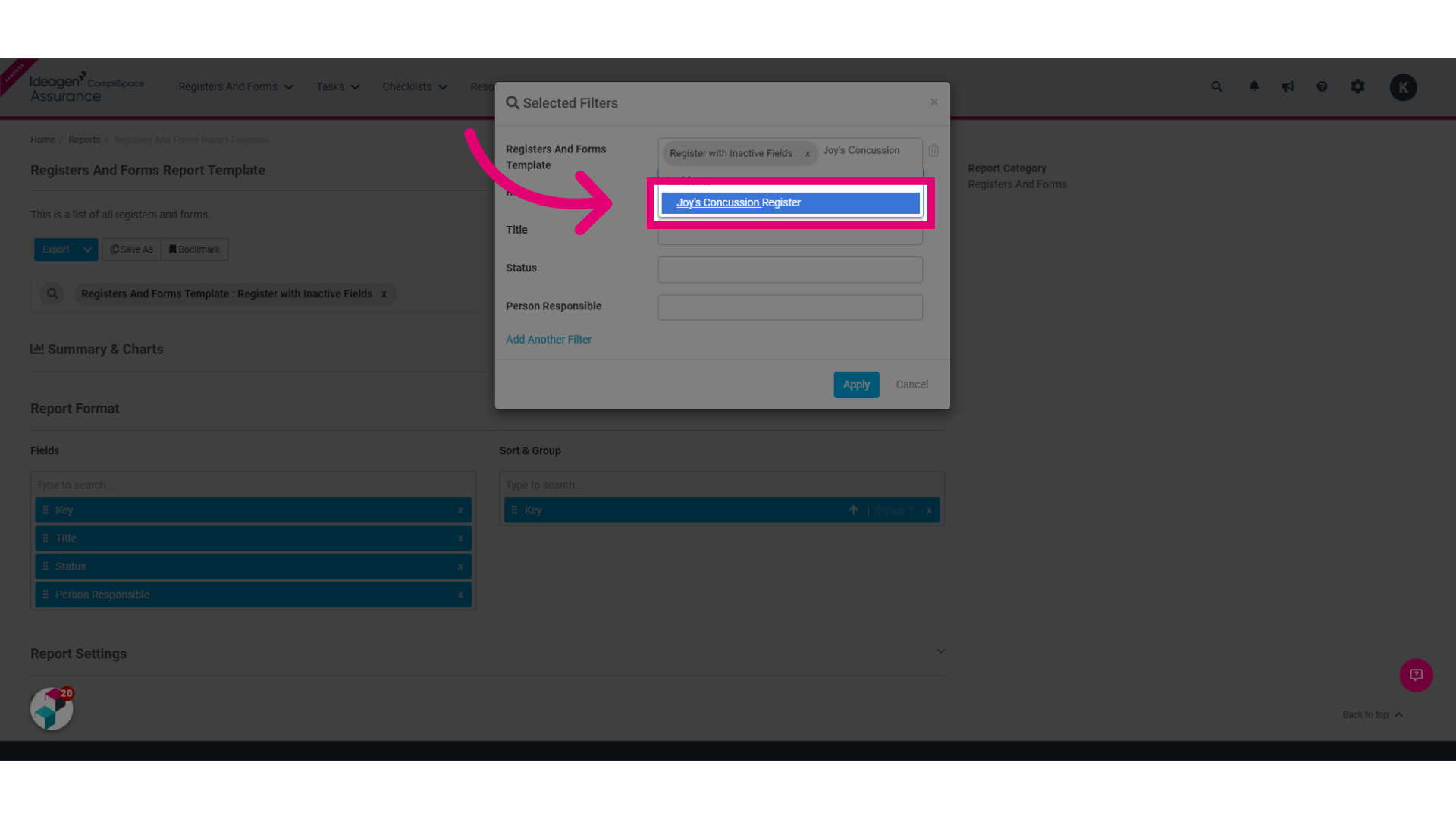
5. Enter the name of the original Register with the deactivated fields that you would like to include in this report e.g. Joy's Concussion Register.
)
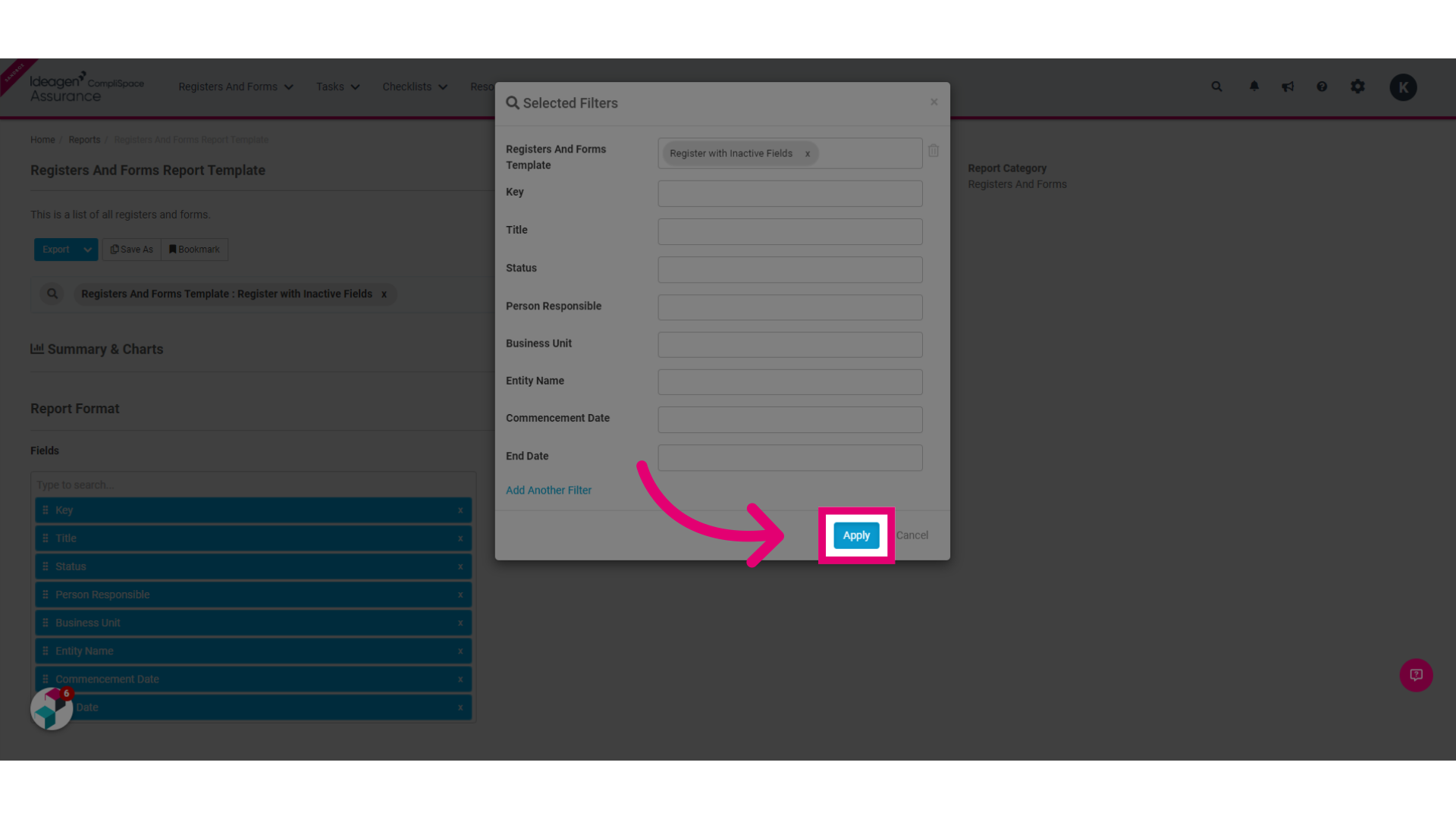
6. Select Apply. You should see the names of both Registers next to the Magnifying Glass.
)
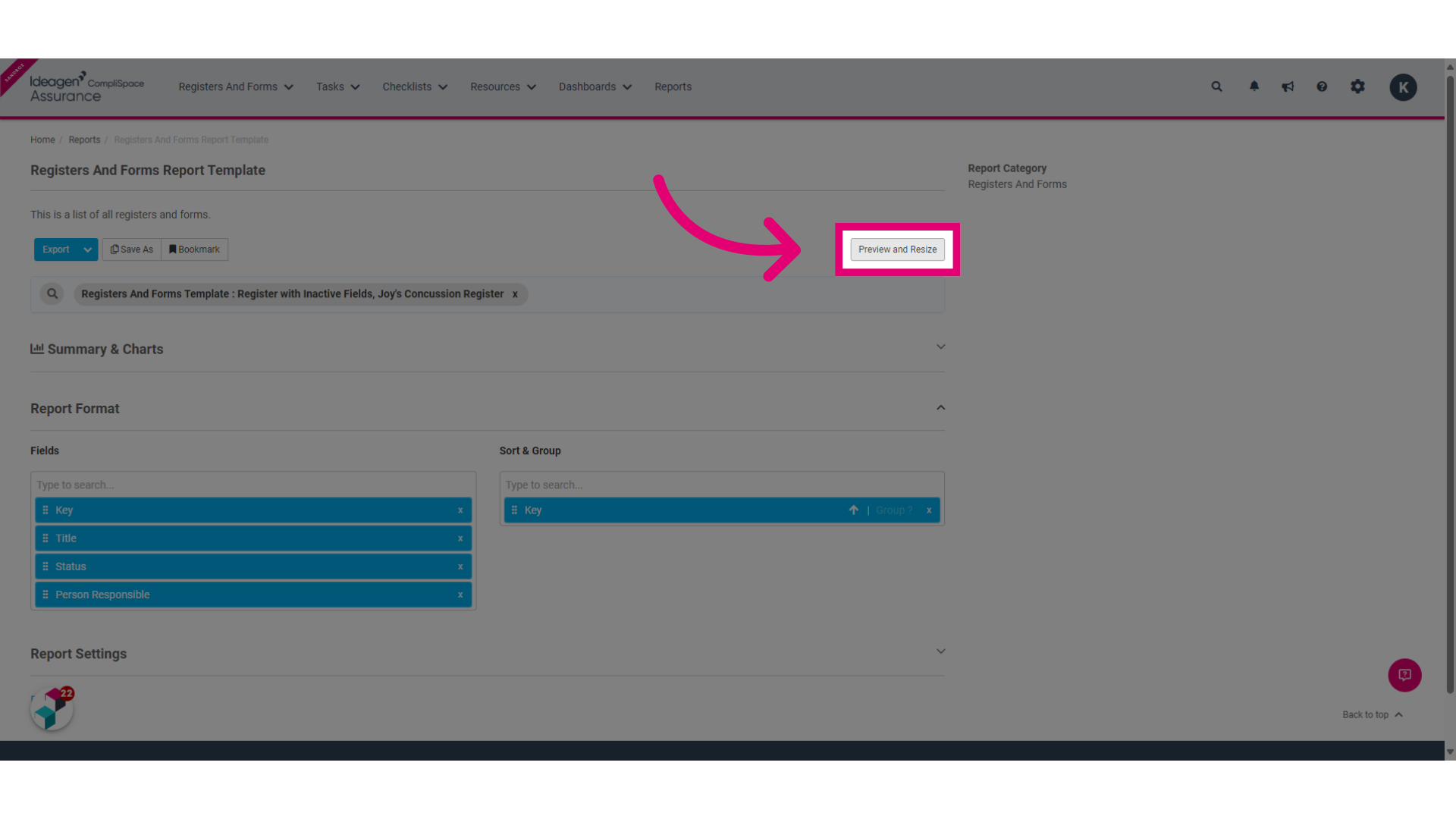
7. Type to search and select the deactivated fields you would like to report on.
8. Select Preview and Resize. This should reveal a report which includes data on the selected deactivated fields.
)