


New article
Recently updated
Setting your password for Ideagen Login

Who is this article for?
Users accessing Ideagen products for the first time via the Ideagen Login screen.
Email address registered with Ideagen is required.
This article guides you through setting your password securely the first time you go to login via the Ideagen Login screen.
Setting your password
To set your password:
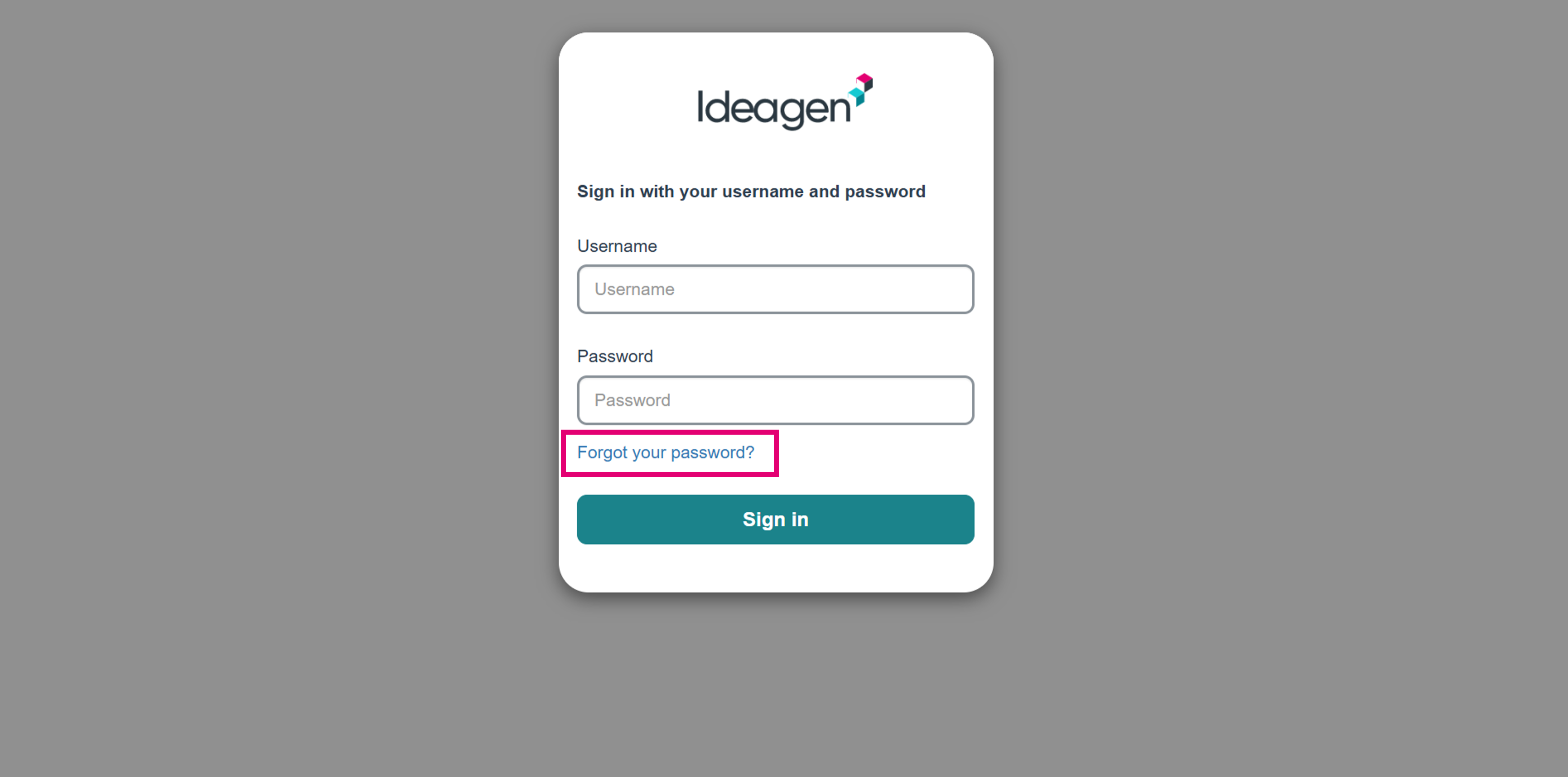
- Click the Forgot your password? link.
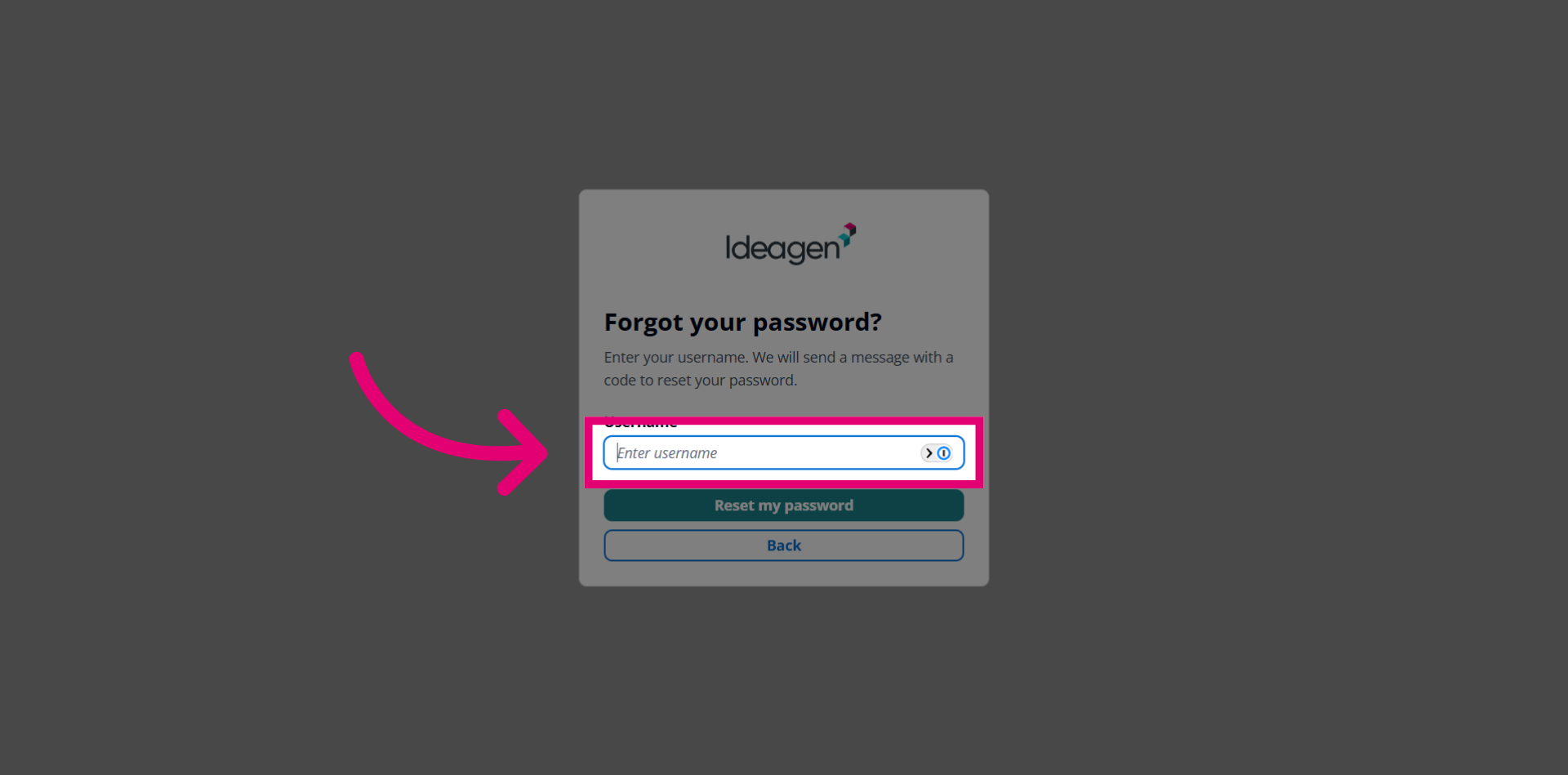
- Enter your Username.
This will be your email address and is most commonly all lowercase letters.
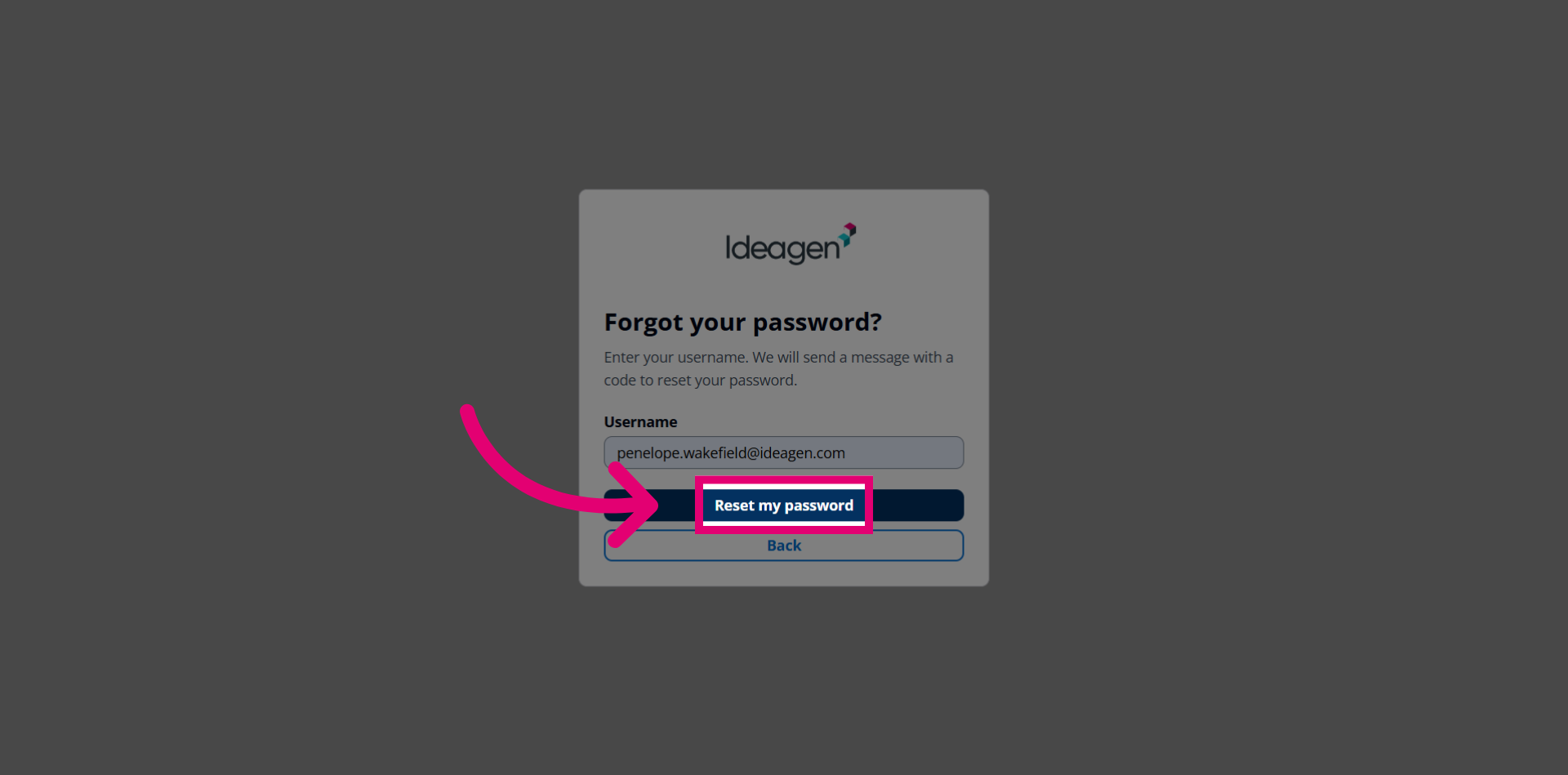
- Click the Reset my password button.
-
Check your inbox for an email with the subject Your verification code.
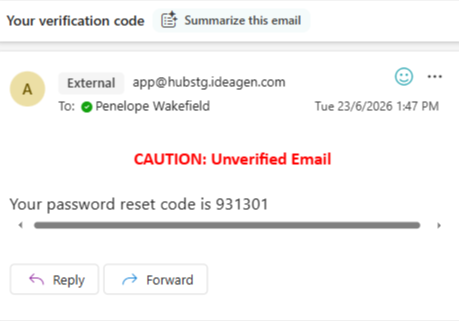
- Enter your password reset Code.
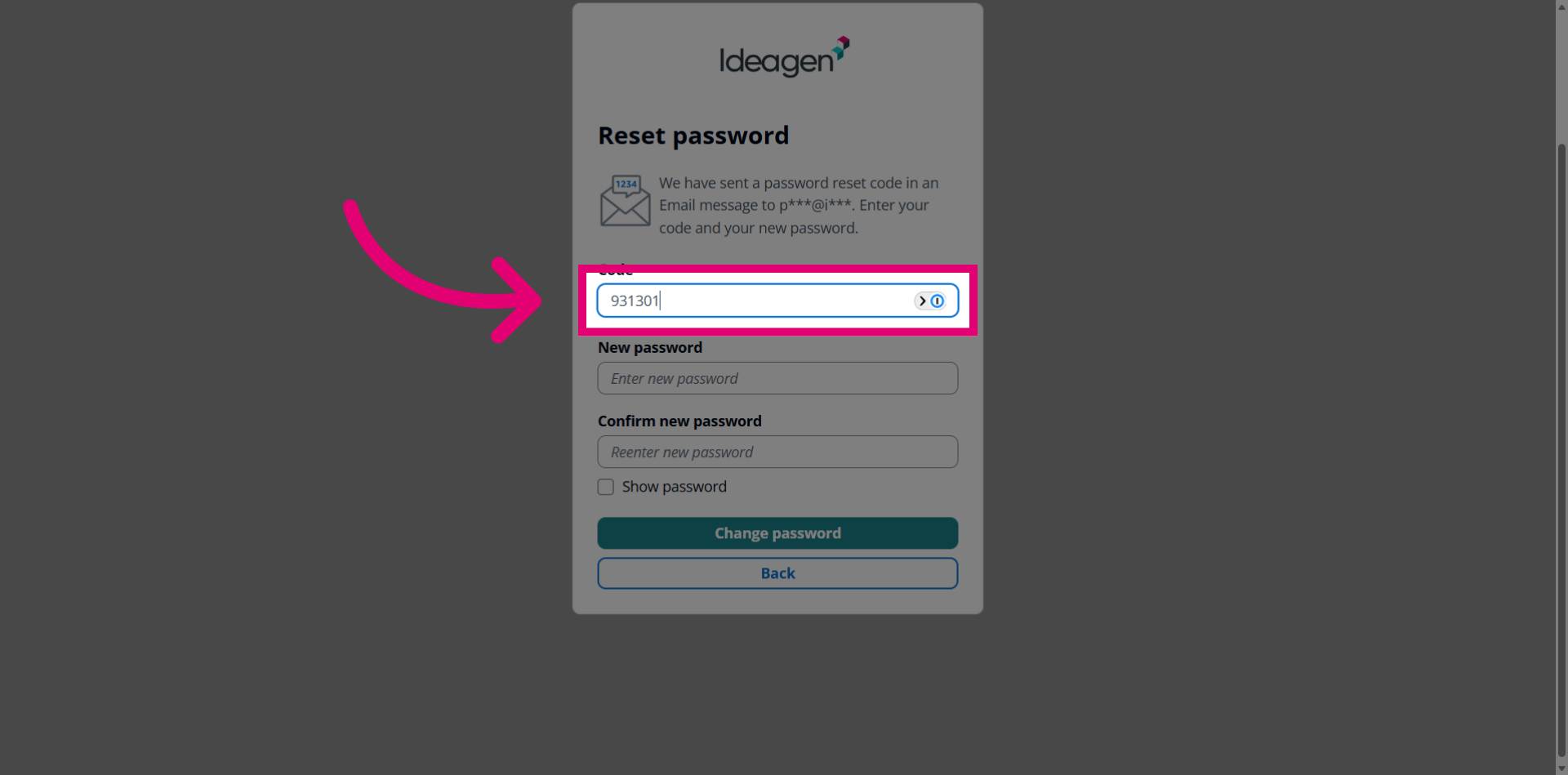
- Enter your New password.
Make sure the password meets the criteria listed under the field.
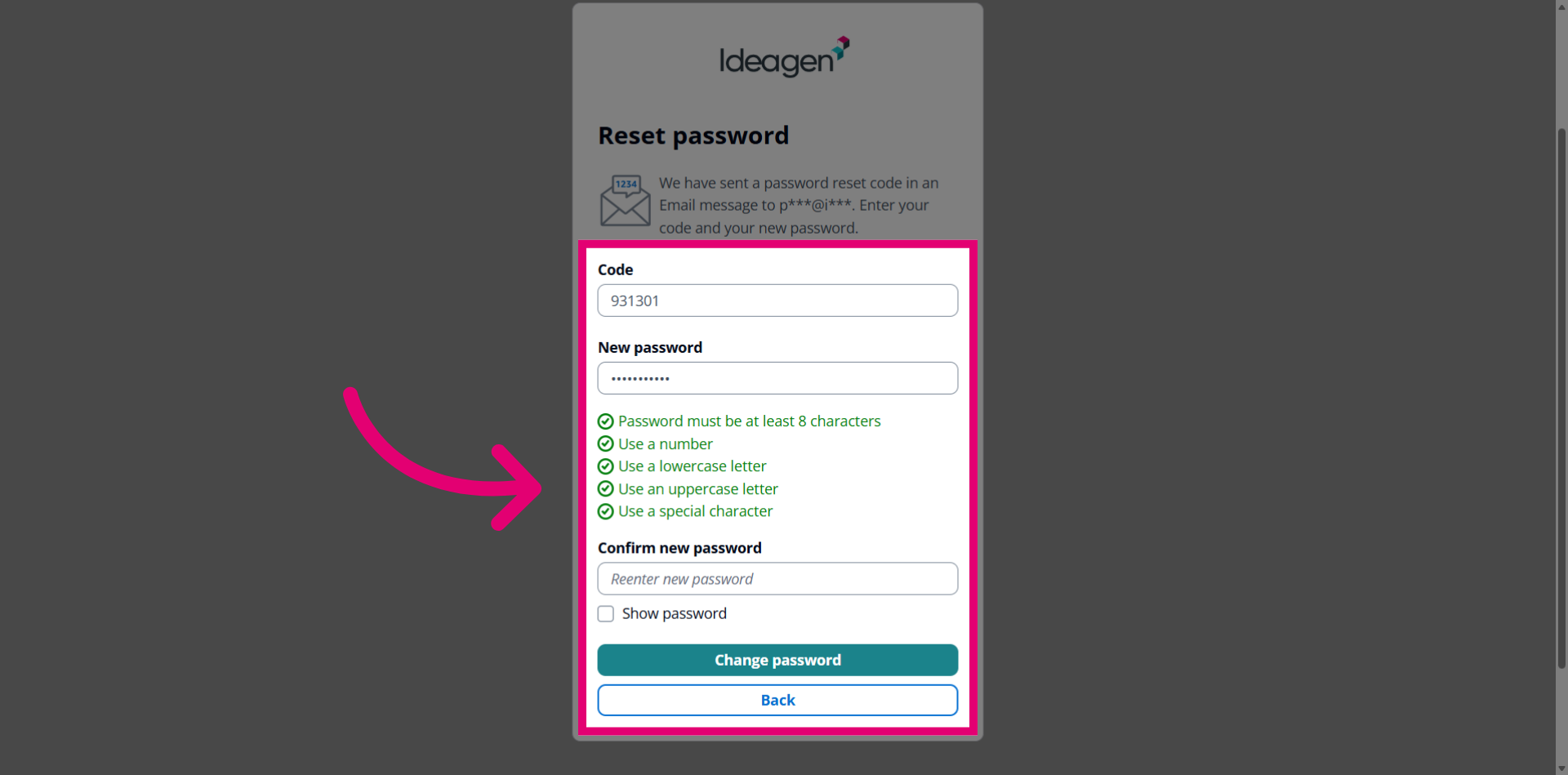
- Enter your new password again.

- Click the Change password button.
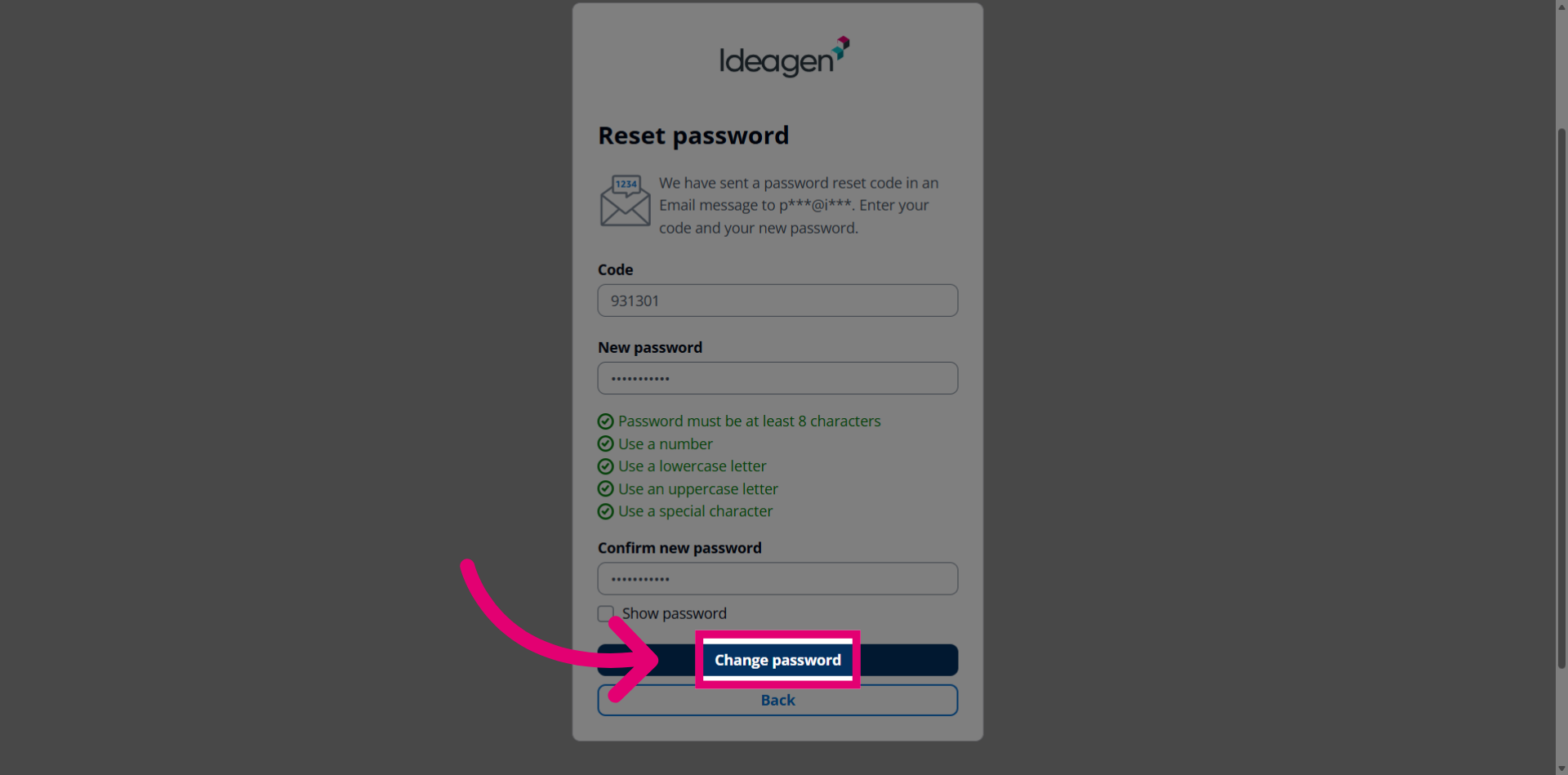
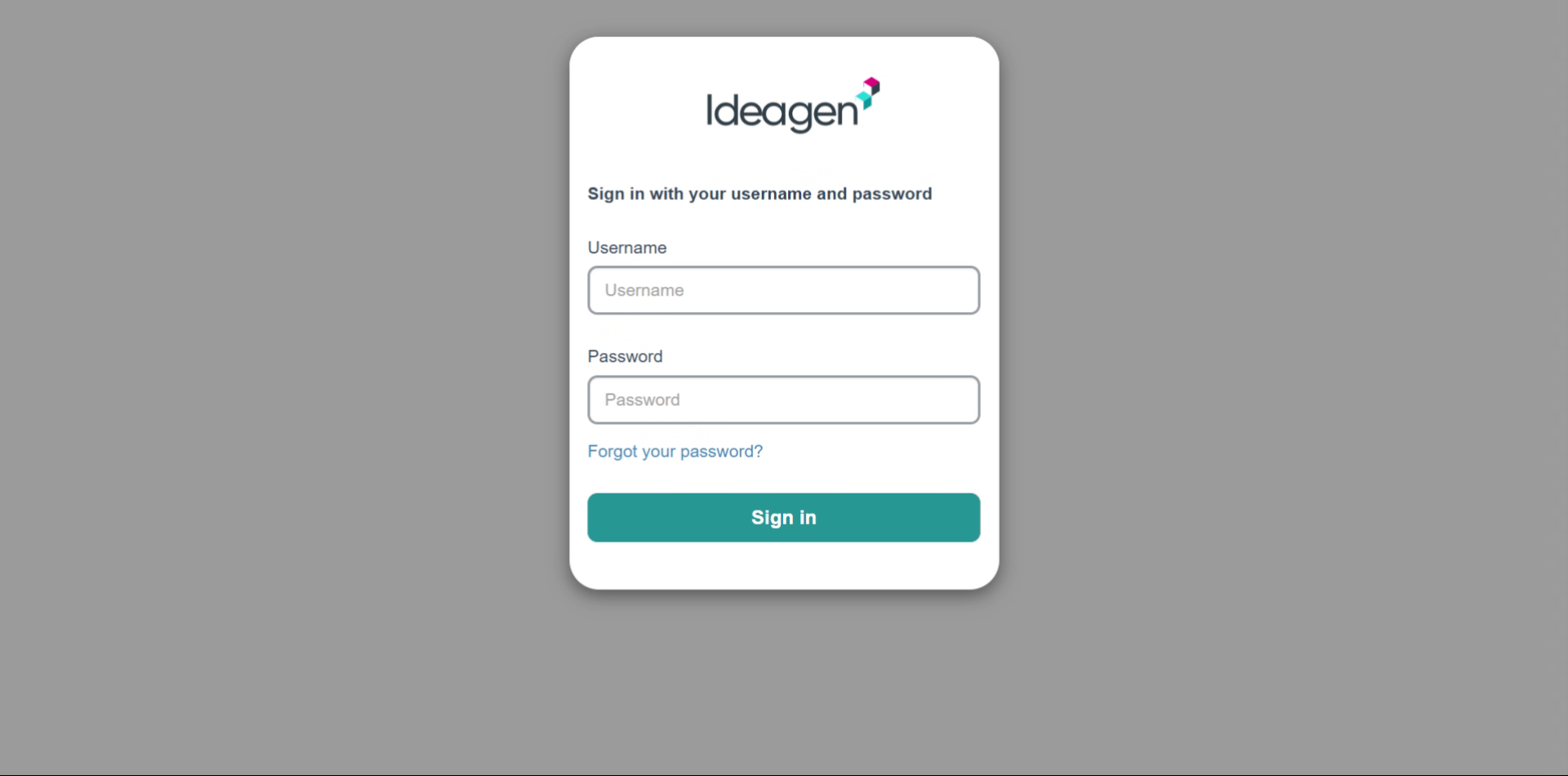
You will now be able to login using your email address and newly set password.
Troubleshooting errors
If you enter your email address and see the message "Could not reset password for the account, please contact support or try again":
- Try using all lower case.
- Try capitalising the first letter of any names used (if that fits).
If that doesn’t work, open a ticket with us. We'll be happy to help you set up your new login.