New article
Recently updated
How to Add a Signature Field to a Register or Form in Assurance

This guide provides step-by-step instructions on how to add a signature field to a register or form in Assurance.
Important Note: the signature field will need to be in your field library to be able to add the signature to a register or form. If the signature field has not yet been added to your field library, please visit this guide for step-by-step instructions on how to add a new field in Assurance. You may then return to this guide and follow these instructions to add the signature field to a register or form.
To Add a Signature Field to a Register or Form in Assurance
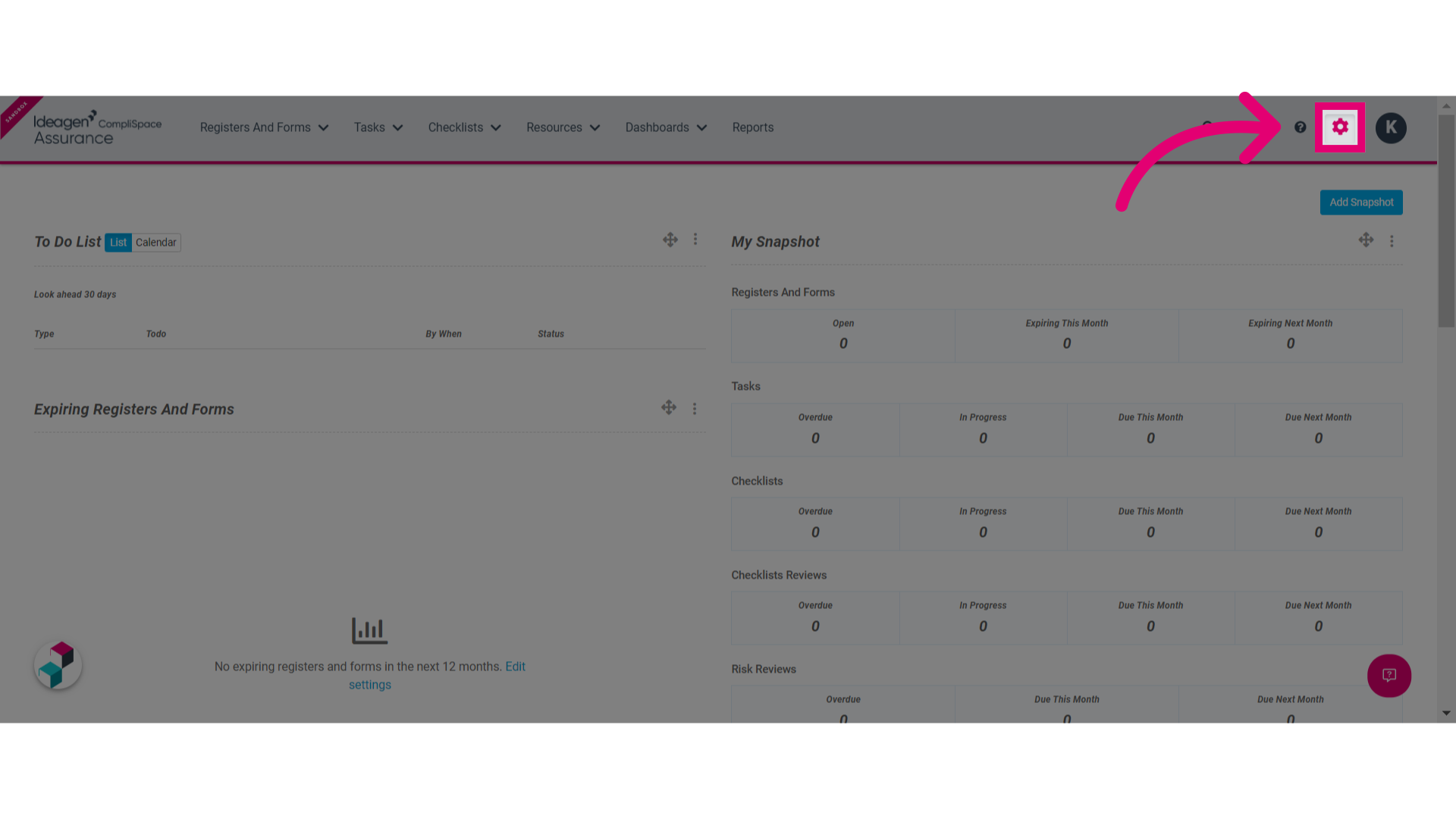
1. Click the Gear icon in the top menu
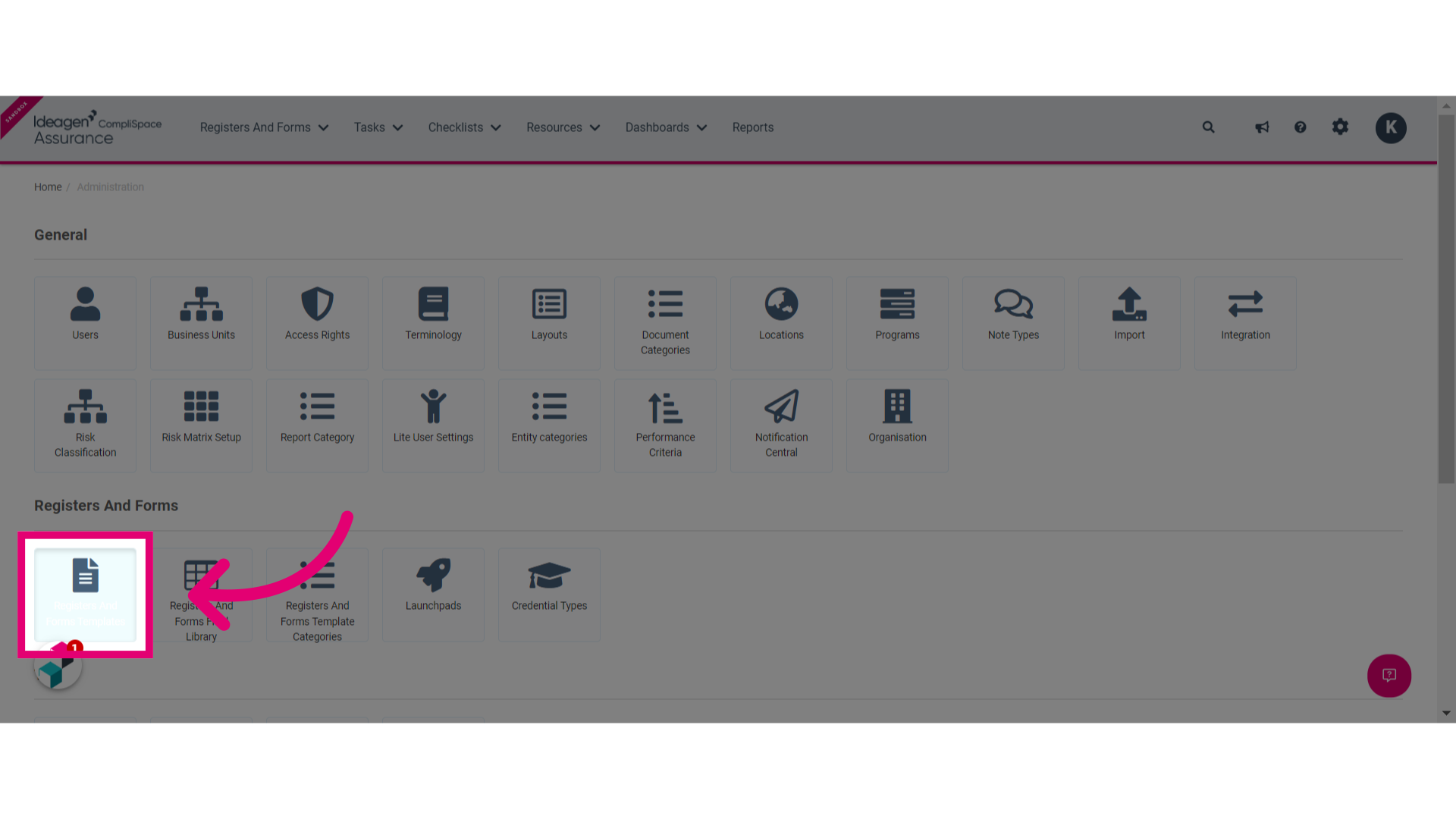
2. Click the Registers And Forms Templates button
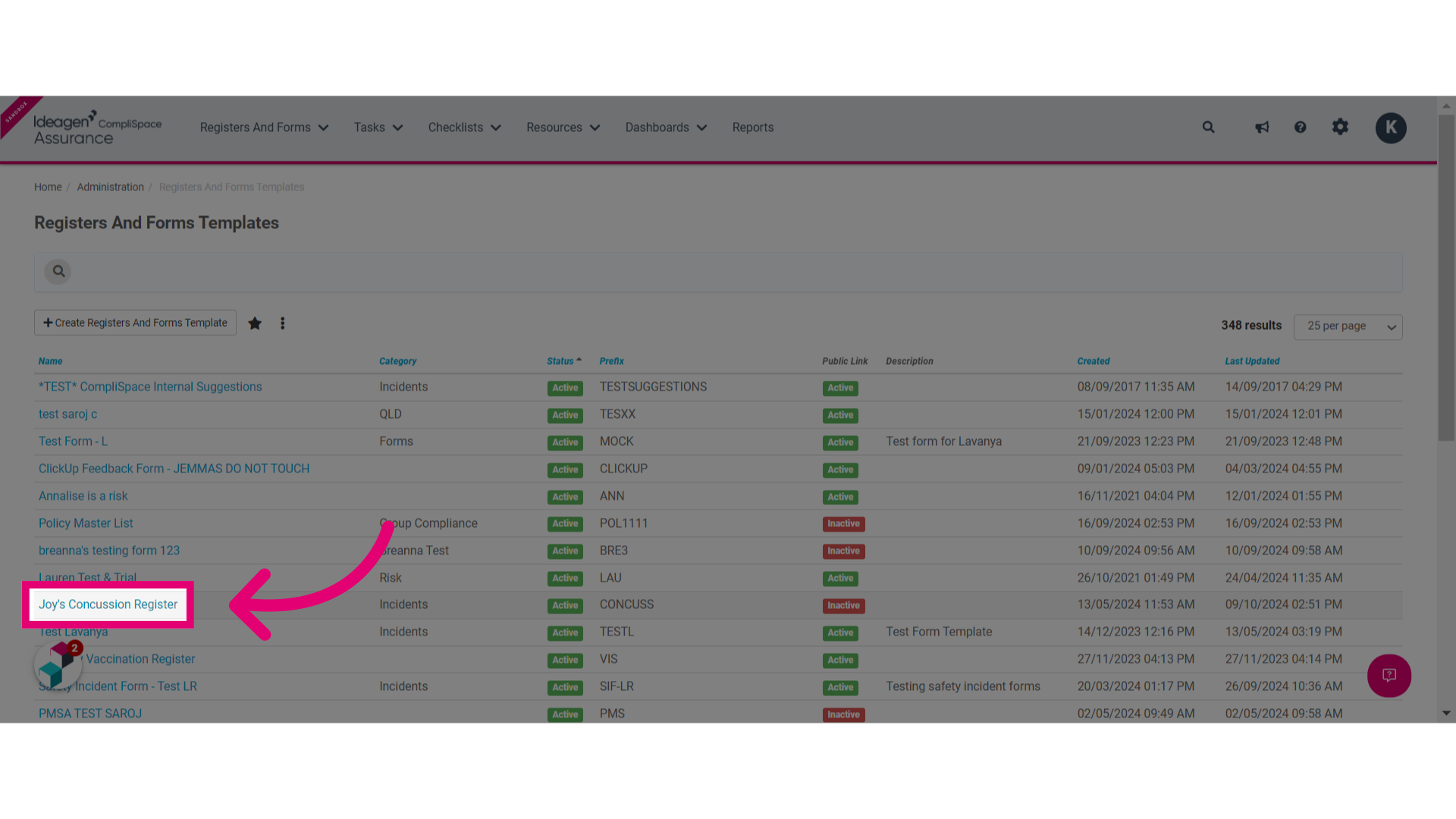
3. Select the name of the Register or Form that you would like to add the signature field to.
4. Click the Fields tab

5. Click the New Field button
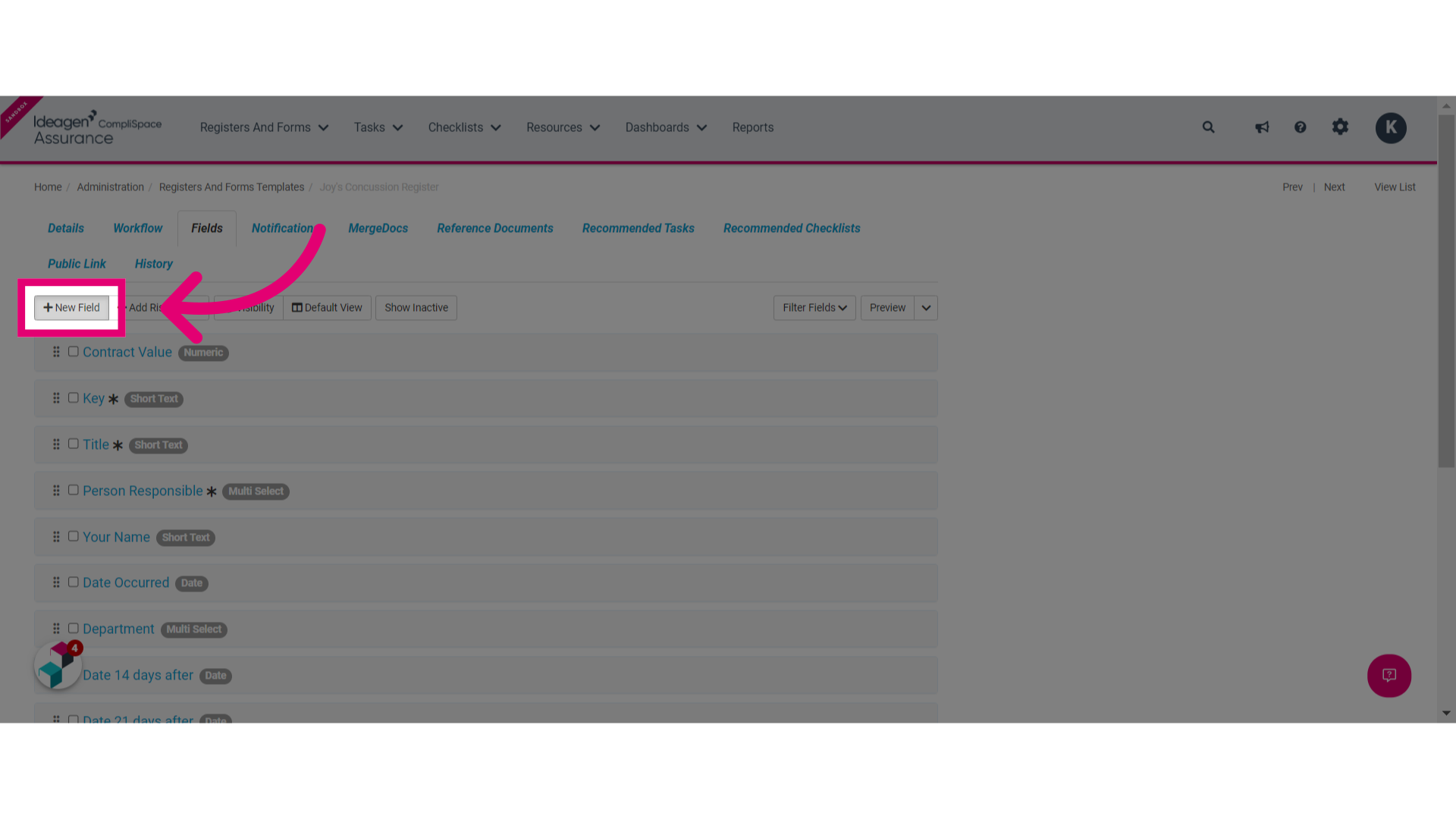
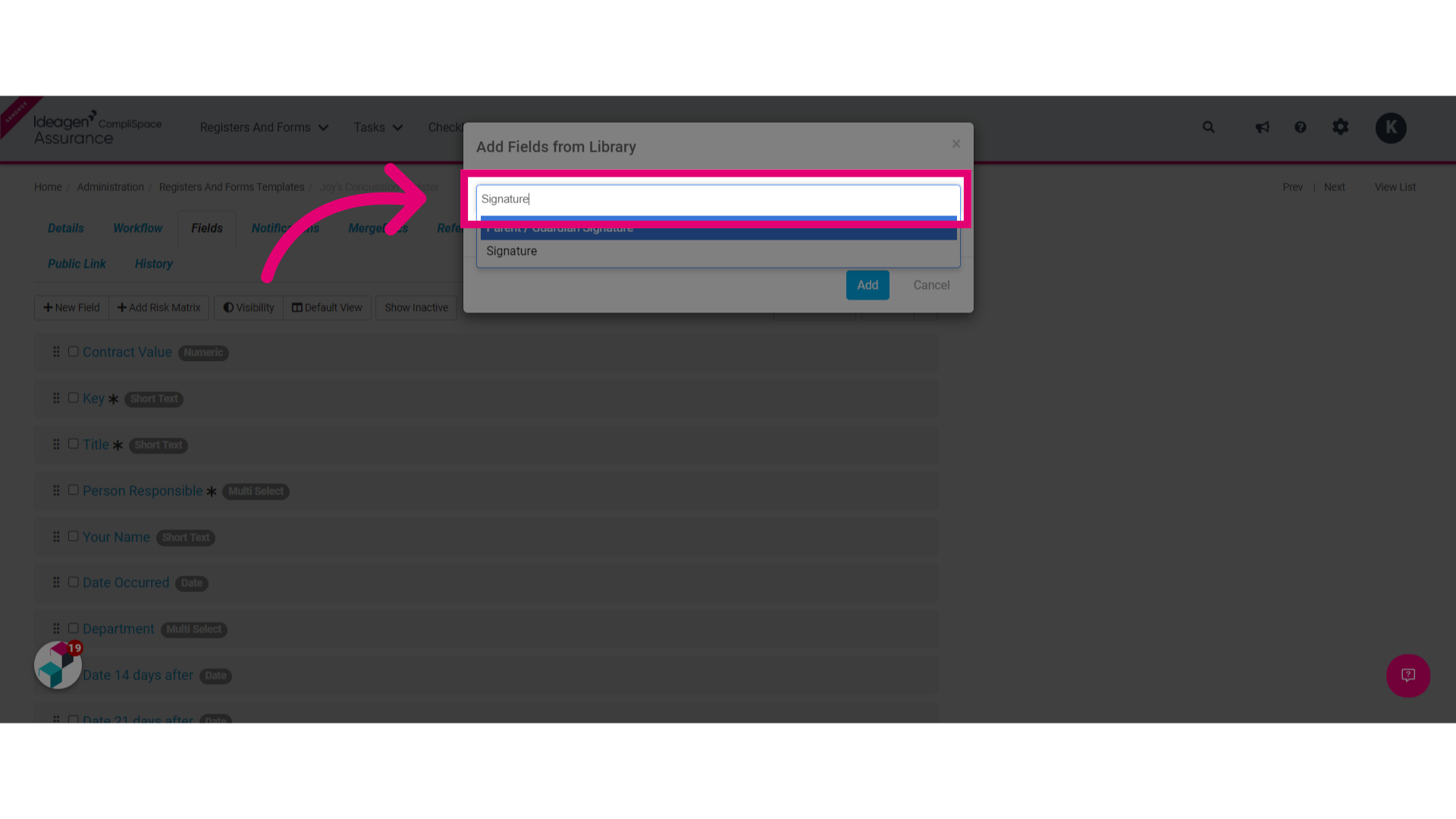
6. Type Signature in the space provided. This should reveal the Signature field option.
Important Note: this option will only be available if you have added the signature field to your field library prior. For step-by-step instructions on how to add a new field to your field library please visit this guide.
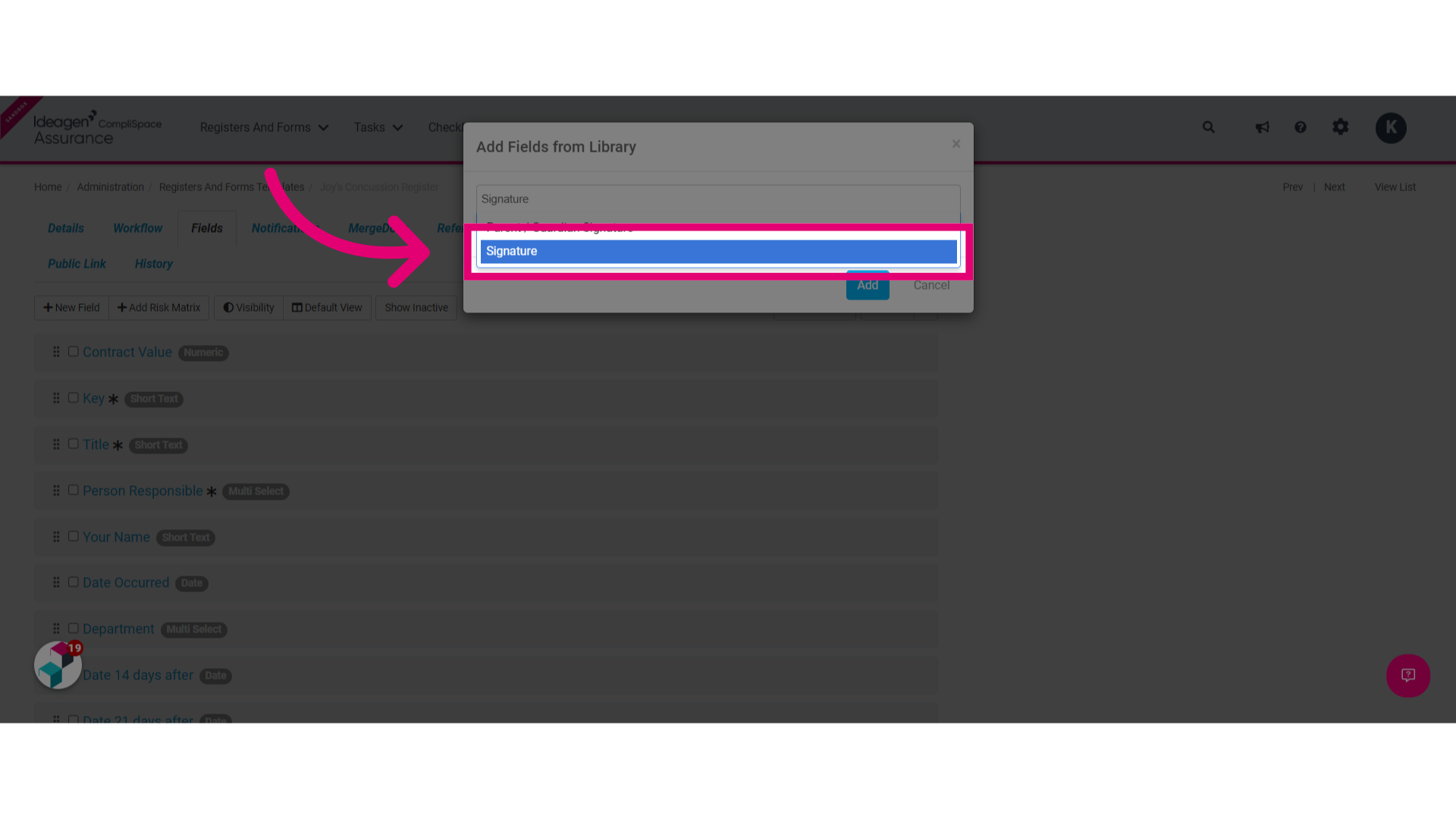
7. Click the Signature option in the dropdown menu that appears
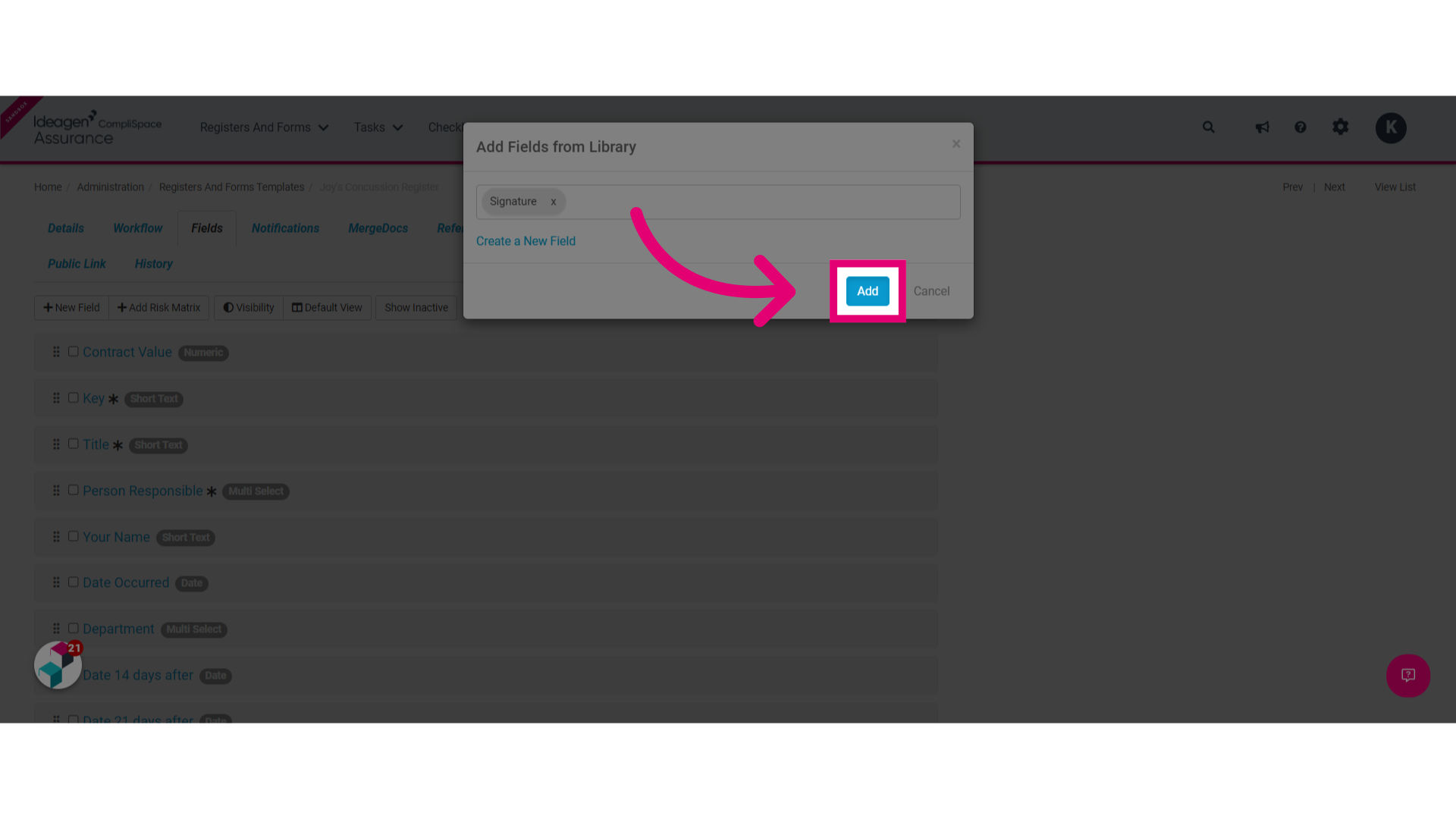
8. Click Add
To check that the signature field has been successfully added to the selected register or form.
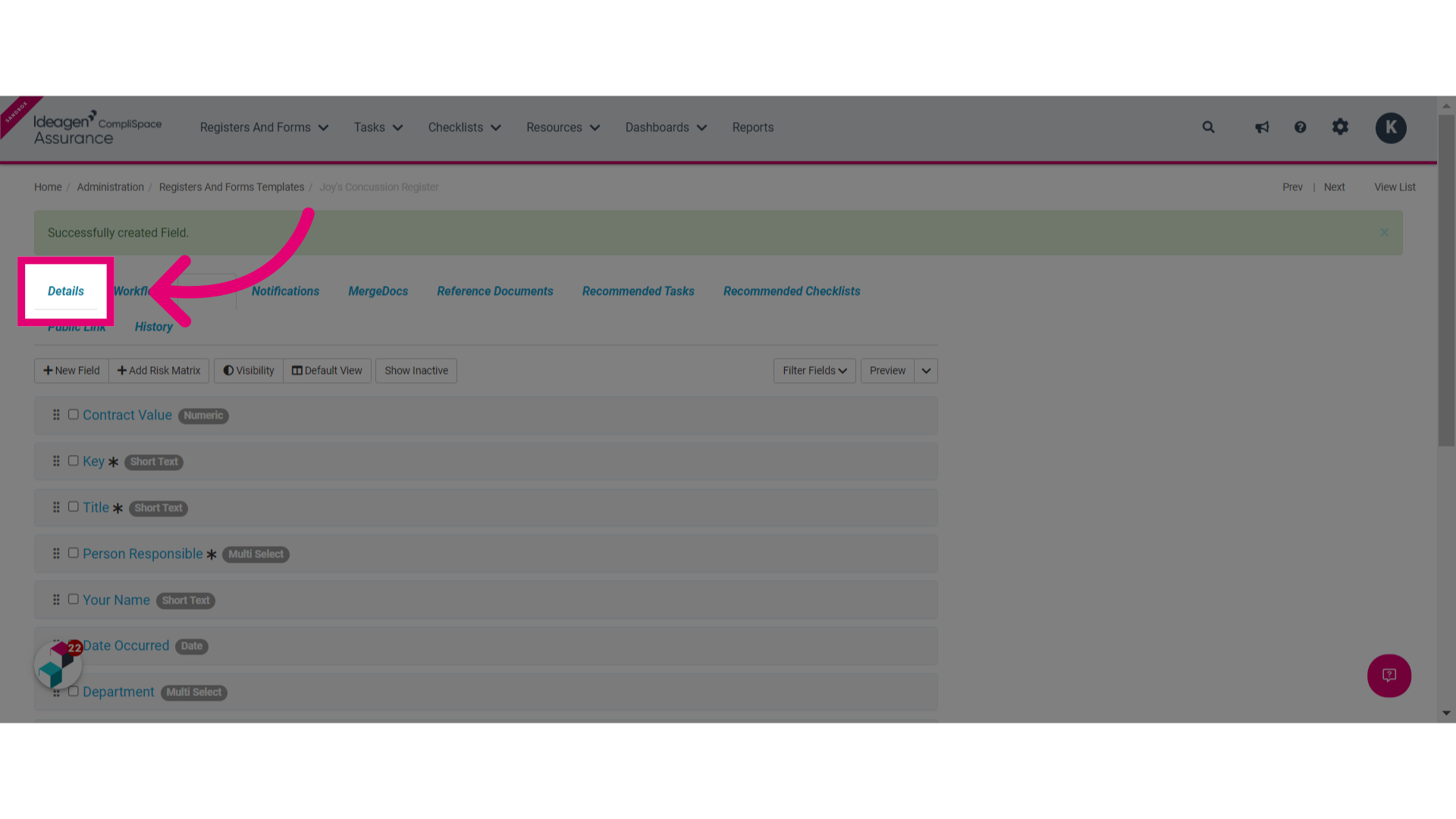
9. Click the Details tab
10. Click Go To Link

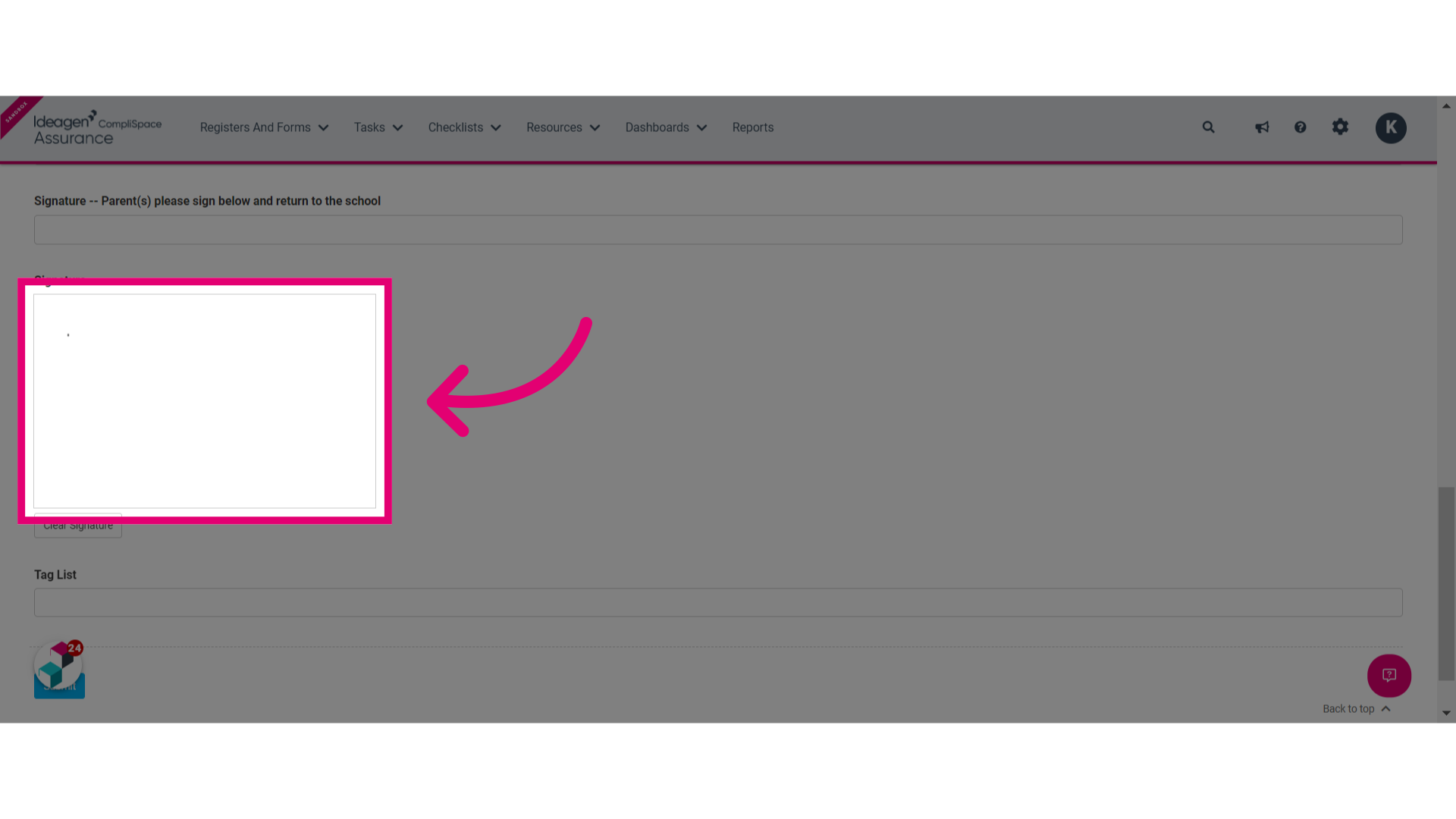
11. Scroll down and the signature field should be visible.